How to Create a Yearly Calendar in Google Sheets
Learn to create a reusable yearly calendar in Google Sheets with a year picker, 12-month grid, and formulas to auto-fill dates. This guide covers layout, holidays, printing, sharing, and tips for efficient planning in 2026.


Learn how to build a reusable yearly calendar in Google Sheets. This quick guide covers creating a year picker, a 12-month grid, and formulas to auto-fill dates and weekdays. Use this template for planning, scheduling, and reporting, and simply update the year to reuse it every year.
Why a Yearly Calendar in Google Sheets Helps
Creating a yearly calendar in Google Sheets streamlines planning for students, professionals, and small business owners. A well-structured calendar lets you map out events, holidays, deadlines, and milestones across all 12 months in a single workbook. With Google Sheets’ built-in date functions, you can automate the layout, adjust for leap years, and apply conditional formatting to highlight weekends or important dates. This approach keeps your schedule dynamic and easy to share with teammates or classmates, and it scales year after year without rebuilding from scratch.
Core Layout: Months, Weeks, and Dates
A practical yearly calendar organizes the year into a consistent grid. Many templates divide the sheet into 12 monthly blocks, each with a header row for the month name and a grid for days. Use a single data-driven year picker to drive all monthly sections. The layout should allow you to print one or more months clearly, or export the entire year as a PDF for distribution. Consistency in column widths, row heights, and date formatting improves readability and reduces confusion during busy periods.
Planning Year Picker and Year-Driven Layout
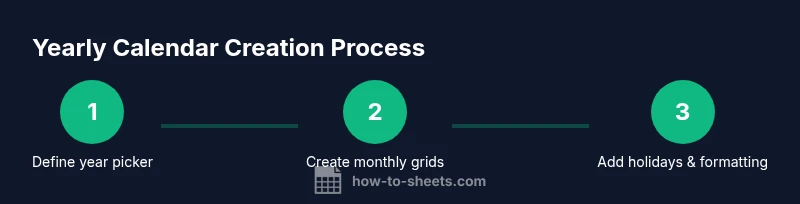
The year picker is a small but powerful control. Create a dedicated cell where you enter the year (e.g., 2026) or use a dropdown data validation list. Link all month calculations to this year cell so changing the year automatically rewrites the entire calendar. In practice, you’ll reference the year cell in formulas like DATE(year, month, 1) to generate the first day of each month, and then propagate the rest of the month’s dates from there.
Building Monthly Grids: Dates, Weekdays, and Labels
For each month, define a start date with =DATE(year, month, 1) and generate subsequent days with a simple sequence. Use the formula to determine the last day of the month (e.g., EOMONTH) and fill the calendar days accordingly. Add a weekday label with TEXT(date, "ddd"), so users can quickly scan the days of the week. Consistently label holidays and events in adjacent columns to keep the calendar clean and navigable.
Handling Holidays, Observances, and Special Dates
Holidays are easier to manage when stored in a separate range or named range. Create a list of holiday dates and names, then use a lookup to mark them on the calendar. This approach lets you toggle holiday visibility, apply special formatting, and tailor the calendar to local calendars or company schedules. If you’re sharing with others, consider adding a legend that explains color codes for weekends, holidays, and events.
Views, Printing, and Sharing
A yearly calendar should support multiple views: a compact year view for quick planning and a larger, print-friendly month-by-month view for reports. Implement print area settings, page breaks, and margins to ensure clean export to PDF. Share the Google Sheet with collaborators—use protected ranges for critical formulas and apply comments to capture change notes. A well-organized template reduces back-and-forth and keeps everyone aligned.
Automation Ideas: Updating Years with a Script
For more advanced users, consider small automation: a simple Apps Script that prompts for a year and refreshes all date cells or resets the layout for the next year. Automation can also flag overdue tasks, upcoming events, or milestone anniversaries. If scripting isn’t yet comfortable, start by using built-in functions and conditional formatting, then gradually layer in automation to scale your workflow.
Common Pitfalls and How to Avoid Them
One common pitfall is mixing static dates with dynamic year references, leading to mismatched days when the year changes. Always anchor calculations to the year picker cell and test with multiple years, including leap years. Another issue is inconsistent month widths, which can derail printing. Keep a uniform grid and test export to PDF to catch layout problems early. Finally, ensure holidays are properly updated; an outdated list can produce misleading calendars.
Authority Sources and Further Learning
To deepen your understanding, consult official references and reputable guides. For practical Google Sheets usage, Google’s support resources offer foundational guidance on date functions and formatting. For calendar planning and date conventions, Time and Date provides comprehensive calendar tools and examples. Finally, national standards and templates can be explored through government or education resources that discuss scheduling and time management concepts.
Tools & Materials
- Computer with internet access(Access Google Sheets via a web browser for real-time collaboration.)
- Google account(Needed to create and save the calendar template in Google Drive.)
- Holiday data (optional)(Prepare a list of holidays if you want automatic markers.)
- Printer or PDF export capability(Optional for producing physical copies or shareable PDFs.)
- Notes app or document(Use for planning event categories and color-coding conventions.)
Steps
Estimated time: 60-90 minutes
- 1
Create a new Google Sheet and define the calendar layout
Open a new Google Sheet, name it Yearly Calendar, and reserve sections for the year picker, monthly grids, and a holidays list. Decide on a consistent grid structure and header formatting to keep the sheet clean. This step sets the foundation for a scalable, year-ready calendar.
Tip: Use a distinct color for the year picker cell to make it obvious where to update the year. - 2
Add a year picker with data validation
In a dedicated cell (e.g., B2), enter a year like 2026. Apply Data validation to allow only four-digit numbers in the range 2020-2030. This ensures the calendar remains consistent when you adjust the year.
Tip: Set the dropdown to show an error message if a non-year value is entered. - 3
Create 12 month header rows
Across the top, create 12 sections with headers labeled January through December. Use uniform font and alignment to keep the calendar legible when printed. Each header anchors a monthly grid beneath it.
Tip: Include an automatic month label using the MONTH and YEAR functions for dynamic updates. - 4
Compute the first date of each month
For each month, write a formula like =DATE(year, month, 1) to determine the first day. Replace year with the year picker cell reference (e.g., $B$2). This anchors the entire month’s date sequence to the chosen year.
Tip: Copy the formula across the entire 12-month row to ensure consistency. - 5
Fill the days for each month
In the date cells, generate a sequence like =DATE(year, month, COLUMN(A1)) and handle month-end with EOMONTH. Validate that the day values stay within the current month to avoid spillover.
Tip: Use IF statements to prevent dates from appearing outside the target month. - 6
Display weekday names
In a helper row, use =TEXT(dateCell, "ddd") to show abbreviations like Mon, Tue, etc. Align these with the date grid for quick scanning and planning.
Tip: Format weekday cells with a consistent text alignment and size. - 7
Highlight weekends and holidays
Apply conditional formatting to weekend dates (Sat/Sun) and any holiday cells you’ve marked in the holidays list. This visual cue helps you spot non-working days at a glance.
Tip: Create rules that compare WEEKDAY(dateCell, 2) to 6 or 7 for weekends. - 8
Add a holidays list and link markers
Create a separate sheet or section with holiday dates and labels. Use a lookup to pull holiday names into the main calendar; apply a distinct color or icon for holidays.
Tip: Name the range (e.g., Holidays) for easier references throughout the calendar. - 9
Set up print-friendly layouts
Define print areas for yearly vs. monthly views. Adjust margins and page breaks so the calendar prints clearly on standard paper sizes.
Tip: Test print a month to check alignment before finalizing the template. - 10
Save as template and test year changes
Save the sheet as a reusable template and test by changing the year in the picker. Verify that all months update correctly and that holidays align with the new year.
Tip: Document any limitations so future users understand how to adapt the template.
FAQ
What is a yearly calendar in Google Sheets?
A yearly calendar in Google Sheets is a reusable template that lays out all 12 months in a single workbook. It typically includes a year picker, monthly grids, and optional holiday markers, allowing you to plan and track events across the entire year.
A yearly calendar in Google Sheets is a reusable template with 12 months, a year picker, and holidays to help you plan the entire year.
Can I customize holidays and events?
Yes. You can store holidays in a dedicated list and link them to the calendar using simple lookups. This keeps markers consistent and makes it easy to update year-to-year.
You can customize holidays by keeping them in a dedicated list and linking them with lookups.
How do I update the year across the calendar?
Change the year in the year picker cell. All monthly date calculations reference this cell, so the entire calendar updates automatically, including month labels and day sequences.
Change the year in the year picker and the calendar updates automatically.
Is it possible to print only a specific month?
Yes. Set the printer's print area to the chosen month and adjust page breaks to ensure a clean output. You can print one month or multiple months as needed.
Yes, you can print a single month by setting the print area and page breaks.
How do I share the calendar with others?
Share the Google Sheet with collaborators and set appropriate edit or view permissions. For sensitive formulas, use protected ranges to prevent accidental edits.
Share the sheet with others and protect critical formulas if needed.
What are common mistakes to avoid?
Avoid hard-coding dates, ensure year-based calculations reference the year picker, and maintain consistent grid sizing to prevent misalignment when updating or printing.
Avoid hard-coding dates and keep a consistent grid to prevent misalignment.
Watch Video
The Essentials
- Define a single year picker to drive all months.
- Use date and text functions to auto-fill days and weekdays.
- Keep holidays in a separate range for easy updates.
- Test printing and year changes to ensure reliability.
- Save as a template for ongoing yearly use.