Google Sheets 2026 Planner: A Practical Yearly Template
Create a practical google sheets 2026 planner with yearly, monthly, and weekly views, plus task tracking and budgeting, all in Google Sheets.


Build a reusable Google Sheets 2026 planner that covers a yearly calendar, monthly templates, weekly views, and integrated task and budget tracking. You’ll set up a central dashboard, auto-fill dates for 2026, create reusable templates, and tailor layouts for students, professionals, or small businesses. You’ll need a Google account and basic Sheets skills.
What is a google sheets 2026 planner and why you should use one
In today’s flexible work and study environments, a google sheets 2026 planner provides a flexible, shareable way to manage time, tasks, and budgets across the year. The keyword google sheets 2026 planner signals a practical, cloud-based approach to year-long planning that scales from personal organizers to team roadmaps. For students, a 2026 planner in Sheets helps keep syllabi and deadlines aligned; for professionals, it coordinates project milestones with weekly tasks; for small businesses, it tracks cash flow and operational tasks while staying accessible to non-technical teammates. This guide shows how to design a planner that’s easy to maintain, adaptable, and ready to share with collaborators. You’ll learn how to structure pages, apply consistent formatting, and reuse templates to save time.
Core components of a 2026 planner in Sheets
A solid Google Sheets planner combines several core components that work together to keep you on track throughout the year. Start with a yearly calendar that lays out every day in 2026. Add monthly templates that summarize key events, deadlines, and goals. Include weekly views to break down tasks into manageable chunks. Integrate a simple task tracker, so assignments aren’t lost in the shuffle, and attach a lightweight budgeting section to monitor expenses and income. Finally, reserve space for goals, notes, and quick links to relevant sheets. When designed cohesively, these elements reduce context switching and improve focus. In 2026, a well-built planner in Sheets also benefits from cloud sharing, so teammates can comment and contribute where needed.
Designing a scalable structure for 2026
Planning for 2026 requires a scalable structure that remains agile as needs evolve. Use a consistent naming convention for sheets (Yearly, 2026-Weekly, 2026-Jan, 2026-Feb, Budget-2026, Tasks-2026) and establish named ranges for frequently used data (Dates, Holidays, FeeSchedule). Implement a color palette with a small number of accent colors to differentiate sections (calendar = blue, tasks = green, budget = teal). Create a simple dashboard sheet that pulls key metrics from other sheets through stable references (SUMIFs, VLOOKUP/XLOOKUP). Finally, document the workflow within a hidden Notes sheet so new users can navigate without guessing. This approach keeps the planner maintainable across quarters and new users.
Structuring the yearly calendar and month templates
The yearly calendar should provide a full-year grid that’s easy to navigate. A dynamic date grid enables auto-filling across months, while a separate Month Template sheet holds repeated structures for each month. Link each month to a central summary that aggregates upcoming tasks, events, and budget activity. Use data validation for date inputs to prevent formatting errors, and protect headers to keep the structure intact. Conditional formatting highlights overdue tasks and upcoming milestones for quick visual scanning. By making the monthly templates modular, you enable copy-paste simplicity when rolling over to the next year, and you minimize manual updates to dates and events.
Practical templates and formulas for 2026 planners
A practical 2026 planner in Sheets relies on a few reliable formulas and templates. Use DATE(year, month, day) to construct dynamic dates for each cell, and EOMONTH to find the last day of a month for calendar grids. INDEX/MATCH or XLOOKUP (where available) links between the calendar, monthly sheets, and the budget and tasks sections. For budgets, use SUMIF to aggregate expenses by category and a simple check that totals equal planned amounts. For tasks, a drop-down status (Not Started, In Progress, Completed) via data validation helps you track progress consistently. Save templates as separate files or make copies within the same file to preserve a clean master sheet.
Step-by-step: creating a usable yearly calendar and month pages
Start by creating a Yearly sheet with a full-year grid, listing months along the top and weeks along the side. Add a hidden helper column that converts each date to the corresponding month and week index. Create 12 Month sheets that pull from the Yearly sheet: use named ranges like MonthName and MonthDays to populate daily cells. Add a Tasks sheet and a Budget sheet, each with clear headers and validation rules. Link totals back to the Yearly dashboard using simple SUM and COUNTIF formulas. Finally, test with sample data to ensure dates roll over correctly and that moving a date updates all linked views.
Automations and templates to save time in 2026
Automation reduces repetitive work and minimizes human error. Build templates that you can copy for new months or new planners next year. Use custom menus or simple scripts to create monthly copies of your Month template and automatically update the year in headers. Set up conditional formatting to flag overdue tasks and high-priority items, and use filters to view tasks by status or by month. For collaboration, enable sharing with viewer/commenter roles and pin critical sheets to the dashboard for quick access. Finally, create a lightweight version of the planner for mobile viewing by adjusting column widths and wrapping text where needed.
Templates for students, professionals, and small businesses
The strength of a Google Sheets 2026 planner is its versatility. For students, include a class timetable, assignment tracker, and study goals. For professionals, add project milestones, meeting notes, and a time-blocking calendar. For small businesses, integrate a basic cash flow tracker, supplier deadlines, and staff schedules. Each template should share a core structure but offer tailored sheets or sections. Use copy-safe templates so users can duplicate a page without breaking formulas. Encourage users to save their own version as the master sheet for the classroom or team.
Tips for customization and performance
Customization is powerful, but performance matters. Start with a clean base, then progressively add sheets and formulas. Use named ranges for readability, avoid volatile formulas (INDIRECT, OFFSET) when possible, and prefer simple SUMIF/SUMIFS over array formulas in large ranges. Optimize by locking static headers, hiding rarely edited sheets, and using data validation to reduce entry errors. Regularly review formulas for references that may break if sheets are renamed. Finally, document changes in a changelog to help future updates stay aligned with user needs.
Accessibility, sharing, and collaboration considerations
A planner that’s easy to share is more valuable. Use the built-in sharing controls to grant appropriate access levels, enable comments on cells that require input, and protect sensitive sheets with permission rules. Make sure there’s a readable color scheme and alternative text for important charts and visuals. Consider exporting a PDF version of the monthly view for offline access. Provide a short user guide within a separate sheet to help new collaborators learn the layout quickly. Regularly solicit feedback to refine the templates and ensure they meet user needs.
Tools & Materials
- Google account with access to Google Sheets(Needed to create and share the planner)
- Keyboard and mouse or trackpad(For efficient data entry and navigation)
- Stable internet connection(Essential for live collaboration)
- Starter templates or a blank Sheets file(Speeds up the initial setup)
- Reference data (calendar holidays, budgets, or class schedules)(Optional but helpful for accuracy)
Steps
Estimated time: 90-150 minutes
- 1
Plan planner structure
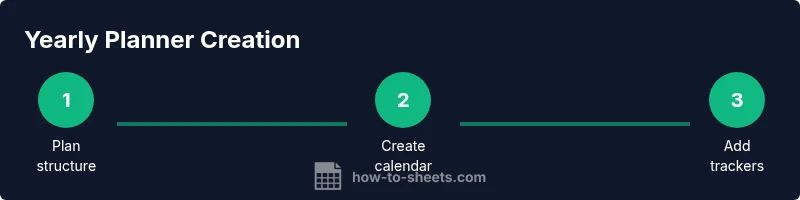
Outline the core components: Yearly calendar, 12 monthly sheets, weekly view, tasks, and budget. Decide on a color scheme and how users will navigate between views. Document your plan so future editors can follow the logic.
Tip: Draft a one-page wireframe before building formulas to avoid rework. - 2
Create a dynamic yearly calendar
Set up a Yearly sheet that displays all days of 2026. Use a date range and helper columns to derive month and week numbers. This becomes the master reference for all other views.
Tip: Use a named range like YearDays for easy reuse in formulas. - 3
Build 12 monthly templates linked to the year
Duplicate a Month template for each month and link day cells to the Yearly calendar. Create a summary page that rolls up key events and tasks per month.
Tip: Keep the month templates modular to simplify future year updates. - 4
Add a weekly view and task tracker
Create a Week sheet that pulls dates from the monthly templates. Add a Task table with status, priority, and due dates. Use data validation for status dropdowns.
Tip: Color-code tasks by status for quick scanning. - 5
Incorporate a lightweight budget tracker
Add a Budget sheet with income, expenses, and totals. Use SUMIF or SUMIFS to aggregate by category and month. Validate inputs to avoid mis-entries.
Tip: Link budget totals back to the Yearly dashboard for at-a-glance totals. - 6
Add basic automation and validation
Implement simple formulas to auto-fill dates, set reminders, and update summary metrics. Use data validation to constrain date fields and statuses.
Tip: Avoid volatile functions on large ranges to keep performance smooth. - 7
Test, share, and iterate
Enter sample data to verify totals and links. Share with teammates for feedback and adjust permissions. Create a short user guide within the file.
Tip: Test with real-world scenarios before final deployment. - 8
Publish and maintain the template
Save the planner as a master template and distribute copies as needed. Maintain a changelog and plan periodic updates for future years.
Tip: Provide an update path for users to migrate to the next year.
FAQ
What is a Google Sheets planner and why use it in 2026?
A Google Sheets planner is a structured template that combines a yearly calendar, monthly templates, weekly views, tasks, and budgeting. In 2026, its cloud-based nature makes collaboration and updates effortless for students, professionals, and small businesses.
A Google Sheets planner is a year-long planning template that you can share online. It helps students, professionals, and small businesses stay coordinated and updated.
Do I need advanced formulas to build it?
You can start with basic date functions, SUMIF, and VLOOKUP/XLOOKUP for linking views. As you grow more comfortable, you can add more automation, but many planners work well with core functions only.
You can build a solid planner using basic date functions and simple lookups. Add advanced automation later if needed.
Can I customize the planner for different roles?
Yes. The same core structure supports student, professional, and small business templates. Create role-specific sheets (e.g., Classes, Projects, or Budgets) while keeping the Yearly dashboard consistent.
Absolutely. You can tailor sheets for students, professionals, or small teams while keeping a shared Yearly view.
Is there a ready-made template I can start from?
There are starter templates you can duplicate and adapt. Using a starter template saves time and ensures a consistent base structure for 2026 planning.
Yes, you can start from a ready-made template and customize it to your needs.
How do I share and protect the planner?
Use Google Sheets sharing settings to assign view or edit permissions. Protect important sheets or ranges to prevent accidental edits, and provide a simple user guide for collaborators.
Share the planner with the right permissions and protect critical parts while leaving space for collaboration.
Watch Video
The Essentials
- Plan your layout before building formulas
- Reuse templates to ensure consistency
- Leverage simple automation for dates and summaries
- Share and customize securely
- Test with real data before deploying