Google Sheets App vs Web: A Practical Comparison
Compare Google Sheets app vs web: offline access, collaboration, mobile UX, and feature parity. A practical guide for students, professionals, and small businesses.


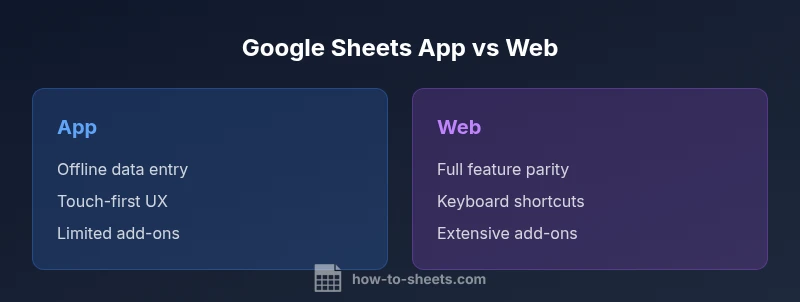
Both the Google Sheets app and the web version deliver the core spreadsheet experience, but they diverge in offline access, mobile usability, and extension support. For on-the-go data capture, the app often performs better, while the web version remains the strongest option for complex editing and full feature parity on desktop. How To Sheets analysis suggests choosing based on device and task.
Core differences in approach
The decision between the Google Sheets app and the web version hinges on how you work, where you work, and which tasks you perform most often. Both interfaces share the same underlying spreadsheet engine, but the mobile app prioritizes on-the-go data capture, offline readiness, and touch-friendly controls, whereas the web version emphasizes a larger canvas, keyboard-centric workflows, and deeper integration with the broader Google Workspace ecosystem. For students, professionals, and small business owners trying to choose between the two, the question often comes down to task type and environment. Map your typical day: field data entry, quick updates on the move, or extensive data modeling at a desk. According to How To Sheets, aligning your tool choice with your primary workflow reduces friction and prevents feature friction from slowing you down. In this guide, we unpack the key differences, highlight trade-offs, and offer actionable guidelines to optimize your Google Sheets usage across devices. google sheets app vs web
Accessibility and offline capabilities
Accessibility and offline capabilities are the clearest differentiators between the app and the web. The Google Sheets mobile app is designed for quick entry and review even when connectivity is spotty, with on-device caching and automatic sync when the network returns. The web version, by contrast, expects a network connection and leverages the full browser and Workspace integration. You can still access sheets offline in the web environment using Chrome's offline mode, but interactivity may be limited and syncing can be delayed when connectivity is unstable. For users who travel or work in areas with intermittent connectivity, the app's offline capabilities can dramatically reduce downtime, while the web remains dependable when online for heavy analysis and long-running edits. How To Sheets notes that offline mode is a key differentiator for mobile users, and that enabling offline access in the web interface lets you continue work on recently opened files with fewer interruptions.
Collaboration and sharing workflows
Real-time collaboration is a core strength of Google Sheets on both platforms, but the experience can vary with context. In the web, multiple users can edit cells, insert comments, and see presence indicators with minimal latency, thanks to browser optimization and Workspace integration. The mobile app supports collaborative editing as well, yet the touch interface and smaller screen can influence navigation and the ease of locating advanced features like conditional formatting or array formulas. Sharing settings are synchronized across devices, but users should be mindful of permissions at the file level to prevent accidental access changes. For teams that rely on notifications, comments, and a clear audit trail, the web version generally provides the most seamless experience, while the app provides convenient, on-the-go collaboration when you’re away from a desk. According to How To Sheets, consistent permissions management across platforms is essential for avoiding confusion in shared workbooks.
Data entry and mobile UX considerations
Data entry on mobile requires different UX patterns than keyboards and wide screens. The app prioritizes quick taps, simple data forms, and gestures like swipe-to-edit, which can speed up field data capture and surveys. Conversely, the web interface emphasizes keyboard shortcuts, multi-cell selection, and drag-and-drop operations that speed up large-scale edits. Users should tailor their workflow accordingly: use the app for rapid data capture in the field, and switch to the web when you need precise formatting, complex formulas, or extensive data analysis. The mobile app’s numeric keypad and text input respond differently across devices, so it’s worth testing data-heavy tasks on both platforms to understand latency and accuracy. For teams balancing mobile and desktop work, this section highlights how to structure sheets so that critical data remains accessible and correctly formatted on every device.
Performance, reliability, and offline sync
Performance characteristics differ across platforms due to rendering engines, cache strategies, and network behavior. The app tends to respond quickly to touch interactions and can cache recently used ranges for offline use, but complex formulas and large datasets can still tax mobile hardware. The web version benefits from a robust browser runtime, better accessibility to large media and charts, and more predictable keyboard-driven editing. Sync reliability hinges on network stability and Google Drive integration, with changes propagating rapidly in most cases. Users should avoid simultaneous long-running edits on multiple devices to minimize conflicts, and periodically verify that offline changes have synced when connectivity returns. How To Sheets advises testing critical workflows offline on both platforms to understand synchronization timing and to plan contingencies for intermittent network access.
Security, permissions, and data governance
Security controls travel with your Google account, but the interface you use affects how you manage sharing and data governance. The web version often provides more granular control over file-level permissions, domain restrictions, and activity history through a fuller admin console. The mobile app mirrors these settings when online, yet some UI paths to modify permissions may be less obvious on a small screen. Regardless of platform, always enable two-factor authentication, review shared access lists regularly, and leverage Google Workspace’s data loss prevention features for sensitive data. If you manage corporate data, prefer the web for governance reviews and audit reporting, and reserve mobile use for quick data capture with appropriate security measures. How To Sheets notes that consistent policy application across devices reduces risk and improves compliance in mixed-device workflows.
Pricing, platform expectations, and ecosystem
Both the app and web experience are underpinned by the same Google account ecosystem; there are no separate per-device fees, and most features are available to anyone with a Google account or Workspace license. The web version benefits from deep integration with add-ons, Apps Script, and broader Workspace tools, which can expand what you can accomplish in a single workbook. The mobile app, meanwhile, emphasizes portability and offline use with a streamlined surface. When assessing value, consider how often you rely on advanced add-ons, automation, or large datasets. If your daily work involves complex scripting or a need for enterprise controls, the web is typically the more robust choice; if you’re often away from a desk, the app offers substantial value through mobility and offline capabilities. The How To Sheets team highlights that device choice can influence total productivity and that understanding platform-specific strengths helps maximize ROI.
Practical decision guidelines: when to use app vs web
A pragmatic rule of thumb is to use the app for on-the-go data entry, quick checks, and offline tasks, and switch to the web for in-depth editing, analytics, and workflows that rely on add-ons or Apps Script. When traveling or working in environments with limited connectivity, the app’s offline capability is a major advantage. If your work requires precise formatting, large data models, or advanced functions, the web is the safer bet. For collaborative teams, begin edits on the web to leverage real-time features, then summarize changes on mobile when away from a computer. Finally, align your process with governance policies by performing audits on the web and withholding sensitive changes from mobile devices when possible.
Common pitfalls and best practices
- Do not rely on offline edits for long, complex sessions; plan online windows for heavy tasks.
- Always verify sync status after reconnecting to avoid conflicts.
- Maintain consistent naming conventions and data validation rules across devices.
- Test critical formulas on both platforms to confirm behavior remains consistent.
- Track sharing permissions, especially when working across teams and domains.
- Use the web for setup, templates, and automation, and the app for fieldwork and quick updates.
Closing notes: aligning tools with your workflow
Understanding the strengths and limitations of the Google Sheets app vs web helps you tailor your workflow to each device. By emphasizing offline mobility when needed and leveraging web-based depth for analysis, you can minimize friction and maximize productivity across environments. For most users, a hybrid approach—app for on-the-go entry and web for complex projects—yields the best balance between speed and capability. How To Sheets’s guidance is to continuously validate your typical tasks on both platforms and adjust your setup as your work patterns evolve.
Comparison
| Feature | Google Sheets app | Google Sheets web |
|---|---|---|
| Platform | Mobile iOS/Android app with touch-optimized UI | Desktop-borne web app in Chrome/Browser |
| Offline support | Offline capable with local cache and sync on reconnect | Offline via Chrome offline mode; best when online for full features |
| Feature parity | Core features available; some advanced features and add-ons limited | Full feature parity with broader add-ons and Apps Script access |
| Collaboration | Real-time edits via mobile interface; presence and comments supported | Smooth real-time collaboration with richer keyboard shortcuts and workflows |
| Data entry UX | Touch-first data entry; quick edits; forms-friendly | Keyboard-centric editing; large screen for complex sheets |
| Automation and add-ons | Limited add-on/app script access on mobile | Broad add-on ecosystem and Apps Script integration |
| Security controls | Same account-level permissions; mobile UI may obscure some controls | Granular admin controls and audit trails via web console |
| Best for | On-the-go data capture and quick checks | Desktop-heavy editing, analysis, and automation |
The Good
- Improved mobile data entry and on-device work in the app
- Faster quick edits on mobile while away from a desk
- Unified syncing across devices through Google Drive
- Easy access from anywhere with a Google account
- Lightweight interface for simple spreadsheets
The Bad
- Some advanced features and add-ons are more limited in the app
- Offline sync can be tricky if connectivity is poor or inconsistent
- Keyboard-centric workflows on the web are harder to replicate on mobile
Use the web for depth and enterprise workflows; use the app for mobile, on-the-go tasks and offline work.
The web version is best for heavy editing and automation, while the app excels in mobility and offline use. For most users, a hybrid approach maximizes productivity across environments.
FAQ
Is the Google Sheets app feature-parity with the web version?
Core spreadsheet features exist on both platforms, but some advanced features and add-ons work best on the web. For complex tasks, rely on the web; use the app for quick edits and fieldwork.
Core features exist on both, but web handles advanced tasks better.
Can I work offline with Google Sheets on mobile?
Yes, the mobile app supports offline editing after enabling offline mode. Changes sync when reconnecting to the internet.
Yes, you can edit offline on mobile after enabling offline mode.
Is real-time collaboration identical in app and web?
Real-time collaboration is supported on both, but the web experience tends to be smoother for larger teams due to browser optimizations.
Yes, both support real-time collaboration, web often smoother for big teams.
Are add-ons and Apps Script available in both versions?
Most add-ons and Apps Script integrations are accessible from the web, with limited availability in the mobile app.
Add-ons and scripts are mostly web-based, with limited mobile support.
Should I switch between app and web during a workday?
Yes, switch based on task: app for on-the-go capture and offline work, web for deep editing and analytics.
Switch depending on task; use app on the go, web for deep work.
What are the key mobile limitations to expect?
Expect some UI simplifications, slower charts rendering, and fewer keyboard shortcuts on mobile compared to desktop.
Mobile has some UI simplifications and fewer shortcuts.
The Essentials
- Use the web for feature depth and large-screen editing
- Use the mobile app for on-the-go data entry and offline work
- Enable offline mode where connectivity is unreliable
- Rely on real-time collaboration on the web for team-heavy projects
- Be mindful of add-ons and automation differences between platforms