Excel Online vs Google Sheets: Side-by-Side Comparison
A rigorous, neutral comparison of Excel Online and Google Sheets, covering collaboration, features, compatibility, offline access, and best-use scenarios for students and professionals.


Excel Online and Google Sheets are both cloud-based spreadsheet tools, but they differ in collaboration, feature depth, and integration. Google Sheets excels at real-time teamwork and browser-based access, while Excel Online emphasizes familiar Excel functions and compatibility with desktop workbooks. This comparison highlights the core differences, best-use scenarios, and how to choose between them.
Overview of cloud-based spreadsheets
Cloud-based spreadsheets have transformed how teams and individuals handle data. The two most commonly compared options are Excel Online and Google Sheets. According to How To Sheets, both products provide solid core capabilities, yet they tend to serve different workflows. Google Sheets shines with real-time collaboration, browser-based access, and lightweight data tasks, making it a natural pick for cross-device teamwork. Excel Online preserves the familiar Excel interface and many desktop-grade functions, delivering deeper data modeling, richer formula support, and closer alignment with existing workbook workflows. In practice, your choice often comes down to collaboration needs versus advanced analysis requirements. The goal of this article is to map those differences and provide practical guidance for students, professionals, and small business owners.
Core feature differences
Both platforms offer core spreadsheet capabilities: cells, formulas, charts, and tables. Excel Online generally provides a broader set of data tools and more extensive function libraries, especially for complex calculations and data modeling. Google Sheets covers essential functions and provides strong charting and data visualization options with a focus on simplicity and accessibility. Interoperability is a key factor: Excel Online tends to align seamlessly with desktop Excel files, while Google Sheets emphasizes rapid, browser-first access. For most everyday tasks, you can switch between them with minimal friction, but for heavy data analysis, Excel Online often provides a deeper toolbox, while Sheets emphasizes speed and collaboration.
Collaboration and sharing
Collaboration is where Google Sheets often leads. Multiple users can edit simultaneously with visible cursors and real-time updates, and comment threads are tightly integrated with the document. Excel Online supports real-time co-authoring as part of the Office ecosystem, enabling teams to work on shared workbooks via OneDrive or SharePoint. The difference is subtle but meaningful: Sheets is designed around browser-based collaboration from day one, while Excel Online emphasizes compatibility with existing desktop workflows and enterprise environments. If your team spans remote locations or devices, Sheets’ collaboration model tends to feel smoother; if your organization relies on Office tooling, Excel Online provides familiar navigation and governance.
Data modeling and formulas
Excel Online’s formula library often mirrors the desktop application, including advanced functions, array formulas, and powerful data tools. This depth makes it a strong choice for financial modeling, engineering tasks, and any scenario requiring comprehensive calculations. Google Sheets offers a robust set of functions and the growth of Apps Script support for automation, but it generally lags Excel Online in the breadth of built-in data modeling features. For teams performing extensive data cleanup, pivoting, or complex analytics, Excel Online provides a more expressive environment; for teams focused on rapid insights and iteration, Sheets offers sufficient capability with a lighter touch.
Compatibility and migration
A critical practical consideration is compatibility. Excel Online is designed to read and write Excel workbook formats, reducing friction when migrating from desktop Excel. Google Sheets supports Excel file imports and exports, but occasionally formatting and advanced features can require adjustments after import. If your workflow hinges on seamless file sharing with colleagues who use Excel, Excel Online minimizes conversion issues. Conversely, if your collaborators primarily use Google Workspace, Sheets may offer a smoother end-to-end experience. In both cases, establishing a clear import/export and revision-control plan helps prevent surprises when moving between platforms.
Offline access and mobile experience
Offline access tends to be more straightforward in Google Sheets, thanks to built-in offline mode in Chrome-based browsers and seamless syncing when online again. Excel Online relies on cloud-based access and the broader Office ecosystem to enable work across devices; offline work generally requires opening the document in the desktop Excel app or leveraging OneDrive offline files. Mobile experiences for both tools are solid, with responsive interfaces, but Sheets often wins for quick edits on phones and tablets due to its lightweight design and emphasis on cross-device collaboration. If you anticipate periods without reliable internet, Sheets’ offline capability can reduce friction significantly.
Automation, add-ins, and extensions
Automation is a growing differentiator. Excel Online supports Office Scripts, which enable automation in the web environment and integrate with the broader Microsoft 365 stack. Google Sheets relies on Apps Script to automate tasks and build custom workflows, with a wide ecosystem of add-ons and integrations available through Google Workspace. Both platforms support add-ins and extensions, but the ecosystems are distinct: Office Scripts and Office 365 integrations for Excel Online, versus Apps Script and Google Workspace extensions for Sheets. Your choice may hinge on whether your team already leverages Google Workspace or Microsoft 365 in day-to-day operations.
Pricing, licensing, and ownership
Both platforms provide distinct pricing models, typically tied to broader ecosystems. Google Sheets is free for personal use with a Google account and offers paid Google Workspace tiers for businesses. Excel Online is free with a Microsoft account for basic usage, with more features available through paid Microsoft 365 plans that include desktop Excel, enhanced governance, and enterprise-grade security. The right choice depends on your budget, required features, and the extent to which your organization relies on Google Workspace versus Microsoft 365. For many small teams, adopting a hybrid approach—Sheets for collaboration and Excel Online for heavy data work—can be cost-effective.
Security, privacy, and compliance
Security considerations differ by platform, particularly in how data is stored, shared, and governed. Google Sheets emphasizes cloud-native security within Google Workspace, with shared drives and granular access controls. Excel Online benefits from Microsoft’s enterprise-grade security and compliance features, including advanced identity management and data loss prevention when integrated with SharePoint and OneDrive. For regulated industries, aligning your choice with your organization’s governance model is important. Both tools offer strong baseline security, but there are nuanced differences in audit trails, governance, and third-party integrations that can influence your selection.
Which tool is best for which scenarios?
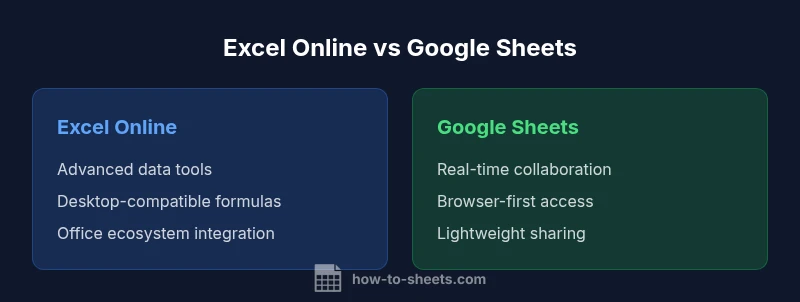
If your primary priority is real-time collaboration across devices and minimal setup, Google Sheets is often the better fit. If you perform extensive data modeling, rely on Excel-compatible workbooks, and want deeper analytics tools, Excel Online tends to excel. Teams already invested in Microsoft 365 may find Excel Online a natural extension, while organizations embracing Google Workspace will likely favor Sheets. Consider your typical tasks: data-heavy analysis, complex formulas, and workbook compatibility favor Excel Online; lightweight data tasks, rapid collaboration, and browser-first access favor Google Sheets.
Practical migration checklist
- Inventory your most-used features and ensure they exist in the target platform. 2) Prepare a small pilot workbook for testing import/export and formatting fidelity. 3) Establish a version-control plan using cloud storage with clear naming conventions. 4) Train users on collaboration and sharing settings to minimize accidental edits. 5) Set up a pilot automation script or add-on to validate the workflow. A deliberate, staged approach reduces friction and ensures data integrity during migration.
Tips to maximize productivity in both tools
- Map your typical tasks to the platform with the strongest support (Sheets for collaboration, Excel Online for data depth). - Use keyboard shortcuts to reduce friction and speed up common tasks. - Organize worksheets with consistent naming, color coding, and clear data validation rules. - Build templates that reflect your most common workflows to save time. - Regularly audit permissions and access controls for sensitive data. - Explore automation options (Apps Script in Sheets; Office Scripts in Excel Online) to automate repetitive tasks.
Comparison
| Feature | Excel Online | Google Sheets |
|---|---|---|
| Collaboration | Real-time co-authoring via Office/OneDrive | Industry-leading real-time collaboration in the browser |
| Offline access | Limited offline use; relies on desktop or offline-enabled OneDrive workflows | Robust offline mode via Chrome with Google account |
| Formulas and data tools | Extensive formula library; deep data modeling | Core functions with Apps Script for automation; fewer deep data tools |
| Automation & scripting | Office Scripts in web environment | Apps Script support and Google add-ons |
| Add-ins & integrations | Office Add-ins and Power BI integration | Workspace add-ons and Google script ecosystem |
| File compatibility | Strong Excel workbook compatibility | Good Excel import/export with formatting caveats |
| Accessibility & devices | Strong integration with OneDrive/SharePoint; Office ecosystem | Cloud-first, web-native experience across devices |
| Pricing model | Free basic use with Microsoft account; paid Microsoft 365 for advanced features | Free personal tier; paid Google Workspace for teams |
| Security & governance | Enterprise-grade security with Microsoft tools | Google Workspace security and data-loss controls |
| Best for | Data-heavy workbooks and Excel compatibility | Real-time collaboration and lightweight data tasks |
The Good
- Real-time collaboration is strong in Google Sheets
- Excel Online preserves most desktop Excel functions
- No software installation required; browser-based access
- Good cloud integration with OneDrive/Google Drive
The Bad
- Excel Online lacks some desktop-only features
- Google Sheets has fewer advanced data tools
- Formatting can shift when importing/exporting between platforms
Choose Sheets for collaboration and quick sharing; choose Excel Online for advanced data work and Excel compatibility
If teamwork and browser-first access are priorities, Sheets wins. For heavy data modeling and Excel-ready workbooks, Excel Online is the better fit.
FAQ
Is Excel Online free to use?
Excel Online offers a free tier with basic features accessible via a Microsoft account. More advanced capabilities and enterprise features come with paid Microsoft 365 plans. If you only need core spreadsheet functionality, the free option can be sufficient.
Yes. There’s a free tier with essential features, and advanced options come with paid Microsoft 365 plans.
Is Google Sheets offline capable?
Google Sheets supports offline mode in the browser, allowing edits without an internet connection. When you reconnect, changes sync automatically to Google Drive. You’ll need to enable offline mode in your Google settings.
Yes—Sheets can work offline with enabling offline mode; changes sync when you’re back online.
Are formulas compatible across both platforms?
Many common Excel formulas exist in Google Sheets, but some advanced Excel functions don’t have exact equivalents in Sheets. Conversely, most Sheets functions have counterparts in Excel Online, but behavior can differ for edge cases. Compatibility is good for everyday tasks, but verify critical formulas when migrating.
Most formulas transfer, but test key calculations after migrating between platforms.
Pivot tables: which handles better?
Excel Online generally offers more robust pivot table features and settings, mirroring desktop Excel. Google Sheets provides solid pivot functionality suitable for common analyses but can be less feature-rich for complex pivot configurations. Your choice depends on the depth of pivoting you require.
Pivot tables in Excel Online tend to be more feature-rich; Sheets covers most typical needs.
Can I import Excel files easily into Sheets?
Google Sheets can import Excel files with formatting and formula adjustments as needed. Some complex formatting may be altered in the conversion. For teams transitioning fully, plan for a verification step after import.
Yes, you can import Excel files into Sheets, but expect some formatting adjustments.
Which is better for Microsoft 365 teams?
For teams already using Microsoft 365, Excel Online integrates tightly with Word, PowerPoint, and SharePoint, offering a seamless workflow. Google Sheets integrates well with Google Workspace tools but may require cross-ecosystem workarounds. Choose based on your primary suite of tools and governance needs.
If your team uses Microsoft 365, Excel Online fits best; Google Sheets fits Google Workspace users.
The Essentials
- Prioritize collaboration with Sheets in team workflows
- Favor Excel Online for deep data analysis and Excel compatibility
- Consider a hybrid approach if your team uses both ecosystems
- Plan migration with an import/export and governance strategy