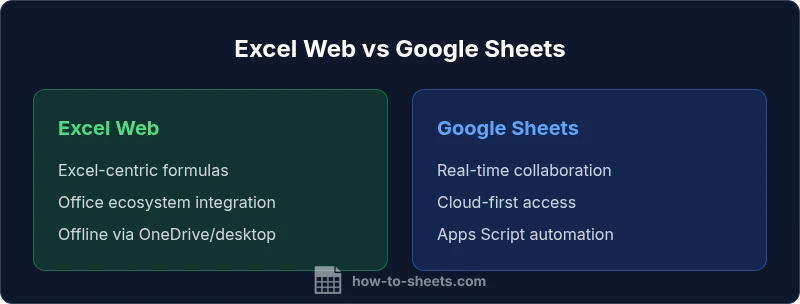
Excel Web vs Google Sheets: An Objective Comparison
A rigorous, data-driven comparison of Excel Web and Google Sheets, focusing on collaboration, features, data handling, and pricing to help students, professionals, and small businesses choose wisely.


Among web-based spreadsheets, Excel Web and Google Sheets each excel in different ways. If real-time collaboration, cloud access, and low friction deployment matter most, Google Sheets often leads. If compatibility with desktop Excel workflows, advanced data types, and offline capabilities are priorities, Excel Web tends to win. Consider your team size, existing tools, and required integrations to decide.
excel web vs google sheets: Core differences
According to How To Sheets, the landscape of web-based spreadsheets centers on two dominant players: Excel Web and Google Sheets. Each tool reflects a distinct philosophy about how teams work with data. Google Sheets champions accessibility, collaboration, and seamless cloud integration across devices. Excel Web preserves the familiar Excel ecosystem, emphasizing compatibility with desktop workflows, powerful formula support, and deeper integration with the wider Office 365 suite. For students, professionals, and small business owners, the decision typically boils down to which workflow you prize more: frictionless teamwork or Excel-centric precision. This section lays the groundwork by comparing core capabilities and typical use cases, and it sets the stage for deeper dives into collaboration, data handling, and automation in subsequent sections.
Collaboration and sharing: how real-time work happens
Google Sheets leads in real-time collaboration. Multiple users can edit a sheet simultaneously, with live cursors, comments, and suggested edits updating instantly across devices. Excel Web supports co-authoring as part of the Office 365 ecosystem, offering solid collaboration but sometimes feeling less fluid than Sheets in high-traffic, multi-user sessions. The How To Sheets team found that teams with heavy cross-functional participation often feel more frictionless when using Google Sheets, while teams embedded in an Office-centric stack appreciate the native tie-ins to Word, Slides, and Outlook. In both tools, version history helps recover earlier states, but the granularity and ease of restoring specific edits vary by platform.
Offline access and cross-device work
Offline capability is a pivotal factor for users who frequently work without reliable internet access. Google Sheets can operate offline in the Chrome browser after enabling offline mode, syncing changes automatically once connectivity is restored. Excel Web relies more on the desktop Excel workflow for offline work, leveraging OneDrive or SharePoint sync when available, but the browser experience itself may be constrained without network access. If your team travels or works in environments with intermittent connectivity, Sheets often offers more predictable offline behavior, whereas Excel Web shines when a desktop-ready workflow is essential.
Data handling, formulas, and compatibility
Both tools support a rich set of spreadsheet features, but their strengths diverge. Excel Web mirrors desktop Excel’s core formulas and data modeling, with strong support for advanced functions, large datasets, and complex calculations. Google Sheets emphasizes a clean, cloud-first approach with many web-native functions and Google-specific capabilities such as ARRAYFORMULA and QUERY-like operations. When migrating from desktop Excel, expect high compatibility with .xlsx files in Excel Web, but be mindful of features that are missing or differ slightly in the online versions. Conversely, Sheets handles typical data tasks gracefully, with intuitive array formulas and easy sharing, though some high-end Excel features may require desktop Excel or careful workarounds.
Automation, scripting, and extensibility
Automation widens the gap between the two. Excel Web leverages Office Scripts and Power Automate to automate workflows within the Microsoft ecosystem, offering deep integration with SharePoint, Teams, and other Office apps. Google Sheets relies on Apps Script, a robust JavaScript-based platform that connects to Google Workspace services and a wide array of add-ons. For teams invested in automation, Sheets often provides quicker start-up with broad third-party integrations, while Excel Web can deliver deeper enterprise-grade automation when paired with Windows-era tools.
Pricing, licensing, and accessibility
Pricing models influence long-term decisions. Google Sheets includes a generous free tier tied to a Google account, with additional features unlocked through Google Workspace. Excel Web is typically bundled with Office 365 subscriptions, School/Education licenses, or enterprise plans; some features hinge on the broader Microsoft ecosystem. For students, small businesses, or cost-conscious teams, Sheets can offer immediate value at no upfront software cost, while Office-based teams may justify the expense of the Office suite for deeper integration with their existing tools. Both platforms frequently update pricing tiers, storage quotas, and collaboration limits, so ongoing evaluation is prudent.
Migration paths and hybrid workflows
No solution is the perfect fit for every scenario. You can import and export between Excel Web and Google Sheets, usually via .xlsx or .csv formats. When migrating large, complex workbooks, plan for potential formatting differences, macro remediation, and recalibration of advanced features. A hybrid workflow—performing data collection and light processing in Sheets and exporting to Excel for advanced modeling—often offers a balanced approach. In this strategy, start with clean data exports, validate formulas, and verify formatting fidelity before finalizing multi-tool processes.
Decision framework: who should pick which tool?
For teams prioritizing collaboration across devices, rapid creation, and cloud-first workflows, Google Sheets tends to be the better starting point. For users deeply embedded in Excel-compatible workflows, who rely on extensive formulas, macros, and offline access, Excel Web is usually the safer choice. The How To Sheets team emphasizes aligning tool selection with core tasks: collaborative editing, data modeling depth, automation goals, and offline requirements. Consider running a two-week pilot with a representative dataset to identify gaps and address them before committing to a full rollout.
Comparison
| Feature | Excel Web | Google Sheets |
|---|---|---|
| Real-time collaboration | Co-authoring supported via Office Online; solid but sometimes slower | Best-in-class real-time editing with live cursors and comments |
| Offline access | Offline support tied to desktop Excel via OneDrive/SharePoint workflows | Offline mode available in Chrome for Sheets; seamless resync when online |
| Formula coverage | Parallels desktop Excel formulas; some newer functions may lag online | Broad Google Sheets functions; strong array and lookup support |
| Data import/export | .xlsx and common formats with good compatibility; macros limited in web | .xlsx/.csv support; easy sharing and collaboration across Workspace users |
| Automation and scripting | Office Scripts and Power Automate integration | Apps Script with extensive add-ons ecosystem |
| Pricing and access | Office 365 or Education licenses needed for full features | Free Google account; Workspace upgrades unlock more features |
| Mobile experience | Mobile Office apps with good feature parity in many cases | Mobile Sheets apps designed for quick edits and collaboration |
The Good
- Accessible entry point with Sheets' free tier for individuals
- Excellent real-time collaboration and cross-device access with Sheets
- Strong integration with other Google Workspace tools
- Broad automation options via Apps Script for Sheets
The Bad
- Office ecosystem dependency can increase costs for Excel Web
- Some advanced Excel features are not fully available in the web version
- Formatting and macro behavior can differ when moving between tools
Google Sheets excels at collaboration; Excel Web is strongest for Excel-centric tasks.
If your team relies on real-time, cloud-first workflows, choose Sheets. If your work hinges on Excel formulas and offline desktop parity, choose Excel Web. How To Sheets's verdict is to map your primary tasks to the tool with the strongest fit and pilot both if possible.
FAQ
What are the main differences between Excel Web and Google Sheets in collaboration?
Google Sheets provides best-in-class real-time collaboration, with live cursors and comments. Excel Web offers solid co-authoring within the Office ecosystem, but Sheets often handles multi-user edits more smoothly.
Sheets is designed around real-time teamwork; Excel Web also supports co-authoring but may feel slower with many editors.
Can I work offline with both Excel Web and Google Sheets?
Sheets supports offline work in Chrome after enabling offline mode. Excel Web relies more on the desktop Excel environment and OneDrive/SharePoint sync for offline work.
Sheets can run offline in Chrome; Excel Web relies on the desktop-style workflow for offline tasks.
Which has more advanced formulas and functions?
Desktop Excel is the gold standard for advanced functions; Excel Web mirrors many core functions but can lag behind. Sheets offers strong capabilities with unique Google-specific functions.
Excel is generally more advanced in formulas; Sheets covers most needs and adds Google-specific features.
How do file formats and migration work between them?
Both support .xlsx; Google Sheets imports/exports to .xlsx and .csv, while Excel Web focuses on Office formats. Minor formatting differences can occur during cross-tool migrations.
You can move files between them, but expect some formatting changes.
What about pricing and access for students or small businesses?
Sheets generally offers a free tier with Google accounts; Workspace adds features. Excel Web is tied to Office 365 or educational licenses that may incur costs.
Sheets is often free or low-cost; Excel Web depends on an Office plan.
Which tool is better for data visualization and charts?
Excel Web provides more advanced chart options and formatting; Sheets offers solid charts with easy integration and sharing across teams.
Excel has richer chart options; Sheets is excellent for quick visuals and collaboration.
The Essentials
- Prioritize collaboration needs before choosing a tool
- Excel Web suits Excel-centric workflows and offline work
- Sheets shines in real-time collaboration and cloud access
- Test data compatibility before migrating
- Leverage automation to maximize whichever platform you choose