Budget Tracker in Google Sheets: A Practical How-To Guide
Learn how to build a practical budget tracker in Google Sheets with templates, data validation, dashboards, and automation. This step-by-step guide from How To Sheets covers setup, formulas, maintenance, and best practices for staying financially organized.


Goal: Create a budget tracker google sheets that tracks income, expenses, and savings, with a clear overview and actionable insights. This guide walks you through choosing a template, setting categories, adding formulas, and automating monthly rollovers. You’ll learn data validation, simple dashboards, and when to expand with scripts or templates. By the end, you’ll have a repeatable system you can customize for any project.
Why Budget Tracking in Google Sheets Matters
According to How To Sheets, a robust budget tracker google sheets can replace costly software by giving you real-time visibility into income, expenses, and goals. For students, professionals, and small business owners, a centralized sheet reduces the number of disparate files and minimizes errors through clear category definitions and validation rules. When you can see your cash flow at a glance, you’re more likely to adjust spending, prioritize savings, and hit milestones. This section explains why a Sheets-based budget is scalable, collaborative, and cost-effective for long-term financial health.
Quick Start: Pick a Template and Customize Categories
Starting with a template speeds up learning and ensures you follow a proven structure. Look for a basic income-expense template in Google Sheets, then tailor it to your situation: add or rename categories (Housing, Groceries, Transportation), decide the pay period (weekly, biweekly, monthly), and set the currency. As you customize, ensure there’s a clear separation between income, expenses, and savings. This approach helps you avoid double-counting and makes monthly rollovers easier.
Structure Your Data: Inputs, Calculations, and Dashboards
A well-structured budget tracker google sheets uses three layers: inputs (raw data: income, expenses, dates), calculations (totals, subtotals, running balance), and dashboards (visual summaries). Keep inputs on one tab, calculations on another, and dashboards on a third for clarity. Use named ranges for income and expenses to simplify formulas, and create a monthly snapshot so you can compare performance over time. With consistent structure, you or teammates can enter data quickly without breaking formulas.
Building Blocks: Key Formulas You’ll Use
The core of any budget tracker google sheets is a reliable set of formulas. Start with SUM to total income and expenses, SUMIF to aggregate by category, and simple subtraction for net cash flow. For rolling balances, use a running balance formula that adds income and subtracts expenses each period. If you want a quick glance at overages, use conditional formatting to highlight negative balances. These formulas form the backbone of a scalable, error-resistant budget sheet.
Data Validation and Consistency
Data validation enforces consistency across your budget tracker google sheets. Create drop-down lists for categories, dates in proper month-year format, and numeric constraints for amounts (non-negative). Validation reduces entry mistakes that undermine the dashboard. Consider locking cells that contain formulas and protecting the sheet’s structure to prevent accidental edits. Regularly audit key ranges to ensure formulas remain intact as you expand.
Automations: Monthly Rollovers and Reminders
Automation helps you maintain momentum without repetitive manual work. Set up a monthly rollover by duplicating the current month’s sheet or using a dynamic range that shifts with time. Use Google Apps Script or built-in features to send reminders for data entry, import bank statements, or refresh charts. Automations save time, improve consistency, and support a habit of timely budgeting across months.
Templates and Customization for Different Audiences
Budget templates in Google Sheets can serve students, freelancers, and small business owners alike. Start with a core template and adapt it for goals: exam budgets for students, cash-flow templates for freelancers, or project budgets for teams. How To Sheets recommends starting simple and layering advanced features as you gain confidence. This flexible approach lets you scale without overwhelming beginners.
Visualization: Dashboards and Charts in Sheets
Dashboards translate raw data into insights. Create compact summaries showing total income, total expenses, and net savings, plus sparklines to show trends across months. Use charts to illustrate category spending and year-over-year comparisons. Keep the dashboard focused on what decision-makers need: liquidity, savings progress, and major expense trends. Visuals should be clear, consistent, and easy to interpret at a glance.
Common Pitfalls and How to Avoid Them
Rushing setup often leads to mislabeling, mismatched ranges, or broken formulas. Validate data entry weekly and reconcile receipts with entries. Avoid overly complex templates; start with a minimal viable budget, then layer features like forecast projections and scenario planning. Regular backups are essential in case you need to revert to a previous version after a mistake.
Advanced Techniques: Scripting & Add-ons (Optional)
As you advance, you might explore Google Apps Script to automate data imports, schedule monthly reports, or push data into a secondary system. Add-ons can help with bank feeds, notifications, or enhanced charts. Remember that scripting increases maintenance needs, so document changes and keep a changelog. Start with small, reversible scripts to minimize risk and quickly learn the capabilities of Google Sheets as a budgeting tool.
Quick Start Checklist and Maintenance
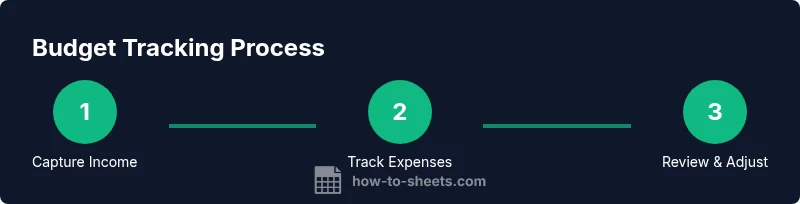
Before you begin, confirm you have access to Google Sheets and a budget-oriented template. Define your categories and set up your first month’s data entry plan. Create core formulas for totals and balances, then build a basic dashboard. Schedule a monthly review to update data, adjust goals, and refine visualizations. A lightweight, repeatable setup often outperforms a feature-heavy but brittle system.
Authoritative Resources
For further guidance on personal budgeting and data integrity, consult reputable resources. You can review consumer budgeting basics from the U.S. government and university extensions for best practices in data organization and spreadsheet design. These sources provide foundational principles that complement hands-on templates in Google Sheets.
Tools & Materials
- Google account with Google Sheets access(Essential for creating and editing the budget tracker; ensure you’re signed in.)
- Budget template (Google Sheets)(Start with a basic income/expenses layout; customize categories later.)
- Basic knowledge of formulas (SUM, SUMIF, VLOOKUP/INDEX-MATCH)(You’ll use these to compute totals and dashboards.)
- Stable internet connection(Needed to access Google Sheets and enable real-time collaboration.)
- Optional: Google Apps Script editor(For automation beyond built-in features (e.g., reminders, data imports).)
Steps
Estimated time: 45-60 minutes
- 1
Open a Template
Open Google Sheets, create a new file, and select a budget template or a blank workbook if you prefer a fresh start. Name the file clearly (e.g., 2026 Budget Tracker). This establishes the project scaffold and prevents naming conflicts later.
Tip: Choose a clean layout with separate tabs for inputs, calculations, and dashboards. This makes maintenance easier. - 2
Define Budget Categories
List all income sources and expense categories relevant to your situation. Add subcategories if needed (e.g., Groceries under Food). Consistency in labeling is crucial for accurate reporting.
Tip: Use a separate sheet for category lists to simplify updates across formulas and data validations. - 3
Set Up Income and Expense Columns
Create structured columns for Date, Category, Amount, and Type (Income/Expense). Use a consistent date format and ensure numbers are stored as numeric values for reliable calculations.
Tip: Lock the header row and freeze panes to keep headers visible while you scroll. - 4
Enter Beginning Balance and Timeframes
Input your starting balance and define the budgeting period (e.g., Monthly). Align your data entry with the chosen timeframe to enable accurate rollovers.
Tip: Label periods clearly (e.g., 2026-02) to avoid confusion when filtering across months. - 5
Create Core Formulas for Totals
Implement SUM for totals, SUMIF or SUMIFS for category-based totals, and a running balance formula. Validate results by manually verifying a few entries.
Tip: Keep formulas simple and use named ranges to reduce errors when expanding the sheet. - 6
Add a Simple Dashboard
Build a dashboard tab with key metrics: net income, total expenses, savings rate, and a year-to-date chart. Link dashboard cells to the data tab to automatically reflect updates.
Tip: Limit dashboard to essential visuals to avoid clutter and improve readability. - 7
Set Data Validation to Ensure Consistency
Create drop-down menus for categories, enforce numeric input for amounts, and constrain dates to your budgeting period. Data validation minimizes entry errors and keeps reports reliable.
Tip: Protect critical cells and ranges to prevent accidental formula edits by others. - 8
Automate Monthly Rollovers
Use a targeted script or template duplication to move completed month data to an archive and reset the input sheet for the new month. This saves time and ensures continuity across periods.
Tip: Test the rollover on a copy of the sheet before applying to live data.
FAQ
What is a budget tracker in Google Sheets?
A budget tracker in Google Sheets is a structured spreadsheet that records income and expenses, calculates totals, and visualizes cash flow through dashboards. It helps you monitor spending, save toward goals, and forecast future balances.
A budget tracker in Google Sheets is a structured spreadsheet that records income and expenses and shows you where your money goes and how to save for goals.
Do I need formulas to start?
Yes. Simple formulas like SUM and SUMIF are enough to total income and expenses and to categorize spending. As you grow, you can add more advanced functions for forecasting and smoothing, but start with basics to avoid confusion.
Yes. Start with SUM and SUMIF to total income and expenses, then gradually add forecasting later.
Can I automate reminders for data entry?
Yes. You can set up email reminders or in-sheet prompts using Apps Script or add-ons to nudge you to log transactions and reconcile balances at month end.
Yes. You can automate reminders with Apps Script or add-ons to prompt you to log transactions.
What should I track besides income and expenses?
Consider tracking savings goals, debt payments, and category-specific forecasts. A separate savings tab or a dashboard widget helps you monitor progress toward goals over time.
Track savings goals and debt payments to see progress over time in a dedicated dashboard.
How often should I update the budget?
Update at least weekly to keep insights accurate. A monthly rollover helps you reset for the next period and maintain a steady cadence.
Update at least weekly, and perform a monthly rollover to reset for the new period.
Watch Video
The Essentials
- Plan with a simple template to reduce confusion.
- Structure data into inputs, calculations, and dashboards.
- Use data validation to keep data clean and reliable.
- Automate rollovers to save time and maintain consistency.
- Gradually add features as you gain confidence.