Google Sheets Price Comparison Template: Build a Budget-Savvy Tracker
Learn to build a reusable Google Sheets price comparison template that tracks prices across retailers, normalizes currency, and highlights the best deals to support budgeting decisions.


By the end of this guide you will build a reusable Google Sheets price comparison template that captures products, stores, and prices, normalizes currencies, and highlights the best deals. You’ll learn how to import price data, compute savings, and visualize value in a compact dashboard. This template supports quick shopping decisions and budgeting across retailers. According to How To Sheets, using a consistent template reduces confusion and accelerates purchasing clarity for students, professionals, and small business owners.
Why a google sheets price comparison template matters
In today’s value-driven shopping environment, a centralized price tracker helps you compare offers across retailers without opening dozens of tabs. A well-designed google sheets price comparison template saves time, reveals the best deals, and supports budgeting decisions. According to How To Sheets, a consistent template reduces confusion and accelerates purchasing clarity for students, professionals, and small business owners. The template also helps you build a historical view of prices, enabling smarter decisions when prices fluctuate.
Key benefits include cross-store price visibility, the ability to catch price drops, and a record of past prices for future analysis. By consolidating data in one place, you can evaluate total cost of ownership, including shipping or taxes, and track changes over time. This section explains why adopting a template beats ad-hoc price tracking every time.
Core design: columns, data sources, and normalization
A robust price comparison template needs a clear structure. Typical columns include Product, Brand, Store, Price, Original Price, Currency, URL, Availability, and Notes. For every row, you’ll capture where the price came from and when it was last updated. Normalize currencies to a single base (e.g., USD) using a dedicated rate table, so comparisons reflect true value rather than exchange rate noise. Use data validation for Store and Product to prevent typos, and consider a separate sheet for the price history to support trend analysis. This backbone supports accurate, scalable comparisons across dozens of retailers while keeping the sheet readable and fast.
When possible, keep a consistent product naming convention and a unique product ID to simplify lookups and future updates.
Importing and updating data safely
Decide between manual data entry and automated data feeds. Manual entry is safe and simple for small projects, but automation saves time as your list grows. If you pull data from retailer pages, use functions like IMPORTHTML or IMPORTXML with clear selectors, and respect site terms of service. Schedule periodic refreshes using Google Sheets' built‑in refresh features or time-based triggers in Apps Script, but avoid overloading retailers with requests. Maintain a data source log so you can verify where each price came from when you audit the sheet later.
Always back up your sheet before enabling scraping or automation, and consider locking critical formula cells to prevent accidental edits.
Formulas that power comparisons
At the heart of a price comparison template are formulas that compute value, savings, and rank. Example strategies include: using MIN to identify the lowest price for a given product across stores, and INDEX-MATCH or XLOOKUP to pull brand or URL data for a specific retailer. A typical setup uses a helper column to flag the current price and another to compute perceived savings against a base price:
- Best price for a product: =MIN(IF($A$2:$A$100=E2,$C$2:$C$100))
- Savings vs. baseline: =IFERROR((BASE_PRICE - PRICE)/BASE_PRICE, 0)
- Rank by value: =RANK(PRICE, PRICE_RANGE, 1)
These formulas should be entered as array formulas if needed and updated as you add more rows. Use conditional formatting to highlight the lowest price in green and higher prices in red for quick scanning. Keep a separate dashboard sheet that aggregates key metrics and provides a quick snapshot of value per product and per retailer.
Pro tip: name important ranges (Prices, Baseline) so formulas remain readable and portable across templates.
Visualize value and savings
Visuals improve decision speed. Add sparklines next to price history for trend insight, and create a dynamic dashboard with a few charts that summarize price dispersion, cheapest retailer distribution, and total potential savings. Use conditional formatting to emphasize when price gaps exceed a threshold (e.g., a 10% difference). A small, color-coded KPI card can show the current lowest price and the corresponding retailer. Keep charts straight to the point—too many visuals dilute the message. The goal is a quick, confident buy decision, not a data dump.
Authority sources
- FTC: https://www.ftc.gov/
- NIST: https://www.nist.gov/
- Census Bureau: https://www.census.gov/
Note: These sources provide general guidance on data handling, measurement consistency, and consumer protection. Always verify data sources and comply with retailer terms when scraping data for your templates.
Tips & warnings
- Pro_tip: Use named ranges and data validation to keep data entry clean and error-free.
- warning: Do not scrape data from sites that prohibit automated access; respect robots.txt and site terms of use.
- note: Back up your workbook regularly and test formulas after any structural change.
How to customize for budgets
Integrate currency conversion, tax estimates, and shipping costs into the price computation so total landed cost is reflected. Add a budget column and conditional formatting to flag items that exceed the target budget. You can also build a lightweight scoring system that weighs price, shipping, delivery speed, and warranty terms to rank options by overall value.
Data governance and ethics
Treat price data as information that can influence purchasing decisions. Maintain transparency about data sources and update frequency, and avoid misrepresenting the data by omitting context like discount periods or return policies. Share the template with clear instructions so others can verify or adapt it without misinterpreting the data. The How To Sheets team recommends using this template as a baseline for responsible data handling and value-driven decisions.
Tools & Materials
- Google account(Needed to access Google Sheets and save the template)
- Web browser(Chrome/Edge/Firefox for best compatibility with Google Sheets features)
- Currency conversion reference(Optional; helps normalize prices across currencies)
- Backup method(Enable version history or manual backups before heavy automation)
Steps
Estimated time: 60-90 minutes
- 1
Define the scope and layout
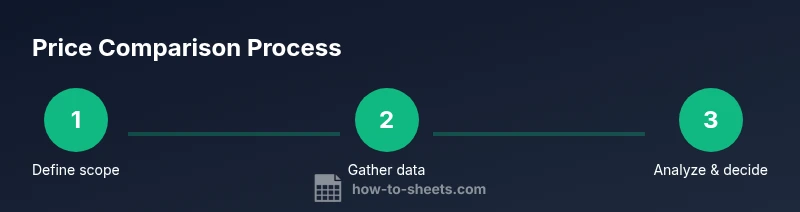
Decide which products and retailers you will track, and outline the columns you’ll need (Product, Brand, Store, Price, Original Price, Currency, URL, Availability, Notes). Specify what counts as the ‘best deal’ (lowest price, best value, or price vs. shipping). Document these rules for consistency.
Tip: Document your decision rules and create a version history so future edits don’t drift from the original intent. - 2
Create the sheet structure and named ranges
Set up a clean sheet layout with a separate data sheet for products, retailers, and prices. Create named ranges like Prices, Products, and Rates to simplify formulas and future template reuse.
Tip: Use named ranges to keep formulas readable and portable across templates. - 3
Enter core product and retailer data
Populate the first data rows with at least a few products across several stores. Include currency and a direct URL to each listing. This initial data will drive your comparisons and allow you to test formulas.
Tip: Keep product naming consistent to avoid lookup mismatches. - 4
Add currency normalization
Create a base currency column (e.g., USD) and a rate table to convert other currencies. Use a VLOOKUP-like approach to pull the current rate for each row.
Tip: Update rates regularly or link to a live rates source if you’re comfortable with automation. - 5
Implement core comparison formulas
Create formulas to compute the lowest price per product, calculate savings relative to a baseline, and rank stores by value. Build a dashboard sheet that aggregates these metrics for quick review.
Tip: Name key ranges so you can reuse formulas when expanding the template. - 6
Build a quick visualization dashboard
Add sparklines for price history, a small KPI card for the current lowest price, and charts showing price dispersion and retailer coverage. Make sure the visuals draw the eye to the best value options.
Tip: Limit visuals to a few high-impact charts to avoid clutter. - 7
Enable data updates and governance
Decide on manual input vs automation for price updates. If using automation, implement safe scraping or data pull with clear source notes and backup plans. Lock critical cells to prevent accidental edits.
Tip: Always back up before enabling automation and document data sources for auditing.
FAQ
What is a google sheets price comparison template and why do I need one?
It’s a structured sheet that compares prices across retailers to identify the best deals and support budgeting decisions. It helps you track price history and evaluate total cost of ownership.
A price comparison template helps you quickly see the best deal across stores and track prices over time.
Can I auto-update prices from retailers?
Yes, but it depends on retailer permissions and data source availability. Use careful automation (IMPORTXML/IMPORTHTML) where allowed, and always validate data sources.
Automation is possible but must respect retailer terms and be auditable.
How do I handle different currencies in the template?
Add a currency column and use a rate table to convert prices to a common base currency. Update rates regularly for accurate comparisons.
Convert all prices to one currency to compare apples to apples.
Is this template suitable for personal budgeting or group purchases?
Yes. You can tailor the product scope, currencies, and budgets to fit personal or group buying needs. Adjust columns as necessary.
Great for personal budgets and group buys—just adjust scope.
Which formulas are best for price comparisons?
MIN for the lowest price, INDEX/MATCH (or XLOOKUP) for retailer details, and conditional formatting for quick visuals. Build a dashboard with summarized metrics.
Use MIN, INDEX/MATCH, and conditional formatting for clear insights.
Watch Video
The Essentials
- Define a clear data schema before building formulas.
- Rank prices with robust, cross-store formulas.
- Automate data sources safely and document updates.
- Use a dashboard to summarize value insights.