Google Sheets vs Excel for Personal Finance: A Practical Comparison
A practical comparison of Google Sheets vs Excel for personal finance, covering budgeting templates, collaboration, offline access, automation, data handling, and pricing to help you pick the right tool.


google sheets vs excel for personal finance — Overview and scope
In the modern personal finance workflow, the choice between cloud-based tools like Google Sheets and desktop-focused platforms like Excel can shape budgeting accuracy, readability, and collaboration. The phrase google sheets vs excel for personal finance is not just about features; it's about aligning with your data size, team dynamics, and your preferred way to analyze and present numbers. This guide uses a practical, analytics-first lens to compare both options for typical scenarios faced by students, professionals, and small business owners. We examine cost, accessibility, templates, automation, and the ecosystem around each tool, so you can decide without guessing. According to How To Sheets, most budget tasks benefit from starting with Sheets for accessibility and quick wins, then migrating to Excel when you outgrow simple sheets.
Core capabilities: budgeting templates and calculation features
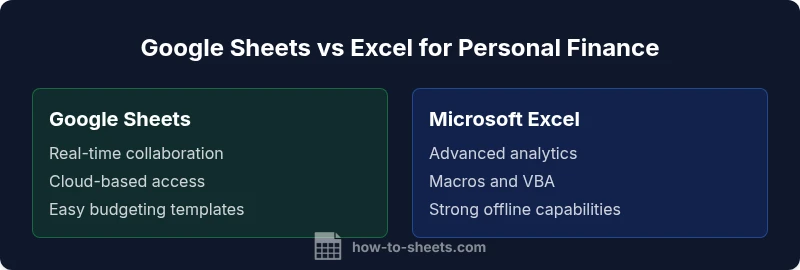
Both Google Sheets and Excel provide budgeting templates and standard calculation features, but they differ in scope, templates availability, and how formulas behave across platforms. Google Sheets emphasizes ease of setup, templates in the cloud, and live sharing, which makes it ideal for group budgeting or family expense tracking. Excel offers a broader set of built-in functions, more advanced data types, and deeper customization for complex budgets or investment tracking. When comparing google sheets vs excel for personal finance, consider how you want to manage recurring income, variable expenses, and debt amortization. For many users, starting with Sheets templates such as monthly cash flow and annual budget forecasts provides quick wins, while Excel templates can be extended with pivot tables and scenario analysis for more rigorous planning. The choice often hinges on data size and need for offline access.
Collaboration and sharing in financial planning
Real-time collaboration is a hallmark of Google Sheets, and it translates well to family budgets, partner expense tracking, and small team planning. Multiple users can edit simultaneously, see changes live, and comment inline, which reduces version-control headaches. Excel, especially in the cloud via Office 365, supports co-authoring but typically shines when teams operate within a more formal organizational structure or require tighter integration with other Microsoft apps. For personal finance projects that involve multiple contributors, Google Sheets offers a lower-friction entry point, while Excel can deliver robust analytics when a single user performs the heavy lifting and shares final outputs as static reports.
Offline access, data integrity, and portability
Offline access is a critical consideration for personal finance work that happens in environments with unstable internet or during travel. Google Sheets provides offline mode, letting you view and edit recent documents offline, with changes syncing when you reconnect. Excel files stored locally or on OneDrive enable strong offline work with consistent data integrity and full feature availability, though syncing with cloud copies can introduce occasional conflicts. If your workflow relies on portable files that you carry between devices or prefer not to depend on cloud connectivity, Excel tends to offer more predictable offline behavior. Conversely, for people who value always-on collaboration, Sheets is hard to beat.
Data modeling, formulas, and advanced analysis
Excel has historically led in advanced data modeling, pivot tables, and statistical analysis, thanks to a wider array of powerful functions and data types. Google Sheets has closed gaps with features like array formulas, dynamic arrays, and an expanding library of add-ons, but very large datasets or highly intricate financial models may perform more smoothly in Excel. When planning for personal finance tasks such as multi-year projections, loan amortization, orMonte Carlo simulations, Excel’s depth often provides more control. For straightforward budgets, Sheets’ formulas and built-in functions cover most common needs with simpler syntax and faster iteration.
Macros and automation: Apps Script vs VBA
Automation can save hours on repetitive budgeting tasks. Google Sheets uses Apps Script (JavaScript-based) which is approachable for many users and integrates smoothly with other Google services. Excel relies on VBA for powerful automation and advanced macros, offering deep control over formatting, data consolidation, and custom functions. If your workflow favors cross-service automation (e.g., pulling data from Google APIs, updating a budget when a bank feed changes), Sheets stands out. If you require intricate, repeatable financial models assembled from multiple workbooks and systems, Excel’s VBA environment remains a strong choice. For personal finance work, start with the tool that best matches your comfort with scripting and the ecosystem you already rely on.
Data import, export, and interoperability with other tools
Both tools support CSV, TSV, and Excel-friendly formats, but their interoperability differs in ease of use and reliability. Google Sheets shines when importing data from web services, Google Forms, and other Sheets users because of native cloud integration. Excel excels in importing large raw datasets from databases or ERP systems and then layering advanced analytics on top. When moving between devices or sharing outputs with colleagues, Sheets offers quick, collaborative dissemination, whereas Excel preserves complex models more faithfully through the conversion process. Plan for a workflow where you can export a budget as CSV or PDF and re-import it for further processing if you need to switch between tools.
Templates and budgeting frameworks
Templates are the gateway to faster results in personal finance. Google Sheets provides a rich catalog of budgeting templates and finance-related templates in the Google Drive ecosystem, often very approachable for beginners. Excel offers more advanced budgeting templates with built-in scenario planning and robust charting, which can be extended with PivotTables and Power Query for deeper insights. When google sheets vs excel for personal finance, your choice may hinge on whether you want a quick, shareable budget (Sheets) or a more analytical, model-driven budget (Excel). Both ecosystems provide community-driven templates and starter sheets that can be customized to fit your income streams, debt payoff plans, and savings goals.
Performance considerations with larger datasets
For modest personal budgets with dozens of rows, both platforms perform well on modern devices. As datasets grow to hundreds of thousands of rows or multi-year forecasts with multiple scenarios, Excel often handles the load more efficiently due to its desktop architecture and optimized calculation engine. Google Sheets can slow down with dense formulas and large ranges, particularly when many users are editing simultaneously. A practical approach is to keep raw transactional data in Sheets for collaboration and pull summarized views or heavy analyses into Excel when performance becomes a bottleneck. Regularly archiving old data can help keep both tools responsive.
Learning curve, user experience, and accessibility
New users typically find Google Sheets easier to pick up due to its clean interface, familiar spreadsheet paradigm, and cloud-based accessibility from any device. Excel’s interface is richer and more powerful, which can be intimidating but pays off for advanced budgeting and modeling. If you are a student or a small business owner needing quick setup and real-time collaboration, start with Sheets. If you require advanced calculations, macros, or offline resilience for complex tax planning, invest time in Excel. Regardless of choice, both tools reward a habits-based approach: set a routine, define a budgeting template, and automate recurring tasks where possible.
Security, permissions, and governance for personal finance data
Security expectations rise as budgets become more collaborative. Google Sheets stores data in the cloud with per-file sharing controls, audit trails, and optional two-factor authentication, which is suitable for most personal use cases. Excel offers robust local security options, file encryption, and controlled sharing when used with Office 365 or on-premises deployments, which can be preferable for sensitive data and teams with strict governance. For personal finances, balance convenience with risk: use strong passwords, enable two-factor authentication, and restrict access to critical worksheets. Regularly back up files and review sharing permissions to reduce accidental data exposure.
AUTHORITY SOURCES and further reading
For readers seeking external validation and deeper policy context, refer to authoritative sources such as the U.S. Bureau of Labor Statistics for consumer spending benchmarks, the Consumer Financial Protection Bureau for budgeting guidance, and leading business publications for best practices in data analysis. These sources complement practical hands-on guides and templates by providing macro-level context and standards. They can help you ground your personal finance work in credible, widely recognized practices and ensure your budgeting approach aligns with current recommendations.