Google Sheets Yearly Planner Template: Step-by-Step Guide
Learn how to build a reusable google sheets yearly planner template with months, milestones, and tasks. This step-by-step guide covers layout, formulas, and collaboration tips for students, professionals, and small businesses.


You will create a reusable google sheets yearly planner template that maps every month, key goals, milestones, and tasks for the year. Start with a blank Google Sheets file, add a year header, monthly sections, and a compact dashboard that highlights progress. This quick setup works well for students, professionals, and small teams seeking organized annual planning.
Why use a yearly planner in Google Sheets?
A yearly planner gives you a bird’s-eye view of the year, helping you align goals with deadlines, allocate time for core projects, and track progress over 12 months. The google sheets yearly planner template approach combines the familiarity of a spreadsheet with the flexibility to customize headers, color-coding, and formulas. By centralizing events, milestones, and tasks, you reduce context-switching and improve accountability. According to How To Sheets, a well-structured yearly planner saves you time and minimizes last-minute scrambles by making priorities visually obvious and easy to update. This template is designed for students juggling coursework, professionals managing multiple projects, and small businesses coordinating client deliverables. You’ll gain a reusable structure rather than a one-off calendar, so you can adapt the layout year after year without rebuilding from scratch.
Core design principles for a Google Sheets yearly planner
The backbone of any strong planner is clarity, consistency, and scalability. Start with a clean, grid-based layout that can expand as needs change. Use a single source of truth for the year, then add monthly tabs that summarize key metrics. Implement a simple color palette to distinguish goals, milestones, and tasks, and use consistent date formats. A well-designed template uses named ranges and data validation to prevent errors as you add years. Remember that your planner should be intuitive enough for a new user to pick up in minutes, yet powerful enough for advanced tracking. How To Sheets analysis shows that users who adopt a clear yearly planning framework report greater consistency in milestone adoption and task completion, especially when dashboards highlight progress at a glance.
Essential components of the template
A robust yearly planner includes: a Year Overview dashboard, 12 Monthly sheets, a Milestones tracker, a Goals list, and a Tasks board. The Year Overview provides quick KPIs like total completed tasks, on-track milestones, and percent of goals started. Each Monthly sheet should summarize events, deadlines, and priorities for that month. The Milestones tracker links to goals with due dates and status. The Goals list is a top-level anchor for annual outcomes, while the Tasks board breaks work into actionable items with owners and due dates. Linking these components with simple formulas creates a cohesive system where nothing falls through the cracks.
Layout and navigation: tabs, named ranges, and data validation
Structure is critical. Create a dedicated tab for Year Overview, one tab per month, and a separate Milestones tab. Use named ranges for key data like StartDate, EndDate, and TargetMonth to simplify formulas across sheets. Data validation ensures entries like status or priority stay consistent (e.g., a drop-down for Status: Not Started, In Progress, Complete). Hyperlinks and a quick navigation bar on the Year Overview help users jump between sections quickly. A clean layout reduces cognitive load and makes the planner scalable for future years.
Formulas and automation to reduce manual work
Automate repetitive calculations with reliable formulas. Use SUMIF to tally monthly completed tasks, COUNTIF for milestones reached, and VLOOKUP or XLOOKUP to pull month-specific data into the Year Overview. Conditional formatting can visually flag overdue tasks or at-risk milestones. If you’re comfortable with scripts, small Apps Script automations can refresh dashboards on open, send calendar reminders for due dates, or auto-create a new year’s tabs with pre-filled templates. These automation steps save time and keep the planner current.
Real-world use cases: students, professionals, small business
- Students: map exam dates, assignment due dates, and study milestones across the year. Create a weekly pull-through to ensure steady progress and prevent cram sessions.
- Professionals: track project milestones, client deliverables, and quarterly goals. Dashboards help managers see status at a glance and align teams around critical dates.
- Small businesses: coordinate marketing campaigns, product launches, and fiscal milestones. Use the Milestones tab to align with budgets and launches, while the Year Overview shows progress toward annual targets.
Tips for data integrity, collaboration, and maintenance
- Use protected ranges for critical formulas and headers to prevent accidental edits.
- Add a simple change log on the Year Overview so teammates can see when charts or formulas were updated.
- Duplicate yearly templates instead of overwriting old data to preserve past records for reference.
- Keep a lightweight version history by copying the sheet to a new file at the start of each year. This makes audits and rollbacks easier and safer.
- Schedule quarterly reviews to realign goals with actual progress, adjusting tasks and milestones as needed.
AUTHORITY SOURCES
- Harvard Business Review: https://hbr.org
- MindTools: https://www.mindtools.com
- U.S. Small Business Administration: https://www.sba.gov
These sources provide foundational ideas about goal setting, project tracking, and structured planning that complement a practical Google Sheets yearly planner template.
Tools & Materials
- Google account with access to Google Sheets(Essential for creating and editing the template)
- Blank Google Sheets document or existing template(Starting point for customization)
- Color palette and font guidelines(Optional but helpful for consistency and readability)
- Notebook or cheatsheet of common formulas(Useful reference for formulas like SUMIF, COUNTIF, VLOOKUP)
Steps
Estimated time: Total time: 60-90 minutes
- 1
Create the year skeleton
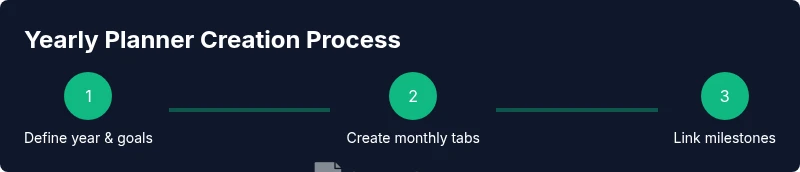
Open a new Google Sheet and label the first sheet as Year Overview. Add a header row with the year and a key metric line. Create 12 month sections or tabs to pair with each calendar month, laying the groundwork for month-by-month data entry.
Tip: Plan a simple color scheme first and keep font sizes consistent for readability. - 2
Add a Year Overview dashboard
In Year Overview, place high-level metrics such as total tasks, milestones completed, and goals started. Use simple formulas to pull in data from monthly sheets, creating a single snapshot of yearly progress.
Tip: Include progress bars using conditional formatting to visualize status at a glance. - 3
Set up monthly tabs with consistent layout
Copy a standard header and create 12 month tabs. Each month should have a date range, key priorities, and a compact task list. Place a small calendar view at the top for quick planning.
Tip: Use named ranges like MonthName to simplify cross-sheet references. - 4
Create a Milestones tracker
Add a Milestones tab that lists milestones, due dates, owners, and status. Link each milestone to the relevant month and to its parent goal to keep context clear.
Tip: Keep statuses consistent (Not Started, In Progress, Complete). - 5
Define goals and tie tasks to milestones
In a Goals sheet, outline annual outcomes. Under each goal, create associated tasks with owners and due dates. Use simple formulas to link tasks to milestones so progress updates propagate to dashboards.
Tip: Avoid vague goals; write measurable, time-bound statements. - 6
Implement data validation and drop-downs
Add drop-down lists for Status, Priority, and Month to ensure data consistency. Use data validation to prevent typos and mis-categorization.
Tip: Set up a separate sheet just for lists (Status, Priority) to keep data clean. - 7
Add basic automation and alerts
If you’re comfortable, implement simple triggers or conditional formatting to flag overdue items. Consider Apps Script for calendar reminders or auto-refreshing dashboards on open.
Tip: Start with low-friction automations and test thoroughly. - 8
Protect critical parts of the sheet
Lock headers and formulas to prevent accidental edits. Use protected ranges to allow collaborators to edit only the data-entry areas.
Tip: Document the protections so teammates understand what they can edit. - 9
Test, refine, and duplicate for future years
Run a full test with a hypothetical year, verify dashboards update correctly, and then duplicate the template for the next year with new data. Keep a change log for transparency.
Tip: Treat this as a living document that evolves with feedback.
FAQ
What is a google sheets yearly planner template?
It's a reusable template built in Google Sheets that spans 12 months, aggregating goals, milestones, and tasks into a single year-long planning view. It helps you track priorities, deadlines, and progress over the entire year.
It's a reusable template in Google Sheets that covers all twelve months and tracks goals, milestones, and tasks for the whole year.
How do I start if I’m new to Google Sheets?
Open Google Sheets, copy a starter template, or build from scratch with a Year Overview and 12 monthly tabs. Name the year clearly and set up your data validation for consistency.
Open Sheets, copy a starter template, and set up your year month-by-month plan with consistent data validation.
Can I customize for weeks vs months?
Yes. You can add a weekly view tab or group weeks under months. Use formulas to roll weekly data into monthly totals for the dashboard.
Yes, you can add a weekly view and aggregate weekly data into monthly totals.
How do I share with teammates?
Use Google Sheets’ Share feature to grant edit or view access. Consider protected ranges so teammates can only modify intended areas.
Share via the Share button and set permissions; protect critical cells as needed.
How to automate reminders or due dates?
You can add conditional formatting for due dates and set up lightweight Apps Script or calendar reminders. Start with simple rules and expand as needed.
Use conditional formatting for due dates and optional reminders via Apps Script.
Is a Google Sheets yearly planner better than a calendar app?
It depends on your needs. Sheets offers deep customization and data integration, while calendar apps excel at scheduling appointments and reminders. A hybrid approach often works best.
It depends—Sheets is highly customizable, calendars are great for scheduling; many teams blend both.
Watch Video
The Essentials
- Define a clear yearly structure with Year Overview and 12 monthly tabs.
- Link goals, milestones, and tasks for traceable progress.
- Use data validation and protected ranges to maintain integrity.
- Leverage dashboards to visualize progress at a glance.
- Duplicate and refine for future years to keep a living template.