How to Build a Portfolio Tracker in Google Sheets
Learn how to build a robust portfolio tracker in Google Sheets with live price imports, cost basis, and dashboards. Step-by-step setup, templates, and best practices for students, professionals, and small business owners.


You can build a practical portfolio tracker google sheets to monitor holdings, returns, and diversification. Start by capturing purchases in a Holdings sheet, import live prices, and create a dashboard to visualize performance. This step-by-step approach keeps data organized and ready for reviews, budgeting, and tax reporting.
Why Google Sheets for a Portfolio Tracker google sheets
According to How To Sheets, Google Sheets is a surprisingly capable platform for a personal or small-business portfolio tracker google sheets. It combines flexibility with low cost and immediate accessibility, so you can start tracking investments without specialized software. In this guide we’ll unpack why Sheets works well for ongoing portfolio management, and how a well-structured workbook scales as your holdings grow. You’ll learn how to separate data entry, calculations, and visualizations so you can review performance at a glance and drill down when needed. The result is a versatile tool you can customize over time, instead of relying on a one-size-fits-all app. By keeping your data in Sheets, you gain portability, auditability, and the ability to automate repetitive tasks with simple formulas and scripts.
Data model: the sheets you’ll need
A clean data model is the foundation of a reliable portfolio tracker in Google Sheets. You’ll typically use separate sheets for Holdings (your current positions), Transactions (buys, sells, and corporate actions), Prices (live or delayed price feeds), and a Dashboard (charts and KPIs). Optional sheets include Cash, Taxes, and Settings. Use a single source of truth for symbols and currencies, and keep a consistent date format across all sheets. How To Sheets recommends starting with a minimal, tested core and expanding as your needs evolve.
Setting up core sheets: Holdings, Transactions, and Cash
Begin with three core sheets. Holdings lists each position with ticker, name, quantity, and cost basis. Transactions records every buy/sell with date, price, and fee, enabling accurate cost basis and realized returns. A Cash sheet tracks cash balance and any transfers. Use consistent column headers, validated data inputs for tickers, and named ranges for key cells. This disciplined structure prevents errors as formulas grow more complex and as you add price data and dashboards.
Importing live prices and market data
Pricing is the lifeblood of a portfolio tracker. In Google Sheets you can pull price data with GOOGLEFINANCE for supported securities, and supplement with IMPORTXML or third-party data connectors for gaps like certain ETFs or foreign markets. Be mindful of data latency and holidays; mark price delays where appropriate. Create a Price History table that captures date, symbol, price, and source, then reference this table in your Holdings sheet to compute current market value.
Calculating returns and performance metrics
Key metrics include total market value, cost basis, and unrealized/realized gains. Use formulas to compute current value (quantity × price), total return (current value minus cost basis), and percentage return. For more advanced investors, consider time-weighted return (TWR) and money-weighted return (MWR or IRR) to reflect cash flows. Build a dedicated Performance section on the Dashboard with: a) sparkline charts for trend lines, b) bar charts showing allocation by asset class, and c) a pie chart for diversification.
Data validation, risk controls, and diversification
Data validation reduces entry errors: constrain tickers to a list, enforce numeric quantities and prices, and validate dates. Implement risk controls by tracking allocation against target ranges (e.g., 60/40 stock/bond) and flagging drift with conditional formatting. A simple rule is to cap exposure to any single security and to alert when a position exceeds a preset percentage of total portfolio. This helps keep your tracker aligned with your risk tolerance.
Templates and customization: ready-made templates vs custom setups
Templates speed up setup, but a custom sheet that mirrors your exact holdings and tax needs yields better value over time. Start with a lean template that covers holdings, transactions, prices, and a dashboard; then add sheets for tax lot tracking, cost basis methods (FIFO, specific share identification), and scenario analysis. Save copies as versions to compare how changes impact performance.
Automation and templates: using scripts and add-ons
Automation saves time and reduces manual errors. Use built-in functions to refresh prices, and consider Apps Script for scheduled imports or email notifications when a portfolio crosses a threshold. Add-ons can enhance data integrity, like validating tickers against a trusted list or importing prices from multiple sources. Start simple: automate a weekly price refresh and a monthly dashboard refresh, then expand with alerts or automated reporting.
Data governance and collaboration: sharing, privacy, and backups
If you’re collaborating, set precise sharing permissions and avoid exposing sensitive financial information broadly. Use protected ranges for critical calculations and keep a separate copy for personal data. Regular backups—weekly or after major updates—ensure you can recover from accidental edits. Document your data model so teammates can contribute without breaking formulas.
Tools & Materials
- Google account with access to Google Sheets(Used to create, edit, and share your portfolio workbook.)
- Computer or mobile device with internet(Needed to access Sheets and data connections.)
- Google Sheets (web or mobile app)(Core tool for building the tracker; supports formulas and charts.)
- Market price data source (GOOGLEFINANCE or add-ons)(For live or delayed prices; plan for data reliability and latency.)
- Initial holdings and transaction data(CSV or manual entry to seed the workbook.)
- Starter template or your own workbook(Optional, speeds up initial setup but you can build from scratch.)
Steps
Estimated time: 2-3 hours
- 1
Define goals and scope
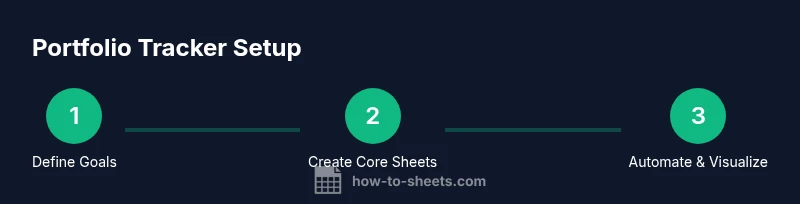
Clarify which assets to track, the reporting cadence, and the level of detail (cost basis method, tax considerations, diversification targets). A well-scoped project reduces complexity later.
Tip: Write a one-paragraph goal statement before you start entering data. - 2
Create core sheets
Make Holdings, Transactions, Prices, and Dashboard sheets with consistent headers and data types. Use named ranges for critical cells to simplify formulas.
Tip: Use data validation for tickers to prevent typos. - 3
Enter initial holdings
Input existing positions with ticker, quantity, cost basis, and purchase date. Include currency if you hold non-USD assets.
Tip: Double-check quantities and prices; small errors compound in dashboards. - 4
Set up price imports
Configure GOOGLEFINANCE or an add-on to pull current prices. Create a Price History table and link it to Holdings to compute current value.
Tip: Record source and last updated time for transparency. - 5
Define calculations
Compute current value, total cost, gains (unrealized/realized), and percentage return. Add rules for dividend reinvestment if applicable.
Tip: Use array formulas to scale across many rows. - 6
Build dashboards
Create charts for asset allocation, performance over time, and top contributors to return. Use sparkline visuals for quick trends.
Tip: Keep dashboards focused; hide complexity behind filters. - 7
Add automation and checks
Schedule price refreshes, set up email alerts for drift beyond targets, and implement periodic backups of the workbook.
Tip: Start with a single weekly refresh and expand as you get comfortable. - 8
Review and iterate
Regularly review accuracy, adjust inputs, and refine calculations. Solicit feedback from collaborators to improve usability.
Tip: Document any changes so future you or teammates understand the logic.
FAQ
What is the best way to structure data for a Google Sheets portfolio tracker?
Structure with separate Holdings, Transactions, and Prices sheets, plus a Dashboard. Keep headers consistent and validate inputs to prevent errors.
Use separate sheets for holdings, transactions, prices, and a dashboard with consistent headers.
Can Google Sheets pull live price data for investments?
Yes, you can pull prices with GOOGLEFINANCE or add-ons. Be mindful of data delays and market hours when designing your sheet.
Yes, use GOOGLEFINANCE or add-ons, but watch for delays and market hours.
How should I handle cost basis and taxes in the tracker?
Track cost basis per lot in the Transactions sheet, support different methods (FIFO, specific identification), and consult tax guidance for accuracy.
Track cost basis per lot and consult tax guidelines for accuracy.
Is it safe to share a portfolio tracker with others?
Use Google Sheets’ sharing permissions and protect sensitive ranges. Share only with trusted collaborators and keep private copies.
Use restricted sharing and protect sensitive data.
What are common mistakes when building a tracker?
Overcomplicating formulas, failing to update prices, and inconsistent data entry. Start simple and gradually add complexity.
Don’t overcomplicate it; keep it simple and maintainable.
How often should I refresh price data?
Set a reasonable refresh cadence (e.g., daily or weekly) and document the chosen delay in your data dictionary.
Refresh data at a consistent cadence and document it.
Can I share the workbook via a mobile device?
Yes, Google Sheets on mobile supports viewing and editing, but complex formulas may be easier on desktop.
Yes, but complex edits are smoother on desktop.
Watch Video
The Essentials
- Define goals before building your tracker.
- Keep a clean, modular data model.
- Automate price pulls and backups.
- Use dashboards to gain quick insights.
- Review regularly and iterate to improve accuracy.