Google Docs vs Word Online: A Comprehensive Comparison
A detailed, objective comparison of Google Docs and Word Online, focusing on collaboration, offline access, formatting, compatibility, and workflows to help you choose.


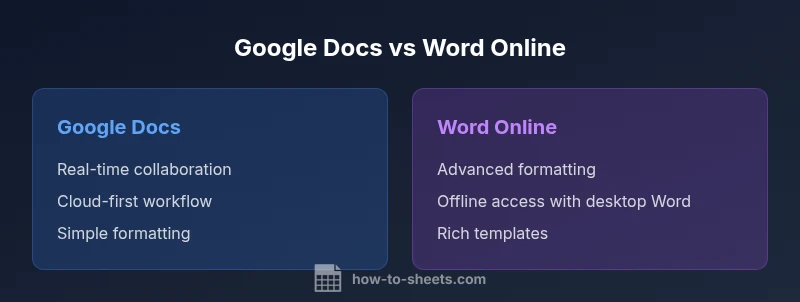
Google Docs and Word Online each serve different workflows. Google Docs shines in real-time collaboration and cloud accessibility, while Word Online emphasizes advanced formatting and offline compatibility with desktop files. This quick comparison highlights the core distinctions to guide your choice based on collaboration needs, offline workstyles, and document complexity.
Overview: What This Comparison Covers
In this comparison Google Docs vs Word Online, we examine two leading cloud-based word processors to help students, professionals, and small business owners decide which editor best fits their workflows. While the focus phrase in this article is the comparison google docs, the analysis remains applicable to any team that relies on real-time collaboration, offline work, and portable documents. We contrast core capabilities—real-time editing, formatting fidelity, templates, and ecosystem integration—and translate them into practical guidance. The intent is not to declare a universal winner but to surface situational advantages, so you can map the tool to your typical tasks, timelines, and collaboration patterns. Readers should expect concrete criteria, neutral language, and actionable recommendations they can apply when selecting an editor for drafting, reviewing, and publishing.
As you read, consider your own priorities: is the priority steady offline access, or is it rapid cloud-based collaboration? This framing helps you move from general preferences to a precise choice.
Core Differentiators at a Glance
- Real-time collaboration: Google Docs excels in simultaneous editing with live cursors, comments, and presence indicators, whereas Word Online offers good collaboration but often feels more like a synchronized workflow with occasional latency.
- Offline capability: Word Online benefits from stronger offline parity when paired with desktop Word, while Google Docs emphasizes online-first workflows with optional offline mode that can be flaky without a reliable internet connection.
- Formatting fidelity: Word Online tends to reproduce complex formatting more predictably for documents with heavy typography, while Google Docs prioritizes clean, simple layouts and quick sharing.
- Templates and extensibility: Google Docs provides a broad set of lightweight templates and strong integration with Google Workspace add-ons; Word Online provides polished templates and richer desktop-to-web portability via Word formats.
- Ecosystem integration: Google Docs plays well within Google Workspace (Sheets, Slides, Drive), while Word Online integrates deeply with Microsoft 365 apps and desktop Word.
- Export/import flexibility: Both can export to PDF and Word formats, but each favors different export paths depending on downstream editing needs.
If you’re charting a path for a team that collaborates in real time on cloud documents, Google Docs often offers a smoother cloud experience; for teams that emphasize advanced formatting and offline work with desktop parity, Word Online provides a more mature formatting toolkit. How To Sheets notes that for many organizations the best approach is to use both tools for different stages of a project or to adopt one as the primary editor with the other used for specific tasks.
Collaboration and Real-Time Editing
Real-time editing is a cornerstone of both editors, yet the experience diverges in practice. Google Docs prioritizes live collaboration: multiple authors can edit a single document simultaneously, with color-coded cursors, comments, and action items appearing in real time. The browser-based interface is lightweight, responsive, and designed for quick sharing and quick edits. Word Online offers collaborative features that are strong, but the experience can feel slightly heavier due to its broader feature set that mirrors desktop Word. In high-demand teams, Google Docs typically reduces bottlenecks by enabling rapid iteration, while Word Online ensures teams can collaborate without sacrificing some of the formatting sophistication users expect from Word.
Practical tip: enable “Suggesting” mode for teams that want to track edits like a living document. For more formal publishing or heavily formatted documents, consider drafting in Word Online while using Google Docs for drafting drafts and comments to speed up feedback cycles.
Offline Access and Synchronization
Offline access is essential for workers who travel, work remotely, or have unreliable internet. Google Docs offers offline mode via a browser setting and the Google Docs mobile app, but it relies on the initial online setup to cache documents. Word Online shines in offline parity when paired with the desktop Word application, which provides familiar formatting controls and a robust offline workflow. If your typical workflow requires seamless transition between online and offline states, Word Online often delivers fewer surprises when the document is reconnected to the internet. Users should be mindful of synchronization latency after re-connecting, particularly for large documents or media-heavy files. A disciplined approach—periodic local saves and explicit re-sync—reduces the risk of conflicts and data loss.
Formatting, Styles, and Typography
Advanced typography and consistent formatting are critical for deliverables with tight brand guidelines. Word Online generally offers stronger native support for complex styles, sections, headers and footers, and precise layout controls, making it a reliable choice for formal documents. Google Docs emphasizes ease of use, clean defaults, and simpler style management, which benefits quick turnaround projects and collaborative editing without the overhead of meticulous formatting. For users who require exact pagination, fonts, and layout fidelity, Word Online often delivers the most predictable results when exporting to Word or PDF; Google Docs remains excellent for drafts and collaborative edits that will later be finalized in Word or another desktop editor.
Templates, Add-ons, and Extensibility
Templates help speed up document creation and ensure consistency. Google Docs has a broad collection of templates and supports Google Workspace add-ons, enabling quick automation and workflow improvements. Word Online benefits from a mature template ecosystem and richer integration with desktop Word features and Office add-ins that extend capabilities for mail merge, formatting, and analytics. When deciding, consider whether your team relies on template-driven processes or on specialized add-ons to automate repetitive tasks. Both platforms offer robust options, but Word Online tends to edge out in enterprise environments due to deeper polish in templates and integration with other Microsoft tools.
File Formats, Import/Export, and Compatibility
In multi-platform environments, compatibility matters. Google Docs uses its own document format by default but exports to Word, PDF, and other common formats, preserving basic formatting and layout for most day-to-day tasks. Word Online preserves much of the Word document fidelity when exporting to Word formats and maintains strong compatibility with desktop Word documents. If your workflow involves moving documents between teams that rely on different editors, both platforms support round-tripping, but your choice may hinge on which format is most critical for your downstream users. Knowledge workers should plan for occasional reformatting when converting complex documents from one platform to the other.
Security and Privacy Considerations
Security and privacy impact how teams trust their data. Google Docs relies on Google’s broader security infrastructure, including encryption in transit and at rest, with granular sharing controls. Word Online inherits Microsoft 365 security features such as data governance, policy enforcement, and enterprise-grade encryption, coupled with Microsoft’s identity and access management tools. Teams in regulated industries may favor Microsoft’s governance capabilities, while those deeply integrated with Google Workspace often lean toward Google’s permissioning and data controls. Regardless of choice, enable strong authentication, implement least-privilege access, and audit sharing settings to manage risk.
How To Sheets observation: choose the platform that aligns with your organization’s security posture and user provisioning model, then configure sharing and retention policies accordingly.
Price and Plan Framing
Both tools offer compelling value propositions, though price considerations depend on organizational context. Google Docs is included with many Google accounts and Google Workspace plans, delivering a cost-effective baseline for teams that already use Google services. Word Online is part of Microsoft 365, offering a free tier with essential features and paid plans that unlock more advanced capabilities and apps. For small teams or individuals, the free tiers can suffice for simple documents and collaboration, while larger organizations may benefit from bundled productivity suites and enterprise security features. When evaluating cost, compare not only the per-user price but also the total cost of ownership, licensing terms, and the value of associated apps and services.
Workflow Scenarios and Decision Tips
Different teams have different sweet spots. If your work centered on rapid drafting, collaborative editing, and cloud-first workflows, Google Docs is often the natural choice. If you need advanced formatting, offline writing, and deep integration with Word-centric workflows, Word Online may be preferable. Consider a blended approach: use Google Docs for initial drafts and cross-team reviews, then move to Word Online for final formatting and publishing. For many organizations, a hybrid model minimizes risk and maximizes productivity, especially when you document governance and establish a clear handoff protocol between stages.
Comparison
| Feature | Google Docs | Microsoft Word Online |
|---|---|---|
| Real-time collaboration | Excellent live editing with presence indicators | Strong collaboration features; slightly heavier interface |
| Offline access | Good offline mode via Chrome/Drive; relies on setup | Strong desktop parity when paired with Word Desktop |
| Formatting fidelity | Simple, clean layouts; quick to format | Richer typography and precise layout controls |
| Templates and add-ons | Wide range of templates; Google Workspace add-ons | Mature templates; Office add-ins and integrations |
| Export/import formats | Exports to PDF/Word; native Google Docs format | Excellent Word-format fidelity; PDF and others supported |
| Ecosystem integration | Best within Google Workspace (Sheets, Slides, Drive) | Best with Microsoft 365 apps and desktop Word |
| Pricing model | Free with basic Google accounts; paid Workspace plans | Free tier plus paid Microsoft 365 for enhanced features |
The Good
- Excellent real-time collaboration for teams
- Strong cloud-first accessibility across devices
- Simple, intuitive interface ideal for quick drafting
- Good integration with the broader suite it belongs to
- Easy sharing and permission controls
The Bad
- Dependent on a stable internet connection for best experience
- Offline parity can be weaker; syncing may introduce conflicts
- Advanced formatting can be less predictable in cloud-only editors
- Export/round-tripping can require reformatting for complex layouts
Google Docs is best for collaboration; Word Online is best for formatting and offline parity
Choose Google Docs if instant collaboration and cloud access are your priorities. Choose Word Online if you need stronger offline workflows and advanced formatting that mirrors desktop Word.
FAQ
Which is better for collaboration, Google Docs or Word Online?
Both platforms support real-time collaboration, but Google Docs often provides a faster, more fluid multi-user experience in cloud-first workflows. Word Online remains strong, especially for teams already embedded in Microsoft 365.
Both work well for collaboration, with Google Docs usually feeling smoother online; Word Online fits better if you’re tied to Microsoft 365.
Can I work offline with Google Docs and Word Online?
Google Docs offers offline mode, but it relies on setup for caching documents. Word Online benefits from desktop Word for robust offline editing and later syncing when online.
Yes, you can go offline with both, but Word Online + desktop Word often handles offline work more robustly.
Are file formats compatible between Google Docs and Word Online?
Both support common formats like PDF and Word, but round-tripping can require formatting adjustments. Plan to reformat if a document moves between editors during finalization.
Formats transfer well, but you may need to tweak layouts after moving between editors.
Do templates and add-ons differ significantly?
Word Online offers a mature template ecosystem and robust Office add-ins; Google Docs provides a broad set of templates and Google Workspace add-ons that streamline collaboration.
Templates and add-ons exist for both, with Word Online leaning more toward Office-integrated tools.
Is there a cost difference between the two editors?
Both editors have free tiers and paid plans for more advanced features. Costs vary by vendor, plan features, and organizational needs.
There are free options and paid plans for both, depending on features and company size.
Which editor integrates best with other tools?
Google Docs integrates best with Google Workspace apps; Word Online integrates best with Microsoft 365 apps, Exchange, and SharePoint.
Docs works best with Google apps; Word Online with Microsoft apps.
The Essentials
- Prioritize collaboration tools when teamwork is the core task
- Plan offline needs before choosing an editor
- Consider final formatting requirements and downstream recipients
- Leverage the right template and add-on ecosystems for your workflow
- Evaluate cost in the context of your broader productivity suite