Google Docs Pros and Cons: A Practical Comparison
This objective guide compares Google Docs with key alternatives, highlighting collaboration, formatting, offline access, and security to help you choose the right tool.


Google Docs pros and cons center on collaboration and accessibility. In short: Google Docs shines for real-time teamwork, automatic saving, and seamless cloud access, but it struggles with advanced formatting, offline reliability, and feature parity with desktop word processors. This quick snapshot helps you decide if Google Docs fits your workflow or if you should lean toward alternatives.
Context and market relevance
In 2026, organizations increasingly rely on browser-based tools to enable distributed workforces. The question of google docs pros and cons is central to choosing how teams create, edit, and publish documents. This section defines the scope and connects features to business outcomes. Google Docs is a web-based word processor that lives in Google Workspace, offering real-time collaboration, automatic saving, and easy sharing across devices. The flip side includes concerns about offline capability, advanced formatting, and data governance. Readers should consider internet reliability, device variety, and cross-app workflows. For students coordinating group projects, professionals drafting briefs, and small businesses building scalable documentation processes, the balance between speed and control matters. Across use cases, the aim is to minimize version chaos, accelerate feedback loops, and keep content accessible on mobile platforms while maintaining governance.
Real-time Collaboration: Strengths and Trade-offs
The standout feature of Google Docs is real-time collaboration. Teams can edit documents simultaneously, see each other's cursors, reply in threaded comments, and track changes via revision history. This is a powerful antidote to back-and-forth email chains. But the cloud-first approach creates trade-offs. When many editors are active, performance can dip on slower connections, and precise formatting can be fiddly in crowded documents. For audit trails, the built-in version history helps, yet large, evolving files can become lengthy to navigate. The practical result is clear: choose Google Docs when collaboration speed matters more than pixel-perfect layout; if your workflow requires strict versioning, offline certainty, or highly complex formatting, plan to supplement with other tools or export/import workflows.
Offline Access and Internet Dependency
Offline use in Google Docs exists but is not as robust as desktop editors. You can enable offline mode, which allows editing on the device without an internet connection, and changes synchronize when you reconnect. The experience varies by platform and document type; some features (like live hyperlinks or certain add-ons) may not function offline. Teams relying on travel or intermittent connectivity should test offline behavior with their typical documents and templates. A practical approach is to maintain a lightweight, offline-friendly draft process in Google Docs for initial drafting, then move to a more feature-rich editor for formatting before final publication.
Formatting and Layout: Desktop vs Web
Google Docs emphasizes simplicity and compatibility across platforms, but it lags behind desktop Word in advanced formatting. You will find styles, headlines, and tables adequate for standard documents, but long-form layouts, section breaks, and precise typography can require workarounds. When a document's success hinges on exact margins, footnotes, or bibliographies, expect some conversion artifacts when importing or exporting. For most everyday tasks—meeting notes, shared proposals, or collaborative reports—Docs delivers legible, clean results. For publishing-grade materials with strict typography, you may prefer to finalize formatting in a desktop editor or use a hybrid workflow that blends both tools.
Templates, Add-ons, and Automation
Doc templates exist, and add-ons extend capability, but Google Docs does not natively match the depth of macros found in desktop Word. Automation is possible via Apps Script, which can trigger workflows across Sheets, Docs, and Drive, but it requires coding, planning, and governance. For teams that want rapid setup, templates and field-driven documents are useful. If your process relies heavily on complex automated formatting, data merging, or custom scripts, budget time to explore third-party add-ons or a hybrid approach with a desktop editor.
File Management and Cross-Platform Consistency
Google Docs stores everything in the cloud, which simplifies sharing and backup but introduces cross-platform consistency challenges. Converting between .docx, .odt, and Google’s native format can occasionally shift spacing, font rendering, and page breaks. A best practice is to maintain master templates in a common baseline format and run final formatting checks after importing into the target editor. When collaborating, ensure that access permissions and link sharing policies are clearly set to prevent accidental data leakage. Overall, Docs shines in seamless cross-device editing, but care is needed when moving files through ecosystems with different formatting engines.
Security, Privacy, and Compliance
Security in cloud-native editors hinges on access controls, data encryption, and admin policy. Google Docs benefits from Google’s security model, including domain-wide sharing controls and audit trails, which helps teams enforce governance. For sensitive projects, review who can view or comment, enable two-step verification for accounts, and set expiration on access where possible. Remember that while cloud storage reduces device loss risk, it introduces vendor risk and requires clear data-handling rules. If your organization must comply with strict standards (e.g., regulated industries), map your policy to supported features such as retention settings, eDiscovery, and controlled sharing.
Performance, Reliability, and Device Compatibility
Performance of Google Docs depends on network speed, device capability, and browser efficiency. On fast connections, the experience is fluid and responsive, with rapid editing, commenting, and live collaboration. On older devices or unstable networks, browser-based editors may feel laggy, especially with large documents. Docs supports major platforms—Windows, macOS, Linux via browser, and mobile iOS/Android apps—but some offline features vary by platform. The reliability of autosave and version history remains a key strength; occasional sync delays can occur after reconnecting. Planning for device diversity, network conditions, and offline contingencies helps teams maintain momentum.
Cost, Licensing, and Value for Groups
Google Docs is free with a Google account, and Google Workspace subscriptions add features such as enhanced admin controls, storage quotas, and advanced sharing settings. For students and small teams, the free tier often suffices for drafting and collaboration; for organizations, Workspace plans offer governance and security capabilities that justify the cost. When evaluating value, consider not just per-user price but total cost of ownership, including training time, migration overhead, and the potential for faster content creation. If you anticipate heavy cross-application workflows or data integration, factor in add-ons or APIs that align with your operational budget.
Practical Guidelines: When to Choose Google Docs vs Alternatives
Your decision should reflect typical workload, formatting needs, and offline requirements. If collaboration speed, cloud access, and mobile editing are primary, Google Docs is a strong default. If your workflow demands long documents with complex layouts, offline certainty, macros, or highly specialized typography, pair Docs with a desktop editor or consider an alternative as the primary tool and use Docs for drafting. For organizations with strict data governance, review sharing policies and retention, and consider data residency requirements. A small pilot project can reveal how well templates and add-ons transfer between systems, and a cost model that accounts for storage and licenses helps prevent budget surprises. The key is to align the tool with the core tasks, not just the features you want to showcase.
Comparison
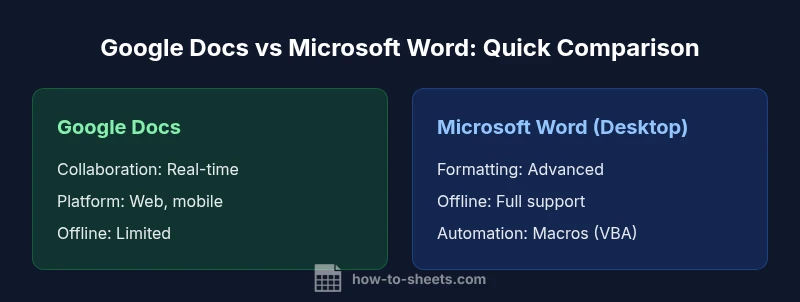
| Feature | Google Docs | Microsoft Word (Desktop) |
|---|---|---|
| Collaboration and sharing | Real-time collaboration in the cloud, seamless sharing | Strong collaboration but desktop-centric; co-authoring available via Office 365 web/OneDrive |
| Offline access | Limited offline with desktop apps via Chrome/Offline mode | Full offline access and feature parity with local files |
| Formatting and layout | Effective for simple docs, basic formatting | Advanced typography, layout, styles, and long documents |
| Templates and automation | Templates, add-ons, and basic automation via Apps Script/Add-ons | Rich template library, macros, and advanced automation (VBA) |
| Cost/Value | Free with Google account; paid workspace adds features | One-time purchase or subscription; higher upfront cost |
| File compatibility and import/export | Strong compatibility within Google ecosystem, .docx import/export | Industry standard .docx, but formatting may shift on conversion |
| Platform availability | Web-based, mobile apps | Desktop Windows/macOS; web/mobile apps with features |
| Security and privacy controls | Sharing controls, admin settings | Mature security features but local device risk |
The Good
- Excellent real-time collaboration and easy sharing
- Automatic saving and cloud-based access
- Free with a Google account; simple for students and small teams
- Seamless integration with Google Workspace apps
The Bad
- Limited offline reliability and advanced formatting compared to desktop Word
- Format fidelity can suffer when moving between editors
- Less robust macro/automation options; VBA vs Apps Script
- Privacy concerns for sensitive data in cloud-based storage
Google Docs is best for collaboration-first teams; for offline work and advanced formatting, use an alternative or hybrid approach.
In most team-centric workflows, Google Docs offers speed and cloud access. The drawbacks lie in offline reliability and formatting depth; consider a hybrid setup for balanced outcomes.
FAQ
What are the main advantages of Google Docs for team projects?
Google Docs excels at real-time collaboration, easy sharing, and automatic cloud saving. It reduces email back-and-forth and keeps everyone's edits visible.
Google Docs shines for team projects with real-time collaboration and easy sharing.
Can Google Docs work offline?
Yes, with offline mode enabled in Chrome, you can edit documents without internet. Changes synchronize when you reconnect, but some features may be limited.
Yes, you can work offline, but some features will be limited.
How does Google Docs compare to Microsoft Word?
Word offers stronger offline capabilities and advanced formatting; Docs emphasizes collaboration and cloud access.
Word is stronger offline and for complex formatting; Docs is great for collaboration.
Is Google Docs secure for sensitive data?
Docs uses Google security models with admin controls; review sharing permissions; consider organizational policies for sensitive data.
Yes, but review permissions and governance when handling sensitive data.
Are templates and automation available in Google Docs?
Docs provides templates and Apps Script automation; macros are not as rich as Word's VBA.
Templates exist, and you can automate with Apps Script, but not as full-featured as VBA.
What about price and licensing for teams?
Docs is free for individuals; Workspace adds admin controls and storage. For teams, calculate total cost including training and migration.
Starts free for individuals; workspace plans add features for teams.
The Essentials
- Choose Google Docs for real-time collaboration and cloud access
- Expect offline gaps; plan for connectivity or use offline mode
- Rely on built-in templates and sharing controls
- Test format fidelity when switching between editors
- Consider a hybrid setup for heavy formatting needs