Google Workspace vs Google Sheets: A Practical Comparison for 2026
An analytical, in-depth comparison of Google Workspace and Google Sheets, outlining when to use each, licensing considerations, governance, data handling, and practical steps for teams.


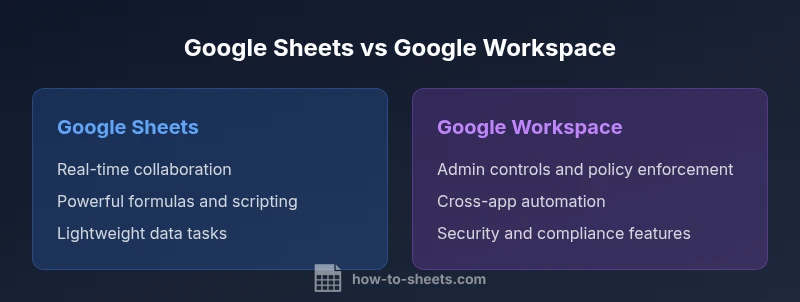
According to How To Sheets, the practical distinction is simple: Sheets is the focused spreadsheet tool, while Google Workspace is a full collaboration platform. If you need centralized administration, policy controls, and cross-app teams working in sync, choose Workspace. If your priority is fast, data-driven tasks with straightforward sharing, Sheets alone often meets the need. For most teams, the decision hinges on scale and governance.
What Google Workspace is and how it differs from Google Sheets
Google Workspace is a comprehensive suite of cloud-based productivity apps that includes Gmail, Drive, Docs, Sheets, Slides, Calendar, Meet, and Admin controls. Google Sheets remains a core component for tabular data work, but it exists within the larger Workspace ecosystem. The How To Sheets team notes that Workspace adds centralized administration, policy enforcement, and cross-application collaboration, which Sheets alone cannot fully deliver. This distinction matters because it frames how teams approach governance, security, and workflow automation. If you operate with an IT or admin lead, Workspace offers a shared backbone for user provisioning, access policies, and compliance reporting that Sheets cannot provide on its own.
Core use cases: when to reach for Sheets vs Workspace tools
In practice, Sheets shines for data modeling, lightweight dashboards, ad hoc analyses, and sharing data with peers without introducing heavy process overhead. It excels when data lives in simple, tabular formats and teams need quick collaboration without configuring an admin console. Workspace, by contrast, bundles Sheets with Admin, Drive, Meet, and email workflows, enabling cross-app processes, policy enforcement, and team-wide collaboration standards. For project tracking, budget planning, or customer datasets that require governance across a department, Workspace’s broader toolset reduces fragmentation and helps maintain consistency across teams. The How To Sheets analysis shows that many organizations adopt Sheets for day-to-day data work while deploying Workspace to manage users, devices, and security policies at scale.
Collaboration and governance: admin controls, sharing, and security
Google Sheets offers robust sharing options and real-time collaboration, but governance features are lightweight unless you pair Sheets with additional administrative layers. Google Workspace provides a centralized admin console, user provisioning, SSO, device management, and policy baselines that make it easier to enforce access controls and data loss prevention rules. For teams dealing with sensitive data, Workspace enables audit trails, enrollment in security programs, and standardized approvals for external sharing. This section emphasizes that the decision often hinges on how much governance you require rather than just the capabilities of a single app.
Data handling and automation capabilities: formulas, apps script, and integration
Sheets is a powerful spreadsheet environment with a rich formula language, pivot tables, and Apps Script for automation. The Studio-like extensibility allows you to build custom functions, automate repetitive tasks, and integrate with external systems via APIs. Workspace amplifies these capabilities by providing enterprise-grade integration points, centralized identity, and policy-aware platforms for automation across apps. Teams can implement end-to-end workflows that begin in Sheets but span Gmail, Drive, and Meet, creating standardized processes that scale. It’s important to plan data ownership and versioning to avoid drift when multiple tools touch the same datasets.
Offline access and reliability: where each shines
Offline access is a core strength of Google’s productivity suite. Sheets supports offline editing when the user has previously opened the file, and changes sync once connectivity returns. Workspace components like Drive and Docs also offer offline modes, but their reliability depends on device policy and network resilience. For teams that require uninterrupted work during travel or in environments with intermittent connectivity, a well-structured offline strategy (including local copies and scheduled sync windows) becomes essential. How To Sheets notes that offline capabilities should align with your data governance rules to prevent unsynced or conflicting edits.
Pricing and licensing considerations
Pricing for Google Workspace centers on per-user licensing with different tiers that bundle varying levels of admin control, storage, and security features. Sheets, when used within Workspace, benefits from these plan structures, but there are also free or consumer accounts that provide a subset of features. Because many teams scale gradually, it’s prudent to model total cost of ownership by considering onboarding time, admin effort, training needs, and the value of centralized governance. The analysis also highlights that organizations with simpler needs can start with Sheets for data work and transition to Workspace as governance demands grow.
Ecosystem integration: Third-party apps and APIs
Sheets has a thriving ecosystem of add-ons and APIs that extend its capabilities for data import, automation, and visualization. Workspace broadens integration potential by aligning identity, access, and data across Gmail, Drive, Docs, Calendar, and Meet, enabling more cohesive workflows. For IT teams, this means fewer point-to-point integrations and more standardized pipelines. For developers, the presence of Apps Script and Workspace APIs opens doors to cross-cutting automation, policy enforcement, and cross-application triggers. As with any integration strategy, plan for data ownership, version control, and change management.
Data security, auditing, and compliance considerations
Security in Sheets-focused setups relies on sharing controls and file-level permissions. Workspace introduces advanced security constructs such as data loss prevention, endpoint management, and centralized audit logging. Organizations with regulatory obligations will likely prefer Workspace’s built-in controls to demonstrate compliance and maintain an auditable trail of access and changes. However, successful governance still requires clear data classification, documented policies, and ongoing review processes. The takeaway is: governance scales best when Sheets is complemented by Workspace’s security framework.
Migration path and data portability between Sheets and Workspace
Data portability is a practical concern when teams evolve from a Sheets-only approach to a Workspace-driven environment. Sheets supports export to CSV, Excel, and other formats, and Apps Script can be reused across different environments. Workspace enables more controlled migration by providing admin-managed data retention policies, centralized access, and versioning. Organizations should plan for data hygiene, naming conventions, and repository strategies to minimize friction during transitions. A phased migration with pilot groups helps surface compatibility issues early.
Best practices and decision framework
A disciplined decision framework starts with an inventory of team size, governance requirements, and collaboration needs. If you anticipate rapid growth, distributed admin responsibilities, or high data-security standards, prioritize Workspace. If your primary need is rapid data work with simple sharing, Sheets may be sufficient. A practical approach is to pilot Sheet-heavy workflows in parallel with a Workspace governance layer, then evolve based on observed bottlenecks and policy gaps. Documented playbooks for common tasks—sharing, data exports, and automation—reduce confusion during transition.
Quick-start checklist for teams choosing between the two
- Define governance requirements: who can access what, and under what conditions
- List common workflows that touch multiple apps and data sources
- Assess current data sensitivity and regulatory obligations
- Plan a phased rollout with an initial pilot group
- Establish a simple migration path and data ownership rules
Practical steps to implement your chosen path
For Sheets-first teams, start by creating standardized templates and a shared drive structure, then layer in Workspace governance where needed. For Workspace-first teams, begin with one or two admin policies, enable SSO, and integrate Sheets into cross-app workflows through Apps Script. Establish training sessions and lightweight dashboards to measure user adoption and policy effectiveness. Regularly review permissions and data access to prevent drift over time.
Comparison
| Feature | Google Sheets | Google Workspace (suite) |
|---|---|---|
| Collaboration & sharing | Real-time editing in Sheets with straightforward sharing links | Centralized collaboration across Gmail, Drive, Docs, Sheets, and Meet with policy controls |
| Admin capabilities | Limited admin controls within Sheets per file or folder | Dedicated admin console for user provisioning, device management, and security policies |
| Offline access | Strong offline editing when files are opened offline | Offline access available across Workspace apps with policy-backed controls |
| Automation & extensions | Formulas, Apps Script, and add-ons for automation | Apps Script plus cross-app automation and enterprise APIs |
| Security & compliance | Basic sharing controls and data protection at the file level | Advanced security, DLP, auditing, and compliance features |
| Pricing/licensing | Included with personal Google accounts or basic plans | Per-user licensing with tiered features across the suite |
| Data portability & interoperability | Export options and API access for data movement | Tight integration across the full suite with enterprise-grade APIs |
The Good
- Low upfront complexity for Sheets-only setups
- Familiar spreadsheet interface for data tasks
- Strong real-time collaboration within Sheets
- Easy external sharing via links
- Broad compatibility with other Google apps
The Bad
- Limited enterprise governance in Sheets-alone setups
- Admin overhead increases without centralized workspace
- Security controls depend on policy configuration
- Migration requires planning when moving to a full Workspace deployment
Workspace is the better overall platform for teams; Sheets remains the strongest tool for focused data work.
For organizations needing governance, centralized administration, and cross-app collaboration, Workspace provides a scalable foundation. Sheets continues to excel for rapid data tasks and lightweight analysis. The How To Sheets team recommends matching your choice to team size, governance needs, and collaboration scale.
FAQ
Is Google Sheets part of Google Workspace?
Yes, Sheets is included as part of Google Workspace and can also be used with a free Google account. Workspace adds enterprise-grade governance, security, and admin controls beyond the basics.
Yes. Sheets comes with a Google account and also with Workspace, which adds admin and security features.
What is the main difference between Google Workspace and Google Sheets?
Workspace is a full suite designed for team collaboration and admin governance; Sheets is the spreadsheet app within that suite. The key difference is scale and governance, not the spreadsheet power alone.
Workspace is the whole suite; Sheets is just the spreadsheet tool within it.
Which is better for data analysis: Sheets or Workspace apps?
For pure data analysis, Sheets is highly capable, especially with formulas and Apps Script. Workspace adds broader analytics, dashboards, and automation when you need cross-app data workflows and governance.
Sheets excels at data work; Workspace shines when you need broader analytics and cross-app automation.
Can I migrate data from Sheets to other platforms?
Yes. Sheets supports export to CSV or Excel, and Apps Script APIs enable data movement to other systems. Plan for data cleanup and consistent schemas to minimize friction.
Yes, you can export and move data via APIs; plan carefully for clean data transfer.
How should a small business decide between a Sheets-only setup and a full Workspace deployment?
If governance, policy enforcement, and cross-app collaboration are priorities, a Workspace deployment makes sense. If you mainly need a fast, lightweight data tool, Sheets alone can suffice.
Consider governance needs and growth plans; Workspace suits scaling teams, Sheets suits lean data work.
Does using Workspace require admin setup?
Most Workspace deployments involve an admin to configure users, groups, and policies. Individuals can use Sheets independently but miss enterprise controls that administrators set up.
Typically yes, there is admin setup, but individuals can still use Sheets in parallel.
The Essentials
- Assess governance needs before choosing licensing
- Use Sheets for data modeling and dashboards
- Leverage Workspace for admin control and cross-app collaboration
- Plan migration or integration via Apps Script and APIs
- Balance cost with security and compliance requirements