Protect Google Sheet from Viewing: A Practical Guide
Learn practical methods to protect google sheet from viewing. Manage sharing, restrict access, apply protected ranges, and audit permissions to prevent leaks.


Protect Google Sheet from viewing by applying layered controls: set precise sharing for specific people, guard sensitive cells with Protected ranges, hide tabs where appropriate, and enforce domain-level policies in Google Workspace. Regular audits and targeted tests verify protections and help prevent leaks.
Core principles of restricting access
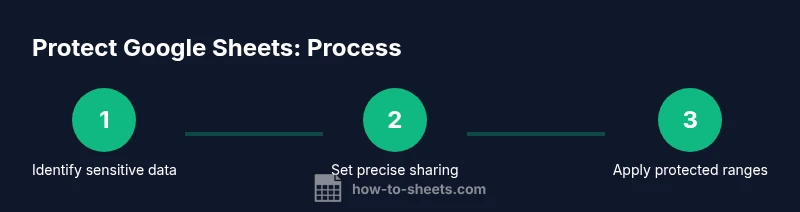
In any shared Google Sheet, access should be controlled at multiple layers to reduce risk of exposure. According to How To Sheets, begin with a data inventory to map who needs access, then implement controls that limit viewing to those individuals. The core idea is to grant the minimal privileges required for work, and to separate sensitive data from less-confidential content. This approach helps students, professionals, and small teams keep information private while still enabling collaboration. You’ll learn to structure sheets for security from the start, assign explicit access, and routinely verify that protections still align with roles. By outlining data categories and access needs, you create a solid foundation for ongoing protection and auditable governance. This emphasis on layered protections is foundational for anyone aiming to protect google sheet from viewing and keep data compliant with organizational policies.
The How To Sheets team emphasizes practical, actionable steps you can apply today. Start with a quick data map, then layer in sharing controls, protected ranges, and periodic reviews. The goal is to prevent accidental exposure while preserving legitimate collaboration.
How Google Sheets sharing works under the hood
Google Sheets sharing is not just a toggle between “view” and “edit.” It is a set of permissions that travels with the file in Google Drive. Viewers can be restricted, commenters can be limited, and editors can be controlled through protected ranges. Understanding these roles helps you architect safer workbooks. When you share with individuals, you define who can see the content; when you apply protections, you define who can change specific data. Additionally, there are organizational policies in Google Workspace that can cap external sharing and enforce corporate rules. This layered understanding is essential to prevent unauthorized viewing and to maintain data integrity as your team grows.
In practice, differentiate between who can view, who can edit, and who can only comment. Use these distinctions to tailor access for each partner, contractor, or teammate. Remember that access decisions should be revisited after role changes or project completion to maintain an up-to-date protection posture.
Layered protections you can apply today
- Share with specific people only: Instead of sending a link to everyone, use the Share dialog to add exact emails. Remove anyone who no longer requires access. The benefit is precise control over who can view or edit the sheet.
- Use Protected ranges: Lock cells that contain sensitive data, formulas, or personally identifiable information. This prevents accidental edits by anyone, including editors who don’t need to modify those cells.
- Protect sheets and entire tabs: Guard critical tabs to prevent edits, while keeping the rest of the workbook accessible to the appropriate audience. This approach helps maintain structure and reduces risk during collaboration.
- Hide sheets cautiously: Hiding a tab is not a security measure by itself; anyone with access can unhide it. Use protection in combination with restricted sharing to reduce risk.
- Admin and domain controls: In Google Workspace, admins can limit sharing outside the organization and enable data loss prevention policies. These controls extend protection beyond a single sheet and help organizations enforce standards.
- Audit and test regularly: After applying protections, simulate access from different roles to verify that only authorized users can view or edit the intended content. Regualar checks catch misconfigurations early.
This layered approach to protection is designed to be practical for real-world use cases, from classrooms to small businesses. The overarching goal is to minimize risk while preserving productive collaboration and data integrity.
To maximize effectiveness, combine these protections with clear data classifications and a documented access policy that team members understand and follow. If you want to consult a practical, human-centric approach, the How To Sheets team recommends a deliberate, repeatable process that scales with your needs.
Practical workflows: an example for a small team
Consider a small project workbook that contains client contact data, project timelines, and internal notes. The sensitive table should only be visible to the project manager and client liaison. Create a dedicated sheet tab for sensitive data and place it behind a protected range. Share the rest of the workbook with the team to maintain collaboration. Periodically audit access and confirm that only authorized team members can view the protected tab. In addition, enable domain-restricted sharing if your organization requires it. This workflow illustrates how to protect google sheet from viewing while preserving teamwork and visibility for non-sensitive information. The same pattern scales up for larger teams and more complex data structures.
By implementing a practical, layered approach, you preserve data privacy without sacrificing productivity. It’s about designing controls upfront, not reacting after data exposure occurs.
Common mistakes and how to avoid them
- Relying on hiding tabs as security: Hiding a tab is not secure. If someone has access to the file, they can unhide. Always pair hiding with protections and restricted sharing.
- Over-exposing data: Avoid placing sensitive data in easily shareable sheets. Consider splitting data into separate, access-controlled sheets and linking only what is necessary for workflow.
- Skipping audits: Permissions drift happens when roles change. Schedule regular reviews and confirm access aligns with current responsibilities.
- Not testing protections: Without testing, you miss misconfigurations. Conduct user simulations to verify that viewers cannot access protected ranges or hidden data.
- Ignoring admin controls: In managed environments, admin policies can override user settings. Ensure your admin configuration matches your protection goals.
These mistakes are common but easily avoided with a structured, repeatable process. The key is not to assume that a single control is enough; multiple layers reduce the risk of accidental exposure and help you keep your data safe.
Testing, auditing, and long-term maintenance
A robust protection strategy includes continuous testing and governance. Start with a quick access audit: who has view or edit permissions, and which sheets or ranges are protected. Then validate by logging in as a test user with restricted access to verify the protection works as intended. Schedule quarterly audits and after major project changes or personnel changes. Maintain a living document that outlines which data is sensitive, who has access, and what protections are in place. This documentation supports accountability and helps new team members understand the safeguarding strategy. By sustaining this discipline, you keep your sheets protected from viewing while enabling safe collaboration and efficient workflows.
Finally, consider training sessions for your team to emphasize data privacy and practical protection practices. Clear guidance reduces accidental exposure and builds a culture of careful data handling.
Alternatives and limitations
While protecting google sheet from viewing is essential, no solution is perfect. If you require stricter control, consider moving highly sensitive data to a dedicated securely managed system and linking only non-sensitive data to your Sheets. For teams needing strong enforcement, combine Google Workspace data loss prevention (DLP), domain restrictions, and minimum-privilege access with Protected ranges. Remember that some protections are administrative or policy-based rather than purely technical; align your technical settings with your organization's governance framework.
Tools & Materials
- Google account with owner rights(Needed to adjust sharing and set protections.)
- Access to the Google Sheet in question(Must be able to modify permissions and ranges.)
- A modern web browser with internet access(Keep browser up to date for best security features.)
- Admin access to Google Workspace (optional)(Needed if you want to enforce domain-wide policies.)
- A test copy of the sheet for experimentation(Use a staging copy to validate protections before production.)
- Data classification and access policy(Helps determine which data gets protected and who can access it.)
Steps
Estimated time: 20-40 minutes
- 1
Assess sensitive data and sharing needs
Inventory data elements to decide what requires protection. Identify departments or roles that need access and what level of access is appropriate (view, comment, or edit). Clarify data owners and update the access policy accordingly.
Tip: Create a data inventory, categorize fields by sensitivity, and assign initial access roles. - 2
Share with specific people only
Open the sheet's Share dialog, remove generic access, and add exact email addresses of authorized users. Set their role to Viewer or Editor only if necessary, and consider using Commenter for non-edit tasks.
Tip: Double-check external collaborators; turn off link sharing unless absolutely required. - 3
Apply protected ranges to sensitive cells
Select the target range, choose Data > Protected sheets and ranges, and define who can edit that range. Save and repeat for other critical areas.
Tip: Limit editors for the sensitive range; non-authorized users should only have view access. - 4
Protect sheets or tabs containing sensitive data
Guard entire sheets that contain private information. Use a separate tab for filtered or non-sensitive data to minimize exposure.
Tip: Avoid including sensitive content on tabs that are widely shared. - 5
Consider admin controls and domain policies
If you’re in Google Workspace, align sharing with admin policies to restrict external sharing and enable DLP if available.
Tip: Coordinate with IT to ensure the policy applies consistently across all projects. - 6
Test access and monitor regularly
Log out and test access using a separate account to verify protections. Schedule periodic reviews and adjust as roles change.
Tip: Document test results to track changes over time.
FAQ
Can I completely prevent others from viewing a Google Sheet?
No single action guarantees total secrecy if someone has access to the file. You can minimize exposure by restricting sharing to specific people, protecting sensitive ranges, and enforcing domain policies. Always test access with representative user accounts.
You can't guarantee complete secrecy, but you can minimize exposure by restricting sharing and applying protections. Always test with a real user account.
Is hiding a sheet enough to hide data?
Hiding a sheet is not secure protection. Anyone with access can unhide it. Use hiding only as a visual cue in combination with protected ranges and strict sharing settings.
Hiding alone won't stop access. Combine with protections and restricted sharing.
How can I restrict downloading or printing?
In Google Workspace, admins can disable downloading, printing, and copying for viewers and commenters. Within Sheets, consider sharing settings and enabled view-only access to reduce data exfiltration.
Admins can disable download or print for viewers; otherwise use view-only access where possible.
What should I do if someone still sees data after changes?
Review all sharing links, permission levels, and protected ranges. Revoke access for anyone not explicitly authorized and re-test with an access-simulation account.
Revoke and re-test access with a test account to confirm protections hold.
Do these steps apply to team sheets used across projects?
Yes. Start with a data map, apply layered protections, and maintain a centralized policy for consistent protection across projects.
Absolutely—use a consistent, team-wide protection policy.
Are these protections different for personal vs. corporate accounts?
Basic protections (sharing, protected ranges) apply to both, but corporate environments benefit from admin controls, DLP, and domain restrictions for stronger governance.
Core protections apply to both; admins add stronger governance for organizations.
Watch Video
The Essentials
- Limit sharing to specific individuals and groups
- Protect data with per-range and per-sheet controls
- Test access with real user accounts and audit regularly
- Do not rely on hiding tabs as secure protection
- Coordinate with admin policies for domain-wide protection