How to Build a Coverage Tracker in Google Sheets
Learn to build a coverage tracker in Google Sheets that maps tasks to criteria, highlights gaps, and visualizes progress with a reusable template for students, professionals, and small teams.


You will learn to build a coverage tracker in Google Sheets that monitors task coverage against defined criteria, flags gaps, and summarizes progress in a single dashboard. You'll set up a data model, implement validation and formulas, and create a reusable template suitable for students, professionals, and small teams. This approach emphasizes practical templates and clear visuals.
What is a coverage tracker and when to use it
A coverage tracker is a structured tool that maps tasks to a defined set of criteria and shows which criteria are covered by each task. In Google Sheets, you can implement a lightweight yet powerful tracker that updates automatically as statuses change. This is ideal for project plans, audits, quality checks, and coursework where you need a clear line of sight into coverage gaps. According to How To Sheets, a practical coverage tracker helps teams visualize progress and identify gaps quickly, turning scattered notes into a single source of truth. Use cases range from academic rubrics to client project scope, making it easier to communicate progress in team meetings and reports.
Core data model: fields, statuses, and criteria
Define the core fields for your tracker: Task ID, Task Name, Criteria, Status, Coverage (Yes/No), CoverageScore, Owner, Due Date, and Last Updated. Create a clear set of status options (Not Started, In Progress, Complete, Blocked) and map each task to one or more criteria. This data model keeps data consistent and simplifies downstream calculations. For readability, maintain a separate criteria list and use relative references so you can reuse the same model across projects. How To Sheets emphasizes a clean data structure as the foundation of a reliable tracker.
Data validation and drop-downs
Use data validation to constrain Status to a fixed list and Criteria to a defined set. Create named ranges for your status options, criteria, and owners, then apply dropdowns to the respective columns. This reduces errors and ensures uniform reporting. Add an optional checkbox for “Covered” to capture quick yes/no signals. Validation is the backbone of trustworthy data in a dynamic tracker.
Formulas to compute coverage percentage
Compute coverage with simple, robust formulas. For example, derive a per-task coverage by counting the number of criteria marked as covered and dividing by the total criteria for that task. Aggregate to a project-level coverage with a weighted average if some criteria matter more. Typical formulas rely on COUNTA, COUNTIF, and AVERAGE across your defined ranges. Keep formulas readable by using named ranges and documenting assumptions in a hidden sheet.
Conditional formatting and visuals
Apply color rules to Status (Not Started = gray, In Progress = blue, Complete = green, Blocked = red) and to Coverage (Green for fully covered, Yellow for partial, Red for gaps). Visual cues dramatically speed up scanning during meetings. Add sparkline charts or small bar visuals in a dashboard tab to summarize progress by project, phase, or owner. Visuals should reinforce clarity without overwhelming the user.
Designing a reusable template
Structure a single template with a header tab for configuration (criteria, statuses, owners) and a data tab for entries. Include a dashboard tab with summary metrics and charts. Create a “Make a copy” workflow so teammates can duplicate the template for new projects without altering the master. Document how to adapt the template to different teams and data sizes.
Real-world example: marketing campaign coverage
Imagine a marketing campaign with five tasks and five criteria (Audience Fit, Message Tone, Compliance, Timeline, Budget). Each task links to several criteria, and status/coverage fields update automatically as work progresses. A dashboard shows overall coverage, critical gaps, and owner assignments. This practical example demonstrates how a tracker transforms scattered notes into a coherent plan that stakeholders can review at a glance.
Automation options and Apps Script basics
For teams that want automation, consider small Apps Script triggers that refresh computed fields when a log entry updates, or that send reminders for overdue tasks. You don’t need to write complex scripts to benefit from automation—start with simple onEdit triggers and email summaries. This keeps the tool scalable without adding maintenance burden.
Sharing, collaboration, and permissions
Google Sheets makes collaboration straightforward. Use protected ranges for key formula cells, define who can edit data versus who can view dashboards, and enable comment threads for reviews. Establish a naming convention and a shared drive location so teams can locate the tracker quickly and keep version history intact.
Quick-start checklist for your tracker
- Define your criteria and statuses before you touch a cell
- Build the data model with clean headers and named ranges
- Add drop-downs to ensure data consistency
- Implement a simple coverage formula first, then enhance
- Create a dashboard with at least one chart
- Test with a small data set and iterate based on feedback
- Set sharing permissions and enable version history
- Document assumptions and usage instructions
Next steps and expansion ideas
As teams grow, you can add role-based views, automate imports from other sheets, or tie the tracker to a broader project management tool. Consider adding a data import/export routine for reporting, or converting the tracker into a Google Sheets template library item for your organization. The possibilities scale with your needs.
Tools & Materials
- Google account with access to Google Sheets(Needed to create and share the tracker)
- Google Sheets (web or mobile)(Use the latest version; enable offline if needed)
- Coverage tracker template (Sheet)(Optional starter template or a blank sheet to customize)
- Sample data set and criteria list(For testing the tracker)
- Internet connection(Stable connection during setup)
- Backup method(Versioning or copies for safety)
- Apps Script editor (optional)(For basic automation and triggers)
Steps
Estimated time: 60-90 minutes
- 1
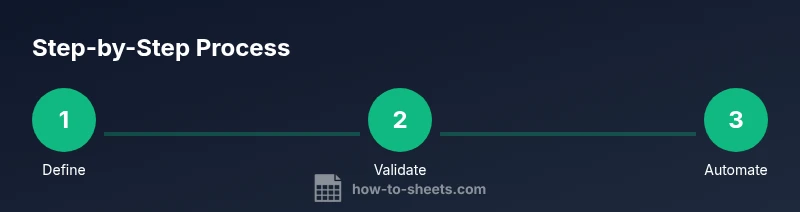
Define data model and criteria
Outline the fields you will track and the criteria each task must meet. Decide which statuses you will use and how you’ll measure coverage. This upfront design avoids messy formulas later.
Tip: Document criteria in a separate sheet for easy reference. - 2
Create a new Google Sheet and structure tabs
Make a clean file with tabs for Data, Dashboard, and Settings. This separation helps keep data clean while dashboards remain fast and responsive.
Tip: Use a consistent naming convention for tabs to prevent confusion. - 3
Add headers and sample data
Enter headers like Task ID, Task Name, Criteria, Status, Covered, Owner, Due Date. Populate a small sample to test your setup before scaling.
Tip: Keep sample data representative of real use cases. - 4
Create drop-downs for statuses and criteria
Use Data Validation to constrain Status and Criteria to predefined lists. This reduces entry errors and standardizes reporting.
Tip: Refer to named ranges for future flexibility. - 5
Implement coverage calculation
Add a formula to compute per-task coverage and a summary metric for the project. Start simple and iterate as you test with real data.
Tip: Document the formula logic in the template for future users. - 6
Apply conditional formatting
Color-code statuses and coverage levels to create quick visual cues. This makes dashboards instantly readable.
Tip: Test color contrast to maintain readability in all lighting conditions. - 7
Build a dashboard with visuals
Create charts and summary cards to show overall coverage, gaps, and progress by owner or milestone.
Tip: Keep dashboards lightweight to ensure fast updates. - 8
Save as a reusable template
Turn the file into a template with a configuration tab. This enables colleagues to copy and adapt for new projects.
Tip: Include a short user guide in the Settings tab. - 9
Share and configure permissions
Set viewing/editing rights and enable version history. Encourage collaboration while protecting critical formulas.
Tip: Limit edit access to core cells but allow dashboard visibility.
FAQ
What is a coverage tracker and what is it used for?
A coverage tracker maps tasks to defined criteria and shows which criteria are met. It helps teams identify gaps, monitor progress, and communicate status clearly. It’s especially useful for projects, audits, and coursework.
A coverage tracker maps tasks to criteria and highlights what’s covered and what isn’t, helping teams see gaps quickly.
How do I calculate overall coverage in Sheets?
You calculate coverage by counting how many criteria a task covers and then averaging or aggregating across tasks. Use functions like COUNTIF, COUNTA, and AVERAGE across named ranges to keep results consistent.
Use COUNTIF and AVERAGE across your ranges to compute coverage across tasks.
Can I share the tracker with teammates?
Yes. Use Google Sheets sharing settings to grant view or edit access. Consider protecting key formulas and providing a readme in Settings to guide collaborators.
Yes, share with teammates using Google Sheets sharing options and protect essential cells.
What if the criteria change?
Update the criteria list and adjust named ranges. The template should adapt with minimal edits—keep a changelog and communicate adjustments to the team.
Update the criteria list and present the change to your team.
Is it possible to lock cells containing formulas?
Yes. You can protect cells with formulas while still allowing data entry in other areas. This helps prevent accidental edits during collaboration.
You can lock the formula cells to prevent mistakes.
How can I import data from another sheet?
Use IMPORTRANGE or copy-paste with careful mapping of fields. Ensure consistent criteria mapping to avoid misalignment in your dashboard.
Import data using IMPORTRANGE or careful copy-paste with matching fields.
Watch Video
The Essentials
- Define a clear data model before building.
- Use validation to enforce data integrity.
- Create a lightweight dashboard for quick insights.
- Keep templates reusable and well-documented.
- Share with teammates and establish governance.