LibreOffice vs Google Sheets: A Comprehensive 2026 Comparison
A thorough, analytical comparison of LibreOffice Calc and Google Sheets, covering offline vs cloud, collaboration, formulas, Excel compatibility, security, and deployment considerations for teams in 2026.


libreoffice vs google sheets: Google Sheets excels at real-time collaboration, accessibility, and cloud-based workflows, making it ideal for teams that need live editing from anywhere. LibreOffice Calc shines in offline work, dense formatting, and complex local data processing without requiring internet. For mixed environments, Sheets is best for cloud-first teams, while Calc remains strong for secure, offline, or highly customized spreadsheets.
Context and use cases
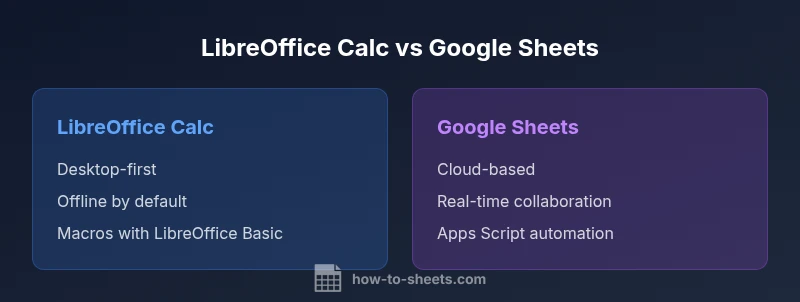
In the ongoing debate of libreoffice vs google sheets, the decision often boils down to where people work, how data is stored, and how teams collaborate. LibreOffice Calc is a desktop-first application that shines when you need dense formatting, advanced printing options, and tight control over data locally. Google Sheets, by contrast, is a cloud-native editor designed for browser-based access, automatic syncing, and real-time collaboration across devices. For students and professionals who juggle multiple devices or work remotely, Sheets offers a frictionless way to share dashboards, budgets, and datasets with teammates. By contrast, Calc is attractive for security-conscious environments or scenarios where internet reliability is variable. In practice, many teams adopt a hybrid approach: use Sheets for collaborative planning and lightweight data entry, and rely on Calc for offline data preparation and offline backups. The How To Sheets approach emphasizes aligning tool choice with data governance, accessibility needs, and team workflows rather than chasing feature parity alone.
Consider your typical workflow cadence, data sensitivity, and the tools you already rely on (Drive, SharePoint, or local storage). Finance teams may favor Calc for offline audit trails, while marketing teams may lean toward Sheets for live dashboards and rapid prototyping. Templates, macros, and data connections also factor into the equation. The core takeaway is that libreoffice vs google sheets is not a binary decision—it's about balancing offline access with online collaboration, and choosing the right tool for each phase of a project.
Core differences: cloud-based vs offline capabilities
The most visible divergence in the libreoffice vs google sheets comparison is where work happens. Google Sheets operates in a cloud-first model, storing files in Google Drive and enabling instant cross-device access. This design supports simultaneous editing, automatic version history, and seamless sharing controls. The tradeoffs include reliance on internet connectivity for the full feature set, potential latency with large datasets, and cloud-based security considerations that influence governance.
LibreOffice Calc, on the other hand, prioritizes offline productivity. You can work without internet access, keep data locally, and produce complex formatting that prints cleanly on paper. Calc’s offline orientation is beneficial for environments with strict data residency requirements or restricted network access. When you connect Calc to cloud services, you typically do so through external tools (like Nextcloud or Dropbox) rather than a built-in cloud-native experience. This distinction helps teams choose according to their operational model: cloud-native teams benefit from Sheets’ live collaboration and sharing, while privacy-focused or offline-centric teams may prefer Calc for workflow stability and data sovereignty.
Data handling, formulas, and interoperability
Both Calc and Sheets provide robust formula engines, but their ecosystems shape their best-use scenarios. Google Sheets emphasizes formula-driven collaboration with strong integration to other Google Workspace apps, including functions like IMPORTRANGE and QUERY that streamline live data flows from multiple sources. Calc offers a mature set of functions, matrix operations, and the ability to write macros in LibreOffice Basic for automations that run locally. In practice, many users rely on Calc for heavy data transformations and cleansing, then export to XLSX or CSV for sharing with Sheets users. When moving data between tools, expect occasional translation gaps: some advanced macros, array formulas, or specialized functions may not map perfectly across platforms.
If your team uses external data connections (APIs, databases, or web services), Sheets provides built-in capabilities that simplify live data updates, while Calc can handle similar tasks through extensions or macros. Planning a cross-tool workflow requires documenting the exact formulas used, testing edge cases, and deciding which steps must stay in a local or cloud environment to minimize data drift.
Compatibility with Excel and other formats
Excel compatibility is a frequent testing ground in the libreoffice vs google sheets comparison. Both Calc and Sheets offer import/export support for Excel formats, but with caveats. Calc natively supports ODS as its default format and can import or export XLSX with reasonable fidelity; however, certain Excel-specific features may not translate perfectly, such as some dynamic array formulas or very new functions. Sheets is designed to work well with Excel files, with import and export options that aim to preserve formulas and formatting, but complex macros written in VBA may not translate directly and could require reimplementation in Apps Script or manual adaptation. For teams that routinely exchange spreadsheets with external partners, establishing a standard format (often XLSX) and clearly mapping critical formulas can reduce friction. The choice between Calc and Sheets thus hinges on how often you exchange formats and how much you rely on VBA or Excel-specific features.
Collaboration and real-time editing
Real-time collaboration is a hallmark of Google Sheets. Multiple users can edit cells simultaneously, view cursors in real time, and comment inline, which accelerates teamwork on budgets, project plans, and data dashboards. LibreOffice Calc’s collaboration story is more traditional: offline editing, then manual synchronization via shared drives or document management systems. Some organizations enhance Calc collaboration by pairing it with server-backed suite options (like Collabora Online or Nextcloud) that enable concurrent editing; these solutions, however, add infrastructure requirements and governance considerations. For teams where live editing is non-negotiable, Sheets offers the smoother experience; for users prioritizing offline availability and controlled sharing, Calc paired with a private cloud can be a practical alternative.
Templates, automation, and macros
Both tools support templates, macros, and automation—Calc with LibreOffice Basic and Sheets with Apps Script. Calc macros are powerful for offline workflows and batch processing of data, while Apps Script enables cloud-based automation, custom functions, and easy integration with other Google services. When starting a new project, leveraging templates helps standardize formatting, data validation, and reporting across teams. Sheets often benefits from a broader ecosystem of add-ons and community templates, which accelerates onboarding for new users. Calc, with its robust desktop scripting, is ideal when automation must run strictly within a local environment. If your team aims to boost productivity via automation, assess whether you need internet-enabled scripting (Apps Script) or offline-capable macros (Calc).
A practical tip: prototype critical workflows in both environments and compare performance, maintenance effort, and portability of the resulting spreadsheets.
Security, privacy, and governance
Security and governance considerations differ between libreoffice calc and google sheets. Sheets stores data in Google's cloud, with the provider responsible for infrastructure and compliance layers. This model supports centralized access control, audit trails, and easier disaster recovery, but it raises questions about data residency and cloud-based risk. Calc stores data locally by default, which can reduce exposure to cloud-based threats but introduces responsibility for securing endpoints and backup processes. For teams handling highly sensitive data, a hybrid policy—use Sheets for collaborative projects but keep sensitive data offline in Calc or private deployments—can mitigate risk. Regardless of the tool, establish clear data classification, access controls, and change-management practices to maintain governance integrity.
Performance and scalability
Performance considerations evolve with dataset size and feature usage. Google Sheets performs well for moderate datasets with many collaborators, but very large spreadsheets or those with heavy scripts can experience latency or slower refresh times. LibreOffice Calc handles large worksheets locally with substantial memory, but performance may degrade if files are extremely large or include many macros. For teams, a practical guideline is to split large analyses into modular sheets or workbooks and maintain a stable file structure. When possible, run heavy transforms in Calc for offline processing and import summarized results into Sheets for sharing, preserving responsiveness while enabling collaboration.
Pricing and licensing considerations
Pricing and licensing shape the decision in real-world scenarios. Google Sheets is free for individual use and included in Google Workspace for organizations, which introduces paid tiers for advanced collaboration, security, and admin controls. LibreOffice Calc is completely free and open source, with no licensing fees and broad community support. For organizations evaluating total cost of ownership, consider not only software licenses but also the costs of storage, support, and potential data migration. If your team already subscribes to Google Workspace, Sheets often offers a cost-efficient path to scale collaboration, whereas a Calc-centric setup may be preferable when there is a strong preference for offline data sovereignty and open-source tooling.
Migration tips and onboarding for teams
Migrating between LibreOffice Calc and Google Sheets requires planning, especially when teams rely on macros, complex formatting, or VBA conversions. Start with a catalog of essential formulas, macros, and data connections; then pilot migrations with representative files to identify translation gaps. Establish a cross-tool testing plan, including import/export fidelity, macro behavior, and chart rendering. For onboarding, create side-by-side templates highlighting the differences, provide quick-reference guides for common tasks (sorting, conditional formatting, data validation), and set up a shared knowledge base. Encourage teams to maintain one canonical workbook in their primary tool while exporting to the other format for collaboration with external parties.
Comparison
| Feature | LibreOffice Calc | Google Sheets |
|---|---|---|
| Platform | Desktop app on Windows/Mac/Linux | Web-based, accessible from any device with internet; offline mode available |
| Offline access | Yes by default (desktop app) | Yes with offline mode enabled |
| Real-time collaboration | Limited multi-user editing via file sharing | Excellent real-time collaboration with simultaneous editing |
| Formulas & functions | Mature function library; strong data analysis features; Excel compatibility improves with formats | Rich built-in functions; strong Excel compatibility; Google-specific functions |
| File formats & import-export | Native ODS; exports to XLSX/CSV; good interoperability | Native Sheets; imports/exports XLSX/CSV; strong Google ecosystem |
| Automation & macros | LibreOffice Basic macros; offline automation | Apps Script; cloud-based automation; easy deployment |
| Add-ons & extensions | LibreOffice extensions | Google Workspace Marketplace extensions |
| Pricing & licensing | Free and open-source | Free with Google account; Workspace pricing for business features |
| Security & governance | Local data control; offline-first governance | Cloud-based security; centralized admin controls |
| Best for | Offline-heavy, formatting-intensive work | Cloud collaboration, accessibility, and live dashboards |
The Good
- Cloud-first collaboration and accessibility
- Open-source and cost-effective for Calc users
- Strong offline capabilities with local data control
- Good interoperability with Excel formats
The Bad
- Sheets requires internet for full feature set
- Calc lacks native real-time collaboration in the desktop app
- Cross-tool migrations can lose formulas or formatting
- Calc's ecosystem is smaller for cloud integrations
Google Sheets edges ahead for cloud-based teams; LibreOffice Calc remains best for offline, privacy-focused workflows.
If collaboration and cloud access matter most, Sheets is the clear winner. For offline stability and local control, Calc wins the day.
FAQ
Is LibreOffice Calc compatible with Google Sheets?
Both tools can exchange data via Excel formats, but complex macros and some formulas may not translate perfectly. Plan translation tests when moving large files between Calc and Sheets.
Calc and Sheets can share Excel files, but expect translation gaps for advanced macros and some formulas.
Can I collaborate in real-time in LibreOffice Calc?
Native real-time collaboration is not built into the desktop Calc. External collaboration setups exist (like Collabora Online), but they require additional infrastructure.
Real-time collaboration isn't built into Calc; you’d need extra server-based tooling.
Is there an online LibreOffice option?
Yes, via Collabora or other providers, but it is a separate deployment from Google Sheets and has its own setup considerations and limitations.
There are online options for LibreOffice, but they're not the same as Google Sheets and require setup.
Which tool is better for data analysis and formulas?
Both offer strong formula engines. Sheets excels in cloud-connected data flows and built-in functions; Calc provides robust offline data processing and scripting options.
Both handle data well; Sheets is stronger for cloud-based analysis, Calc for offline processing.
Are Google Sheets and LibreOffice Calc free?
Sheets is free with a Google account and can be part of paid Google Workspace; Calc is free and open-source as part of LibreOffice.
Sheets is free with Google, Calc is completely free as open-source.
Which tool is more secure for sensitive data?
Security depends on deployment. Sheets relies on cloud security controls; Calc offers offline storage with local governance. A hybrid approach can mitigate risk for sensitive data.
Security depends on your setup; offline Calc reduces cloud exposure, Sheets relies on cloud security.
The Essentials
- Prefer Sheets for real-time collaboration and cloud access
- Choose Calc for offline workflows and data sovereignty
- Plan migration carefully to avoid formula translation issues
- Leverage templates and automation to boost productivity
- Balance governance requirements with collaboration needs