Libre Calc vs Google Sheets: Side-by-Side Comparison for 2026
A thorough, practical comparison of LibreOffice Calc vs Google Sheets for students and professionals. Explore offline access, collaboration, formulas, data import, and interoperability to choose the right tool for your workflow.


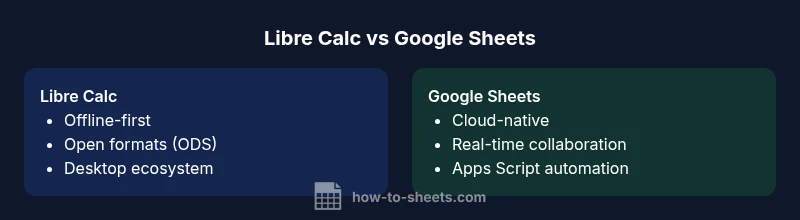
Libre Calc vs Google Sheets presents a practical comparison of collaboration, offline access, formulas, and data interoperability. Calc shines for offline work, open formats, local file control, and privacy; Sheets dominates real-time collaboration, cloud storage, and built-in automation through Apps Script. How To Sheets notes that the best choice depends on your priority—offline precision and portability or cloud-enabled teamwork and scalable sharing.
Libre Calc vs Google Sheets: Landscape and Use-Cases
In the ongoing debate between libre calc vs google sheets, the landscape isn’t about a single winner but about where you work best. This section frames the conversation for students, professionals, and small business owners who juggle offline access, cloud collaboration, and compliance requirements. Libre Calc offers a desktop-first experience with strong support for open formats and local storage, making it ideal for environments with limited or no internet access and strict data governance. Google Sheets, conversely, thrives in cloud-based collaboration, real-time edits, and seamless integration with Google Workspace. The How To Sheets team emphasizes that the right choice hinges on your workflow priorities, security policies, and whether you value complete offline control or dynamic team planning. By understanding the core differences, you can map your day-to-day tasks—data entry, forecasting, budgeting, or reporting—to a platform that minimizes friction and maximizes accuracy.
Core Architecture and Data Model
Libre Calc and Google Sheets share a cell-based data model, but they diverge in formats, storage, and how data rules travel across environments. Calc emphasizes OpenDocument standards (ODS) and robust Excel compatibility, making it easy to exchange files with other desktop tools while preserving local control. Google Sheets operates in a cloud-centric universe, with data stored in Google Drive and automatic synchronization across devices. This fundamental difference affects autosave behavior, file recovery, and the fidelity of imported/exported data. Calc’s offline-first approach means you can work without a network and later sync, whereas Sheets relies on internet connectivity to unlock its full feature set and collaboration benefits. When you export from one tool to another, expect minor adjustments in complex formulas, charts, and formatting. Understanding these architectural distinctions helps you anticipate where you’ll encounter edge cases and how to prepare for them in cross-platform projects.
Collaboration, Cloud and Offline Access
Collaboration is where libre calc vs google sheets show the largest procedural gap. Google Sheets is designed for real-time collaboration, with simultaneous editing, instant commenting, and a live revision history that’s accessible from any device with internet access. This makes it highly suitable for distributed teams and fast-paced projects that require quick feedback loops. Libre Calc focuses on offline work with strong local file control and the ability to work without a constant connection. While Calc supports file sharing through networked drives or cloud storage, the experience isn’t as fluid or instantaneous as Sheets, and real-time presence indicators are less prominent. For teams with strict data residency or offline requirements, Calc provides predictability and privacy. For teams prioritizing cloud-based collaboration and automation across Google services, Sheets is the superior choice. How To Sheets notes that your workflow configuration—how you manage sharing, backups, and device access—will determine which path minimizes friction.
Formulas, Functions and Scripting
Formulas power productivity, and the two tools approach them differently. Google Sheets offers an expansive, cloud-friendly function library that’s continually updated, plus Google Apps Script for custom automation, triggers, and integration with other Google services. Libre Calc provides a strong core of functions, including compatibility with many Excel formulas, and uses LibreOffice Basic for macros, which enables substantial desktop automation and customization. When moving formulas between Calc and Sheets, you’ll encounter syntax nuances and occasional feature gaps. If you rely on complex array formulas or cross-service automation, Sheets generally provides a smoother route via Apps Script. Calc remains compelling for heavy macro-driven workflows on a local machine. In practice, test critical formulas in both environments and prepare fallback approaches for advanced features that don’t translate perfectly.
Interoperability and File Compatibility
Interoperability remains a practical concern for teams exchanging spreadsheets across ecosystems. Calc’s strength lies in its open formats (ODS) and robust Excel import/export with reasonable fidelity, but some formatting and function discrepancies can surface after round-tripping. Sheets handles XLSX, CSV, and its native web format very well, yet imports of advanced macros or particular Excel-only functions may not behave identically. The key to smooth cross-ecosystem work is to establish a standard export/import routine, validate critical formulas, and agree on naming conventions. If your organization routinely interfaces with Excel files, plan for occasional manual adjustments during the handoff. Calc can be a strong companion in mixed environments, provided you allocate time for validation tests and a clear data governance policy.
Performance and Scalability for Large Spreadsheets
Performance considerations become pronounced as spreadsheets grow. Calc is well-optimized for desktop operation, offering fast navigation, smooth editing, and efficient memory use on a capable workstation. Sheets scales with cloud infrastructure, benefiting from real-time synchronization and centralized resources, but network latency and concurrent access can influence responsiveness. For huge datasets, calc tends to perform reliably in offline mode, while Sheets can offer strong multi-user collaboration if the workbook is structured to minimize contention. Practical guidance from How To Sheets suggests focusing on workbook organization, partitioning data when possible, and implementing incremental saves to maintain snappy performance in either environment.
User Experience, Accessibility and Extensibility
User experience and extensibility shape daily productivity. Google Sheets delivers a polished, browser-first interface, mobile apps, and a consistent experience across devices, enhanced by cross-app integration in the Google Workspace ecosystem. Calc provides a robust desktop experience with traditional menus, toolbars, and a strong accessibility feature set designed for screen readers and high-contrast modes. Extensibility differs: Sheets leans on Apps Script and a broad marketplace of add-ons, while Calc relies on extensions and scripts via LibreOffice’s framework. For teams prioritizing offline reliability and customizable desktop workflows, Calc can be a better fit. For those seeking cloud-based automation, cross-application workflows, and streamlined sharing, Sheets offers a forward-looking platform with ongoing updates. The choice often comes down to training resources, governance needs, and how your organization balances privacy with collaboration.
Security, Privacy, and Compliance Considerations
Security and privacy considerations influence the libre calc vs google sheets decision. Google Sheets inherits Google’s enterprise-grade security model, including centralized access controls, data loss prevention capabilities, and audit trails within a cloud environment. Calc emphasizes local data ownership and resilience on private networks when allowed, with an open-source codebase that invites scrutiny and customization but requires careful deployment to maintain security hygiene. If your project involves sensitive data or strict residency requirements, Calc’s offline storage can be advantageous, provided you implement robust backup and access policies. For cloud-first teams, Sheets benefits from centralized policy enforcement and scalable security tooling. How To Sheets reiterates that a formal governance framework—covering roles, permissions, backups, and data handling—is essential regardless of the chosen platform.
Comparison
| Feature | LibreOffice Calc | Google Sheets |
|---|---|---|
| Platform/Access | Desktop/offline-capable | Web-based with mobile apps |
| Real-time Collaboration | Limited real-time editing (via file sharing) | Native real-time collaboration with comments and presence |
| Formulas & Functions | Extensive, Excel-compatible; strong array support | Vast library; cloud-optimized; growing Apps Script ecosystem |
| Scripting & Macros | LibreOffice Basic for desktop automation | Apps Script for cloud automation |
| Import/Export Formats | ODS, Excel, CSV; high interoperability | XLSX, CSV, native Sheets format; some macro quirks |
| Offline/Online | Strong offline mode | Full online feature set with offline option |
| Pricing & Storage | Open-source; free to use | Requires Google account; Drive storage |
| Excel Compatibility | Good Excel compatibility; occasional gaps | Excel compatibility present but not perfect for advanced features |
| Extensibility | Extensions from LibreOffice ecosystem | Apps Script and Google Workspace Marketplace |
The Good
- Strong offline capabilities and local control
- Open-source software with customization options
- No mandatory subscription for Calc
- Good for privacy and data residency
- Solid Excel compatibility for interoperability
The Bad
- Weaker real-time collaboration and co-editing
- Smaller ecosystem and fewer third-party add-ons
- Excel-like advanced features can differ on import
- Requires more manual setup for cloud-based workflows
Calc is best for offline, privacy-focused environments; Sheets wins for cloud collaboration and scalable automation.
If your work hinges on offline access, local control, and open formats, Calc is recommended. If your team relies on real-time collaboration, cloud storage, and Google Apps Script, Sheets is the better choice. The How To Sheets team emphasizes aligning the tool with governance needs and team workflow to minimize friction.
FAQ
Which is better for collaboration, LibreOffice Calc or Google Sheets?
Google Sheets clearly offers stronger real-time collaboration and cloud-based sharing. Calc can support collaboration through file sharing, but the experience isn’t as fluid. For teams that rely on simultaneous editing and quick feedback, Sheets is generally the better choice.
Sheets is best for live collaboration; Calc supports sharing but isn’t as real-time.
Can Calc open and edit Google Sheets documents natively?
Calc can import Google Sheets files (via formats like XLSX) but there may be formatting or feature differences after import. For ongoing editing, Sheets remains the more seamless option if cloud features are essential.
Calc can import Sheets exports, but expect some differences.
Are formulas and functions compatible between Calc and Sheets?
Both tools support core spreadsheet functions, but syntax and some advanced features differ. When migrating, validate key formulas, particularly array formulas and specialized functions, to ensure correct results in the target platform.
Some formulas need tweaking after moving between Calc and Sheets.
Do Calc and Sheets support macros or automation?
Calc uses LibreOffice Basic for macros, enabling desktop automation. Sheets uses Apps Script for cloud automation and integration with Google services. Expect some rewrites if migrating macros between the two.
Macros exist in both, but the languages and hosting differ.
What about offline access and cloud storage?
Calc excels with offline work and private storage, while Sheets relies on cloud storage and internet access for its strongest features. If your workflow requires offline stability, Calc is favorable; if your team needs cloud-based access, Sheets wins.
Offline strengths vs cloud strengths depend on your setup.
Which should I choose for a classroom vs small business project?
For a classroom setting with varied devices and privacy concerns, Calc's offline and open formats can be advantageous. For a small business with collaborative tasks and cloud-based workflows, Sheets provides smoother teamwork and automation potential.
Calc for offline, Sheets for collaboration in business contexts.
The Essentials
- Assess offline vs cloud needs before deciding
- Test critical formulas across both platforms
- Plan governance for data sharing and backups
- Favor Calc for privacy and local control; favor Sheets for collaboration
- Consider a hybrid approach for mixed environments