Excel vs Google Sheets: A Practical Comparison
Compare Excel and Google Sheets to decide which spreadsheet tool fits your workflow. Explore collaboration, formulas, automation, data limits, and pricing to pick the right solution for 2026.


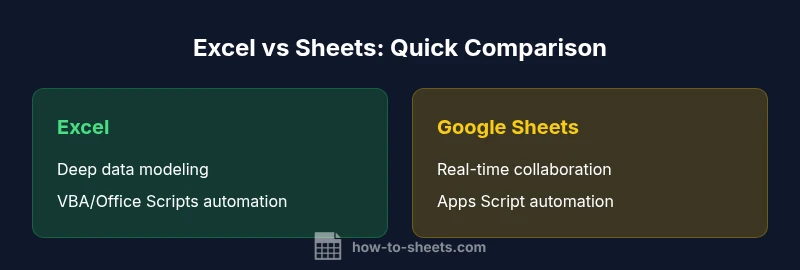
Excel offers deeper data modeling, advanced analytics, and offline access, while Google Sheets shines in real-time collaboration and cloud-based workflows. For most teams, the choice hinges on collaboration needs versus complex data tasks. In short: use Excel for heavy analysis and automation; use Google Sheets for rapid sharing and live teamwork. Hybrid workflows are common when both tools are needed.
Why the Excel vs Google Sheets Debate Persists
The rivalry between Excel and Google Sheets isn't just about features; it's about how teams work with data in the real world. Excel has long been the workhorse for analysts who build complex models, perform heavy numerical simulations, or run large datasets offline. Google Sheets, by contrast, emphasizes collaboration, accessibility, and seamless sharing from any device. For many organizations, the decision isn't binary—it hinges on how data flows through teams, how quickly decisions must be made, and where the work happens. According to How To Sheets, the best choice aligns with your core workflow: controlled, centralized analysis vs. distributed, cloud-based teamwork. When you plan a project, map out who will edit, when updates should propagate, and what level of automation you need. If your team relies on real-time collaboration in a cloud-first environment, Sheets often wins on speed and cohesion; if you require offline reliability and advanced analytics, Excel tends to deliver the depth you need. Both tools support pivot tables, charts, and most common functions, but the gaps—macros, data imports, and ecosystem integrations—shape practical outcomes far more than headline feature lists. The goal is not to pick the “best” tool but to tailor your setup so the right person can work efficiently, confidently, and with auditable results. How To Sheets’s guidance emphasizes workflow alignment and auditable processes.
Core Differences at a Glance
- Cloud vs. desktop: Sheets stores in the cloud with automatic saving; Excel is desktop-first with cloud options in Microsoft 365.
- Real-time collaboration: Sheets enables simultaneous editing; Excel supports co-authoring with Office 365 but performance varies by dataset.
- Formulas and functions: Many common formulas overlap; some advanced Excel functions (like certain array formulas) have no exact Sheets equivalent, while Sheets offers unique functions (ARRAYFORMULA, QUERY) that are more script-friendly.
- Data capacity and performance: Large spreadsheets can slow Sheets; Excel handles larger datasets more predictably with local resources.
- Automation and scripting: Excel uses VBA and newer JavaScript-based Office Scripts; Sheets uses Google Apps Script for automation.
- Import/export and interoperability: Excel supports .xlsx/.xlsm with broad compatibility; Sheets can import/export to Excel formats but might require manual tweaks.
- Pricing and ecosystem: Excel is bundled with Microsoft 365; Sheets is free with a Google account for basic use, and part of Google Workspace for teams.
Data Capacity and Performance: How Big Can Your Sheets Grow?
Data capacity is a practical limiter that shapes planning. Google Sheets historically supports up to 10,000,000 cells per spreadsheet, which is ample for many teams, especially when spread across multiple sheets and well-structured data. Excel scales differently: it supports 1,048,576 rows by 16,384 columns per worksheet, yielding about 17.18 billion cells per worksheet. In practice, performance is influenced by hardware, browser, and how formulas are written. Large, complex workbooks can slow even high-end machines, so users often split data into multiple files or leverage databases for storage and Excel’s Power Query or Power Pivot for analysis. Additionally, external data connections and scripts can affect refresh times. Understanding these limits helps in planning data architecture: avoid loading an entire dataset into a single sheet, favor indexing, and use summary sheets to keep work responsive.
Functions and Formulas: Compatibility and Gaps
Excel’s families of formulas (SUM, VLOOKUP, XLOOKUP, LET, LAMBDA, and dynamic arrays) are powerful for modeling and analysis. Google Sheets offers a robust set of functions as well, including ARRAYFORMULA, QUERY, and IMPORTRANGE, which support flexible data retrieval and on-the-fly data shaping. There is substantial overlap, but gaps exist: certain advanced Excel array formulas or VBA-driven logic can be hard to replicate directly in Sheets, while Sheets-specific constructs (QUERY, FILTER, and array-based formulas) may not have exact equivalents in Excel. Cross-platform work often requires testing critical models and planning migration steps. When a workbook moves between tools, expect minor adjustments to functions, data ranges, and formatting. A practical approach is to design modular spreadsheet components—data input, transformation, and analysis—so you can rewire the workflow without rewriting core logic. This reduces friction during transitions and helps teams maintain consistency across platforms.
Automation and Scripting: Macros, Scripting, and Add-ins
Automation is where Excel and Google Sheets diverge most. Excel relies on VBA for legacy automation and Office Scripts (JavaScript-based) for newer automation in the web edition. Google Sheets uses Apps Script, which integrates tightly with other Google services, enabling automation across Sheets, Docs, and Drive. If your team relies on extensive macro libraries or existing VBA tools, migrating to Sheets may require rewriting scripts or adopting equivalent Apps Script patterns. Conversely, if your environment leans on Google Workspace for collaboration, Apps Script can unlock powerful workflow automations with minimal friction. Governance and security become central here: define who can publish scripts, how data is accessed, and how changes are tracked. Consider a staged approach to automation, prototyping scripts in a test file before deploying them across production workbooks. The result is a balanced, scalable automation strategy that respects cross-platform limitations.
Collaboration and Workflow: Real-Time Editing and Sharing
Cloud-native collaboration is Sheets’ defining advantage. Multiple users can edit simultaneously, comments can be threaded, and live presence informs who is editing what. Excel’s co-authoring in Office 365 has matured, providing real-time updates in the desktop and web experiences, but performance can vary with file size and network conditions. For teams with distributed geographies, Sheets often delivers faster onboarding and lighter maintenance; Excel remains preferred where strict data governance, offline work, or heavy modeling are non-negotiable. A practical workflow might involve using Sheets for initial data collection and collaborative analysis, then exporting a finalized model to Excel for advanced forecasting, reporting, or archival purposes. Establish version control protocols and naming conventions to prevent drift between tools. Regularly audit links, templates, and shared folders to ensure everyone accesses current, approved files.
Pricing, Subscriptions, and Long-Term Costs
Pricing models influence adoption. Excel is typically bundled with Microsoft 365 subscriptions, which include desktop and online capabilities, security and compliance features, and enterprise-grade tools. Google Sheets offers a free tier with Google accounting basics and a Workspace suite for teams that require advanced collaboration, security, and admin controls. The total cost of ownership depends on team size, required features, and whether you need offline access, data governance, or integration with other enterprise systems. Consider cost alongside benefits like real-time collaboration, automation potential, and cross-platform compatibility. For many teams, the decision isn’t purely about upfront price but total value delivered over time through reduced friction, faster decisions, and better data governance. A careful cost-benefit analysis will reveal whether a hybrid approach—or a tool outright—best aligns with strategic goals.
When to Choose Excel vs Google Sheets: Best For Scenarios
- Choose Excel when: you model large datasets, develop complex analytics, rely on VBA-based automation, and require offline resilience. It’s the go-to for finance, engineering, and data-intensive tasks with demanding performance needs.
- Choose Google Sheets when: you prioritize real-time collaboration, rapid sharing, and cloud-based workflows. It’s ideal for project planning, lightweight dashboards, and teams that need to work concurrently from multiple locations.
- Hybrid setups are common: use Sheets for data collection and collaboration, then consolidate results in Excel for heavy analysis, reporting, and archival. A well-designed data pipeline minimizes friction between these environments.
Practical Migration Tips: Moving Between Excel and Sheets
- Start with a needs assessment: identify critical formulas, macros, and data structures that must survive a cross-platform move. Create a feature checklist and map equivalents where possible.
- Normalize data: ensure consistent formats, data types, and named ranges before migration. Clean up stray characters, hidden columns, and inconsistent formulas.
- Use templates and standardized conventions: adopt shared templates for input, transformation, and output so the switch is predictable.
- Test incrementally: migrate small, representative files first; validate results against the original and adjust as needed.
- Leverage import/export best practices: use .xlsx/.csv where appropriate, and be mindful of Sheets’ specific functions that may not translate directly. Establish a rollback plan in case issues arise during migration.
Authoritative Sources and Further Reading
- Excel specifications and limits (Microsoft): https://support.microsoft.com/en-us/office/excel-specifications-and-limits-1672c34d-7043-467a-9a69-7d5a10431d4b
- Google Sheets features and help (Google): https://support.google.com/docs/answer/70622
- Comparative analysis of spreadsheet ecosystems (Harvard Business Review): https://hbr.org/2020/11/why-spreadsheets-are-still-the-most-important-tool-in-business
- Spreadsheet best practices (Educational resource): https://www.mit.edu/spreadsheets-best-practices
Comparison
| Feature | Excel | Google Sheets |
|---|---|---|
| Data Capacity | Excel: 1,048,576 rows × 16,384 columns (≈17.18B cells) | Sheets: up to 10,000,000 cells per spreadsheet |
| Real-Time Collaboration | Excel: co-authoring via Microsoft 365 | Sheets: built-in real-time collaboration |
| Automation & Scripting | Excel: VBA and Office Scripts | Sheets: Apps Script |
| Formulas & Functions | Excel: XLOOKUP, LET, LAMBDA, dynamic arrays | Sheets: ARRAYFORMULA, QUERY, IMPORTRANGE |
| Offline Access | Excel: desktop always offline-ready | Sheets: offline via Chrome extension |
| Interoperability | Excel: broad .xlsx/.xlsm compatibility | Sheets: strong Google Workspace integration; export to Excel possible |
| Pricing & Access | Excel: Microsoft 365 subscription | Sheets: free with Google account; Workspace adds team features |
The Good
- Excel's depth for modeling, complex formulas, and automation
- Sheets' real-time collaboration and cloud accessibility
- Strong cross-platform import/export and interoperability
- Easy access with no software install for Sheets; always-on cloud
- Broad ecosystem of templates and add-ons in both ecosystems
The Bad
- Excel requires a paid license or Microsoft 365 subscription
- Sheets can hit performance limits on very large datasets
- Feature parity gaps can slow cross-platform projects
- Import/export between formats may require tweaks or adjustments
Hybrid usage is recommended: leverage Sheets for collaboration and accessibility, and Excel for advanced analytics and offline work.
In practice, teams benefit from using Sheets for day-to-day collaboration and data collection, then switching to Excel when deep modeling, automation, or offline work is required. The How To Sheets team emphasizes tailoring the setup to your workflow to minimize friction and maintain data integrity.
FAQ
Is Excel better than Google Sheets for large datasets?
For very large datasets and heavy analytics, Excel generally offers more robust performance and more advanced analytics features. Google Sheets is capable but can struggle with extremely large data models due to browser and network constraints. Consider splitting data or using a database for the backend and Excel for analysis.
For huge datasets, Excel usually performs better, while Sheets works well for collaboration on lighter datasets.
Can I import Excel files into Google Sheets without losing formulas?
Importing Excel files into Sheets preserves many formulas, but some advanced Excel functions or complex VBA logic may not translate directly. After import, review formulas and adjust as needed. It’s best to test critical workbooks in a controlled import.
You can usually import, but some advanced formulas may need tweaking.
Does Google Sheets support macros?
Google Sheets supports macros through Google Apps Script. You can record macros and convert them to scripts, and you can extend automation across other Google Workspace apps. If your automation relies on VBA, you’ll need to rewrite scripts in Apps Script.
Yes—Sheets supports macros via Apps Script.
Offline access in Google Sheets?
Offline access in Sheets is available via Chrome with the Google Docs Offline extension. You can edit locally and have changes sync when you go online. Be mindful of data consistency and syncing when multiple users edit offline.
Yes, but you need to enable offline mode.
Which is cheaper for a team: Excel or Sheets?
Sheets offers a free tier for individuals and a Workspace tier for teams, while Excel’s cost depends on Microsoft 365 plans. The total cost depends on team size, required features, and admin needs. Run a cost-benefit analysis to determine which setup yields the best value.
Pricing depends on plans and team size.
Are formulas interchangeable between Excel and Sheets?
Most basic formulas translate between Excel and Sheets, but some advanced Excel functions and VBA logic may not have direct equivalents in Sheets. Plan to test essential formulas during a migration and consider cross-platform alternatives when needed.
Most basics transfer, but test advanced formulas.
Can I collaborate in real-time in Excel similar to Sheets?
Excel supports real-time co-authoring through Microsoft 365, but the experience can depend on file size and network conditions. Sheets generally offers smoother real-time collaboration out of the box. For teams, a combined approach often works best.
Yes, but Sheets often leads in collaboration ease.
What about migrating from Sheets to Excel for a team-wide project?
Migration involves planning data structure, preserving essential formulas, and validating results after import. Start with a pilot workbook, then roll out templates and governance to ensure consistency during the move.
Plan, pilot, and validate when migrating between tools.
The Essentials
- Define primary workstreams before choosing a tool
- Use Sheets for real-time collaboration and sharing
- Use Excel for heavy data modeling and automation
- Test cross-compatibility when migrating files
- Consider a hybrid approach to leverage strengths