Excel vs Google Sheets vs LibreOffice: A Practical Comparison
Analytical side-by-side comparison of Excel, Google Sheets, and LibreOffice Calc, covering features, pricing, offline access, collaboration, and use-case guidance to help you choose the right spreadsheet tool.


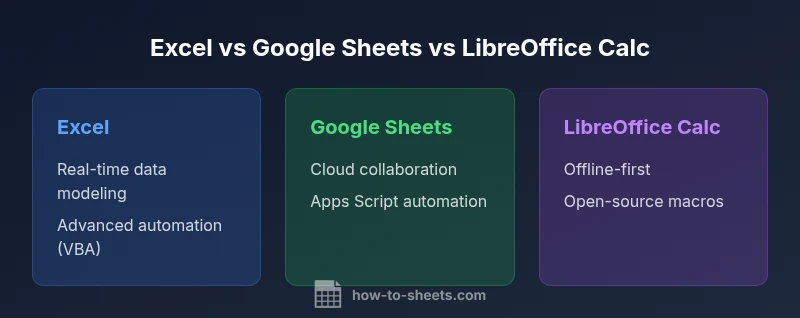
Excel, Google Sheets, and LibreOffice Calc each excel in different ways. Excel leads in advanced analytics and enterprise workflows, Sheets dominates cloud collaboration and real-time editing, while Calc offers solid offline capabilities at zero license cost. The best choice depends on your team size, need for offline access, and data-volume requirements.
excel vs google sheets vs libreoffice: market context and scope
The modern spreadsheet landscape centers on three dominant tools: Excel from Microsoft, Google Sheets as part of Google Workspace, and LibreOffice Calc as a robust open-source option. For many teams, the decision isn't about a single feature but how the tool fits workflows, data volumes, collaboration models, and deployment constraints. The exact phrase excel vs google sheets vs libreoffice captures the core trade-offs: power and control (Excel), cloud-driven collaboration (Sheets), and offline practicality at zero license cost (Calc). According to How To Sheets, organizations typically decide based on data size and performance, concurrent editing needs, offline access, and licensing considerations. This article uses a consistent, analytical lens to compare these tools across criteria like collaboration, security, data portability, and total cost of ownership so you can map requirements to the right choice. As you read, consider your team size, dependence on legacy Excel formats, and how critical real-time co-editing is to your processes. The How To Sheets team emphasizes a structured approach to avoid overpaying for features you won't use.
Core capabilities and system requirements
Excel, Google Sheets, and LibreOffice Calc share the core goal of turning data into insight through formulas, charts, and tables, yet they implement core capabilities with different emphases. Excel remains the leader in data modeling complexity, advanced automation, and robust integration with Power Platform, Power Query, and external data sources. It excels in large workbooks, sophisticated pivot tables, and macro-based automation. Google Sheets prioritizes accessibility and collaboration: it runs in a browser, auto-saves work, and offers Apps Script for extending functionality. LibreOffice Calc targets a strong offline experience and open-source flexibility, delivering a solid set of functions, macros (in LibreOffice BASIC), and cross-platform support. System requirements differ: Excel desktop relies on Windows or macOS licensing, while Sheets requires only a browser and a Google account; Calc runs on Windows, macOS, and Linux. When evaluating performance, consider workbook size, data connections, and available add-ons. For routine tasks, users typically won't hit the absolute limits of any tool, but power users comparing Excel’s data connectors and Power Query against Sheets’ online formula ecosystem and Add-ons will observe meaningful differences in real-world speed and reliability.
Collaboration vs offline access dynamics
Collaboration is a defining differentiator among these tools. Google Sheets excels at real-time co-editing, comments, and seamless sharing, making it the preferred choice for distributed teams. Excel, especially in its web and cloud-integrated forms, offers strong co-authoring capabilities but often hinges on licensing and network performance within Microsoft 365. Calc, while traditionally desktop-bound, shines for teams prioritizing offline work and local data governance, with offline editing supported on installed instances and local file storage. Transitioning to a collaborative model often requires adjusting to version history, concurrency handling, and data integrity when multiple people edit formulas or macros simultaneously. Security models differ as well: Sheets leans on Google’s cloud security stack and IAM controls; Excel relies on enterprise-grade Microsoft security features; Calc leverages local file permissions and user-managed configurations. For teams with mixed needs, a hybrid approach—cloud collaboration for the frontline editors and desktop tools for sensitive data—can be an effective strategy.
File formats, compatibility, and interoperability
Interoperability across file formats is crucial for teams migrating across tools. Excel uses its native .xlsx/.xls formats with widespread support and advanced features like Power Query, Power Pivot, and VBA macros. Sheets supports import/export of Excel formats and CSV, but some advanced Excel features may not translate perfectly, leading to subtle formula or formatting gaps during migration. LibreOffice Calc emphasizes open formats, offering robust import/export for .ods and compatibility with Excel formats, though some macros and advanced features may not transfer cleanly. When interoperability is a constraint, it’s wise to establish a standard exchange format (often .xlsx or .csv) for data exchange, implement clear data validation rules, and maintain a shared inventory of critical formulas and macros. Regularly testing migrated files and documenting any deviations can reduce post-migration surprises and restore confidence in cross-tool workflows.
Formulas, automation, and advanced features
Formulas and automation are core differentiators. Excel offers the broadest and deepest formula library, advanced array formulas, Power Query for data shaping, and Power Pivot for data modeling. Its macro language, VBA, supports extensive automation and integration with the broader Windows ecosystem. Google Sheets provides a strong formula set with real-time collaboration-friendly functions, and Apps Script offers cloud-based automation and custom add-ons, which are easily shared across teams. LibreOffice Calc delivers a solid formula toolkit, supports macros via LibreOffice BASIC, and is strong for everyday data tasks and offline automation, though its ecosystem and marketplace are smaller. When evaluating advanced use cases—such as ETL-style data cleaning, automated reporting, or large-scale dashboards—the choice often hinges on the required level of automation, the availability of familiar macros, and the ease of integration with other enterprise tools.
Pricing models, licensing, and total cost of ownership
Pricing models shape the long-term value proposition. Excel typically requires a licensed or subscription-based model via Microsoft 365, with tiered options that unlock business-focused features like advanced analytics, data connectors, and enterprise security. Google Sheets, by contrast, is free for consumer accounts with paid Google Workspace tiers for businesses, offering predictable per-user pricing and bundled collaboration features. LibreOffice Calc is open-source and libre, with no mandatory license costs, though you may incur indirect costs from IT support, updates, and potential paid add-ons. Total cost of ownership should consider license fees or subscription costs, hardware and maintenance, training time, and the impact on productivity from collaboration needs and offline access. For organizations with lean budgets or those prioritizing offline autonomy, Calc can deliver strong value, while larger teams may justify the broader enterprise integrations of Excel or the cloud collaboration of Sheets.
Use-case driven recommendations by scenario
Different scenarios favor different tools. If your organization requires heavy data modeling, complex pivot tables, and seamless Power Platform integration, Excel is typically the strongest choice. For teams with heavy collaboration, remote work, and fast-paced document sharing, Google Sheets offers superior real-time editing and cloud-based workflows. If you need a cost-effective, offline-capable solution with no license cost and a predictable deployment footprint, LibreOffice Calc is a compelling option. Consider a hybrid approach for mixed teams: use Sheets for day-to-day collaboration, Excel for data-intensive tasks and advanced analytics, and Calc for offline processing or environments with strict licensing constraints. By defining clear use cases and mapping them to feature sets, you can minimize duplication, reduce migration risk, and maximize user adoption. How To Sheets analyses support tailoring these recommendations to your environment, emphasizing practical, step-by-step adoption plans that minimize disruption during transitions.
Migration tips, data transfer, and best practices
Migration between these tools benefits from a structured approach. Start with a pilot project that mirrors real workflows, catalog all critical formulas, macros, and data connections, and test on representative datasets. When moving from Sheets to Excel, verify macro compatibility and test Power Query pipelines; when moving from Excel to Sheets, audit complex formulas and named ranges for compatibility and adjust to cloud-based equivalents where possible. LibreOffice Calc migrations should emphasize the handling of macros (BASIC) and formatting differences; consider exporting to universal formats like .csv for data dumps and using .xlsx as a bridge file when moving to Excel. Document any features that do not translate cleanly and provide end-user training focused on the most-used functions and common pitfalls. Finally, establish a robust versioning and backup strategy to protect data during transitions and to support rollback if needed.
Decision framework and action plan
To decide effectively, adopt a structured decision framework. Step 1: list the top 5-10 workflows that drive value in your organization. Step 2: rate each tool against these workflows for collaboration, offline access, data volume, automation, and cost. Step 3: pilot the preferred tool with a representative team and gather feedback on performance and adoption. Step 4: define a migration plan with a clear timeline, owners, and milestones. Step 5: implement governance and security controls tailored to your chosen tool, including access management and version control. How To Sheets's verdict is to align tooling with concrete workflows rather than chasing feature parity alone. For teams with varied needs, a hybrid stack that leverages the strengths of each platform can deliver the best outcomes, provided that governance, training, and data exchange are well managed. External guidance from Microsoft, Google, and LibreOffice documentation can support your migration plan. See the authority sources section for official documentation and best practices from the vendors.
Authority sources and further reading
- Microsoft Excel support and tutorials: https://support.microsoft.com
- Google Sheets help and learning: https://support.google.com/docs
- LibreOffice Documentation: https://documentation.libreoffice.org
- General guidelines on data interoperability and enterprise tooling: https://www.nist.gov
mainTopicQueryId
Feature Comparison
| Feature | Excel | Google Sheets | LibreOffice Calc |
|---|---|---|---|
| Real-time collaboration | Strength in Office 365 with co-authoring | Best-in-class real-time collaboration | Limited real-time collaboration |
| Offline availability | Fully offline-capable desktop app | Offline mode available via browser app | Strong offline desktop experience |
| Automation and macros | VBA, Power Query, Power Automate | Apps Script, Add-ons, cloud automations | LibreOffice BASIC, macro support |
| File format support | Excel formats, CSV, robust ecosystem | Excel import/export, native Google formats | Excel and OpenDocument formats |
| Pricing model | Commercial licenses or Microsoft 365 | Google Workspace tiers, per-user pricing | Open-source, no license cost |
| Platform availability | Windows, macOS, web | Web, iOS, Android | Windows, macOS, Linux |
| Data visualization | Advanced charts, PivotTables, Power BI | Cloud charts, basic Pivot, rich Add-ons | Charts and basic Pivot |
| Best for | Large data models and enterprise workflows | Cloud collaboration and flexibility | Offline-first, cost-conscious environments |
The Good
- Excel offers unmatched data modeling and enterprise integrations
- Google Sheets enables seamless cloud collaboration and sharing
- LibreOffice Calc provides zero-license cost and offline reliability
- Cross-tool interoperability supports flexible workflows when used with universal formats
The Bad
- Excel requires licensing and can be overkill for small teams
- Sheets can encounter feature gaps when migrating heavy Excel workbooks
- Calc lacks some advanced features and broad enterprise integrations
- Cross-tool data exchange may introduce formatting or formula translation issues
Excel is best for data-heavy, enterprise workflows; Sheets for collaboration; Calc for offline, cost-conscious environments
For teams that require advanced analytics and enterprise-grade integrations, Excel remains dominant. If collaboration and cloud access drive productivity, Sheets is the clear choice. LibreOffice Calc offers a compelling offline alternative with no license costs, ideal for budget-sensitive or legacy-only setups.
FAQ
Which tool is strongest for collaboration?
Google Sheets leads for real-time collaboration with multiple editors and instant updates. Excel shares collaboration capabilities, especially in the cloud, but collaboration quality can depend on licensing and network conditions. Calc offers offline work where collaboration isn’t the primary focus.
For teams that collaborate in real time, Sheets is the best choice, with Excel close behind when using the cloud version.
Which tool is best for offline use?
LibreOffice Calc and Excel desktop apps both work offline; Calc is completely offline by default and free, while Excel offline requires a license. Sheets requires an internet connection for most features, though offline mode exists with some limitations.
If offline reliability is your priority, Calc or Excel desktop are solid options; Sheets works offline with some caveats.
How easy is it to move files between these tools?
Migration depends on the formats used. Export/import between Excel and Sheets is common but can trigger feature translations. Calc supports both, but macros and advanced scripts may require rewriting. Plan a staged migration and validate critical workflows.
Moving files works best with standard formats like .xlsx or .csv; plan for some adjustments.
Do these tools support advanced formulas and macros?
Excel offers the widest set of advanced formulas and macros (VBA) plus Power Query. Sheets supports a broad formula set and Apps Script for automation. Calc includes macro support and a solid formula library, but not at Excel's level of depth.
Excel leads in advanced formulas, Sheets shines with cloud automation, Calc covers core formulas with open-source macros.
What about pricing and licensing for small teams?
Sheets and Excel both have paid tiers for business use, with Sheets generally offering lower upfront costs through per-user pricing. Calc is free and open-source, producing the lowest upfront cost, but consider IT support and training as potential costs.
Sheets can be cost-effective for small teams; Calc is free, while Excel may require a subscription.
Is there a practical migration checklist I can follow?
Yes. Start by inventorying critical formulas and macros, test translation of those components in the target tool, pilot with representative data, and document any issues. Use standard formats for data exchange and establish governance for ongoing changes.
Prepare a pilot, map formulas, and test in the new tool before full migration.
The Essentials
- Identify your top workflows and collaboration needs
- Evaluate offline requirements before choosing
- Consider total cost of ownership and licensing
- Test migration paths with representative data
- Leverage a hybrid approach if needed