Google Sheets vs Excel Reddit: Practical, Data-Driven Comparison
A data-driven comparison of Google Sheets vs Excel inspired by Reddit discussions. Learn where each tool shines, when to choose one, and practical tips from How To Sheets.


google sheets vs excel reddit discussions consistently show Google Sheets as the collaboration-friendly, cloud-first option, ideal for teams that need real-time editing and easy sharing. Excel, by contrast, remains the leader for advanced analytics and offline work. For many teams, start with Sheets for everyday tasks and switch to Excel when deep data modeling is required. According to How To Sheets, choose Sheets for collaboration-first work, and Excel for complex analytics.
Context: The Reddit Lens on google sheets vs excel reddit
Reddit discussions around google sheets vs excel reddit frequently surface a practical tension between lightweight, shareable work and deeper, offline-capable analytics. In these threads, readers compare everyday tasks—data entry, budgeting, light modeling—through real-world workflows rather than marketing claims. The How To Sheets team notes that most conversations cluster around three axes: collaboration and accessibility, feature depth, and licensing or cost. Reddit communities prize transparency, reproducibility, and practical outcomes, which often means validating workflows with a quick test file before committing to a platform. By examining these dialogues, we extract actionable criteria that apply beyond a single platform, offering a grounded, step-by-step approach to choosing the right tool.
Core Capabilities and Data Modeling Differences
Google Sheets emphasizes a cloud-driven data model and lightweight analytics, with formulas that are familiar to anyone who has used spreadsheets for basic tasks. Excel offers deeper data modeling capabilities, with built-in support for sophisticated PivotTables, data models, and Power Query. This section compares the core capabilities you’ll actually touch in day-to-day work: how each tool handles formulas, data validation, and data organization. Expect Sheets to perform well for straightforward calculations and collaborative tasks, while Excel shines when you need robust data modeling, advanced analytics, and complex transformations on larger datasets.
Collaboration, Sharing, and Real-Time Work
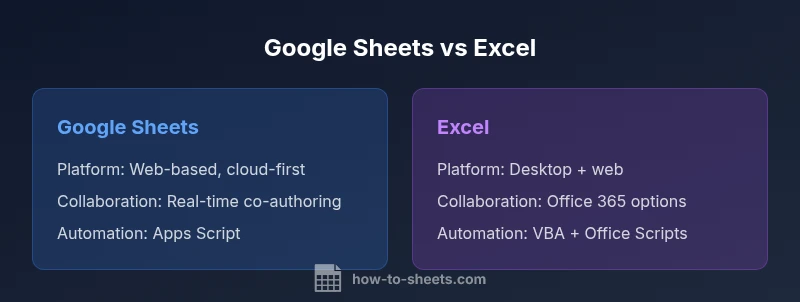
Real-time collaboration is a cornerstone for Google Sheets. Multiple users can edit simultaneously, see live updates, and rely on cloud autosave to prevent data loss. Reddit users frequently cite Sheets as the natural choice for student projects, team budgets, and ad hoc analyses that require quick sharing. Excel has improved collaboration through Office 365, but the experience is often perceived as slower and more dependent on network conditions and file versioning. The trade-off is clear: Sheets prioritizes seamless collaboration; Excel offers stronger, structured collaboration within a Windows-centric, desktop-first environment.
Performance, Data Volume, and Reliability
Performance will vary with dataset size and operation type. Google Sheets handles small to medium datasets with ease, particularly when several people are editing at once. Large, complex datasets and heavy calculations can cause slower response times in Sheets, and some users report drift in formatting during imports. Excel generally handles larger datasets more efficiently, especially on the desktop where memory and processing power are dedicated resources. Users who routinely work with multi-gigabyte files, extensive Power Pivot models, or complex VBA automation often favor Excel for reliability and speed. Reddit threads often stress testing files before critical reporting, to avoid surprise slowdowns at close.
Accessibility, Offline, and Cross-Platform Experience
Accessibility and cross-platform usage drive many decisions in google sheets vs excel reddit discussions. Sheets is accessible from any device with a web browser and integrates tightly with Google Workspace, which is a benefit for teams that are distributed and rely on shared documents. Offline support exists but requires explicit setup and can be less straightforward than desktop tools. Excel’s desktop version remains the gold standard for offline work, with mature offline capabilities and feature parity on Windows and Mac for many advanced tasks. Office Online provides a web alternative, but the desktop experience remains a strong asset for power users who need reliable access without constant internet.
Licensing, Cost, and Adoption Pathways
Pricing decisions dominate many Reddit threads when comparing Google Sheets vs Excel. Sheets is free to use with a Google account, which lowers the barrier to entry for students and small teams. Excel typically requires a Microsoft 365 subscription or a standalone license, which can be a meaningful consideration for larger teams or organizations with established Microsoft ecosystems. Adoption pathways often start with Sheets for collaborative pilots and then transition to Excel as analytics needs become more complex or offline work becomes essential. The trade-off is not simply cost but the ecosystem you commit to over time.
Use-Case Snapshots by Role
Students often lean toward Sheets for class projects because of easy sharing and real-time collaboration. Small business teams benefit from Sheets for budget tracking and light forecasting, especially when quick iteration is valuable. Analysts and finance professionals frequently require Excel for large datasets, advanced data modeling, and repeatable automation workflows. In Reddit threads, these role-based patterns emerge repeatedly: Sheets for rapid, collaborative tasks; Excel for rigorous, long-running analytics and desktop-grade processing.
Automation, Scripting, and Extensibility
Automation is a key differentiator. Google Sheets uses Apps Script, a JavaScript-based environment that is approachable for developers and capable of rapid prototyping. Excel offers VBA in its desktop environment and Office Scripts in the web version, providing powerful automation but with a steeper learning curve for some users. The Reddit community often highlights the breadth of community scripts and add-ons in Sheets versus the depth of enterprise automation available in Excel. If you’re starting small, Apps Script is a gentler entry point; if you’re optimizing complex pipelines, Excel’s automation can be more powerful.
Excel-Specific Strengths: PivotTables, Power Query, and Data Models
Excel’s prowess is most evident in its advanced analytics capabilities. PivotTables, Power Pivot, and Power Query enable sophisticated data aggregation, cleaning, and modeling that scale with enterprise needs. For teams that routinely perform multi-step data transformations, Excel’s ecosystem supports repeatable, auditable workflows. Reddit threads often emphasize that learning Excel’s data modeling tools pays dividends for long-term projects, especially in environments where data flows from multiple sources and requires robust transformation logic.
Google Sheets Strengths: Cloud, Collaboration, and Simplicity
Google Sheets excels in cloud-first collaboration, rapid sharing, and accessibility. Explore features like Smart Fill, Explore, and built-in AI-assisted suggestions that help users accelerate routine tasks. For teams operating in fast-paced, ever-changing environments, Sheets reduces friction when multiple colleagues update the same sheet. The cloud-native design keeps versions in sync and makes it easy to roll back changes, which is a recurring theme in google sheets vs excel reddit discussions when teams discuss governance and change control.
Common Myths and Reddit Misconceptions
A frequent Reddit meme is that Excel is universally superior for data work, while Sheets is only for simple tasks. In reality, both tools can perform many common tasks well; the choice hinges on data scale, collaboration needs, and offline requirements. Another misconception is that moving from Sheets to Excel guarantees instant productivity—migration requires testing formulas, data validation rules, and potential script rewrites. Finally, the belief that licenses alone decide success ignores workflow design, governance, and training realities that influence outcomes more than platform choice alone.
Practical Decision Framework: A 3-Step Guide to Choosing
Step 1: Define your primary use case. If collaboration, cloud access, and cross-device access are priorities, lean toward Sheets. If your work requires advanced data modeling, offline performance, and enterprise automation, start with Excel. Step 2: Assess your data scale. For simple budgets and lists, Sheets is usually enough; for large data sets and complex transformations, Excel often performs better. Step 3: Plan migration and governance. Create a small pilot project in the chosen tool, map critical formulas, and establish a change-control process to minimize surprises when scaling.
Final Note: Practical Recommendations for Teams
In practice, many teams adopt a blended approach: use Sheets for collaborative planning, budgeting, and lightweight analyses, while reserving Excel for heavy analytics and data modeling. The key is to outline a clear governance plan, test critical workflows, and maintain the flexibility to switch environments as needs evolve. In the end, the best choice aligns with your data demands, collaboration culture, and licensing strategy.
Comparison
| Feature | Google Sheets | Excel |
|---|---|---|
| Platform & Accessibility | Web-based with cloud sharing | Desktop-focused with strong offline support |
| Real-Time Collaboration | Excellent native co-authoring | Office-based with team collaboration in Office 365 |
| Automation & Scripting | Apps Script ecosystem (JavaScript) | VBA on desktop; Office Scripts on web |
| Data Capacity & Performance | Strong for small- to medium-sized datasets | Better for large datasets and complex models on desktop |
| Formulas & Functions | Broad set; similar syntax for basics | Extensive functions, with advanced analytics and data modeling |
| Pivoting & Data Modeling | PivotTables available; simpler data models | Power Pivot, Power Query, and robust data models |
| Offline Availability | Offline with setup; primarily cloud-first | Strong offline support in desktop app |
| Cost & Licensing | Free with Google account | Microsoft 365 license or standalone license required |
| Charts & Visualization | Adequate charting for common needs | Extensive chart types and advanced visuals |
| Import/Export & Compatibility | Good compatibility with .xlsx; some formatting nuances | Strong .xlsx compatibility with full fidelity |
The Good
- Low barrier to entry with Google account
- Seamless real-time collaboration across devices
- Cloud-based saves and simple sharing controls
- Easy integration with other Google Workspace tools
- Rapid provisioning and minimal setup for teams
The Bad
- Performance can lag on very large datasets
- Advanced analytics features are less mature than Excel
- Offline work requires setup and may be less intuitive
Sheets for collaboration; Excel for deep analytics
If your priority is cloud-based collaboration and ease of access, Sheets is the practical choice. If your work demands advanced data modeling, offline performance, and enterprise automation, Excel remains the better option. The How To Sheets team recommends starting with Sheets for team-wide projects and adopting Excel for analytics-heavy work as needed.
FAQ
Is Google Sheets better for collaboration than Excel?
Yes, Google Sheets generally offers stronger real-time collaboration and cloud-based access, making it the preferred choice for team-based tasks. Excel provides collaboration in the Office ecosystem, but the experience can be less fluid in some scenarios.
Yes—Sheets tends to be better for teamwork in the cloud, while Excel supports collaboration within Office but may feel slower in practice.
Can I use Excel features in Google Sheets?
Many Excel features have equivalents in Sheets, but some advanced tools like Power Pivot and certain Power Query capabilities are not fully replicated. You may need workarounds or legacy scripts.
Some Excel features aren’t available in Sheets, but you can often find similar functions or workflows.
Is there a license cost difference between Sheets and Excel?
Sheets is free to use with a Google account, while Excel typically requires a Microsoft 365 subscription or a standalone license, depending on your deployment.
Sheets is free with a Google account; Excel generally requires a Microsoft 365 plan or a license.
Which is better for data visualization?
Excel offers a broader range of chart types and richer visuals, which can be important for presentations. Sheets covers the essentials well for most daily needs.
Excel has more chart options; Sheets handles most common charts effectively.
How do I migrate from Excel to Sheets?
Export the Excel file as .xlsx or .csv, then import into Sheets. Check formulas and formatting, and adjust any scripts or permissions as needed.
Export from Excel, import into Sheets, and verify formulas and scripts.
Are there performance differences with large datasets?
Excel generally handles large datasets more reliably on desktop, while Sheets may slow with very large files or complex operations.
Excel usually handles big data better on desktop; Sheets can slow with very large files.
The Essentials
- Choose Sheets for collaboration-first workflows
- Choose Excel for deep data modeling and offline work
- Test critical formulas across platforms before migration
- Leverage automation appropriate to each tool
- Plan governance to minimize cross-platform friction