Google Sheets vs Microsoft Office: Side-by-Side Comparison for 2026
A practical, analytical comparison of Google Sheets and Microsoft Office (Excel) focusing on collaboration, analytics, offline use, pricing, and ecosystem to help teams choose the right tool in 2026.


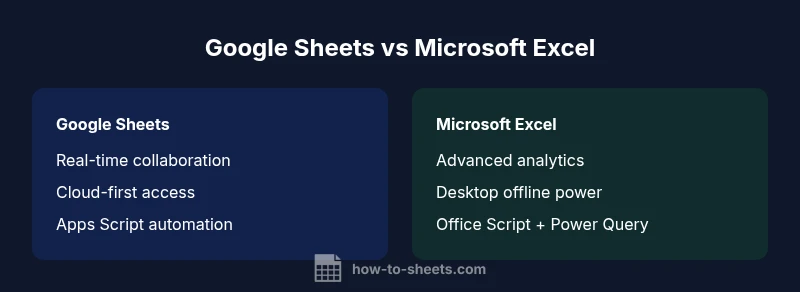
When evaluating google sheets vs microsoft office, the choice largely hinges on collaboration, offline access, and analytics depth. Google Sheets excels in cloud-based, real-time teamwork, with broad cross-device access. Microsoft Excel remains strongest for advanced data modeling and offline workflows. For cost-sensitive teams and quick sharing, Sheets often wins; for complex analytics, Excel leads.
Overview: The landscape of google sheets vs microsoft office
In today’s productivity environment, teams wrestle with choosing the right spreadsheet and office suite. The decision often hinges on workflow, scale, and where data lives. For many organizations, the question isn’t which product is best in theory, but which aligns with daily routines, collaboration norms, and IT policies. This article compares google sheets vs microsoft office in practical terms, focusing on collaboration, data modeling, offline work, and integration within broader ecosystems. It also considers licensing models, cross-platform access, and long-term Total Cost of Ownership, without getting lost in the hype.
According to How To Sheets, the most impactful differences come down to three factors: where data is stored, how teams work together, and how far you need to push analytics. Google Sheets is built around a cloud-first model that emphasizes real-time editing, automatic saving, and easy sharing. Microsoft Office, anchored by Excel, remains strong in desktop performance and advanced data tools, with a growing suite of cloud-enabled services. When you juxtapose google sheets vs microsoft office, you should map these traits to your use case: a fast-moving team that needs instant collaboration across devices versus a data-intensive environment that benefits from offline work and deeper analytics.
In the rest of this guide, we’ll break down the core features, compare the software on practical criteria like pricing and security, and provide a decision framework you can apply to a single department or a whole organization. The How To Sheets team emphasizes practical guidance that helps you move from confusion to a concrete action plan.
Collaboration and Accessibility: Cloud-first vs Desktop-first
The collaboration model is often the first test between google sheets and microsoft office. Sheets treats real-time editing as a foundational feature, enabling multiple users to work simultaneously on the same document with instant updates and comments. The cloud-first approach means edits are automatically saved and accessible from any device with an internet connection, from laptops to tablets to smartphones. This makes Sheets particularly appealing for distributed teams, consultants, and classroom groups that need to share files without complex version control.
Excel, historically a desktop-focused product, has evolved into a hybrid offering. Excel for the web and Office 365 provide collaboration, but the experience can feel different from the Sheets model. Real-time co-authoring is available, but some features and settings can differ between desktop and browser versions. For teams that rely on structured workflows and deep integration with other Microsoft apps (Power BI, Teams, SharePoint), the Excel ecosystem can be a natural fit. The choice often comes down to whether cloud-based collaboration or desktop-leaning workflows better match your daily routines.
From a practical standpoint, consider your users’ habits: Are most team members comfortable editing documents on mobile devices and via web apps? Do you need granular access controls and audit trails? How To Sheets’s research indicates that for quick turnaround projects and teaching scenarios, Sheets tends to reduce friction; for regulated environments with heavy data governance, the Excel/Office ecosystem can offer stronger enterprise controls.
Core Features: Formulas, Functions, and Automation
Both Google Sheets and Microsoft Excel offer robust formulas and automation capabilities, but they pair these with different strengths. Sheets emphasizes a broad library of cloud-friendly functions, easy sharing of complex formulas, and an approachable scripting layer via Apps Script for automation and lightweight integrations. Apps Script lets you tailor workflows, connect to third-party services, and automate routine tasks without leaving the browser.
Excel remains the benchmark for advanced analytics and data modeling. The desktop application provides a deeper function catalog, more powerful data analysis tools, and features like Power Pivot and Power Query that are designed for complex data shaping, transformation, and large datasets. While VBA has long been the automation backbone of Excel, modern Office 365 options expand automation through JavaScript-based Office Scripts and cloud-powered features, bridging legacy capabilities with new development paradigms.
For everyday use, Sheets can handle most budgeting, forecasting, and data collection tasks with ease and collaboration. For teams that perform intricate data modeling, statistical analysis, or heavy data transformations, Excel offers more powerful capabilities and a maturity of tooling that supports enterprise-grade workflows.
Data Analysis and Visualization Capabilities
Data analysis in Sheets leverages its flexible functions, array formulas, and the ability to pivot data with built-in pivot tables and charts. While Sheets provides solid visualization options, its charting and data analysis depth can feel lighter than Excel when tackling very large datasets or highly specialized charts. The advantage for Sheets lies in the speed of iteration, the ease of sharing insights in real time, and the strong integration with Google Data Studio and other visualization tools.
Excel’s analytics toolset is renowned for depth. Pivot Tables are powerful for multi-dimensional analysis, and features like Power Pivot enable more sophisticated data models, relationships, and calculations. Excel also supports diverse chart types and conditional formatting options that scale well to complex dashboards. For analysts who require precise control over data modeling, validation, and performance tuning, Excel often provides a more capable environment.
In practice, teams should map their primary use cases to the appropriate tool: Sheets for rapid prototyping, collaborative reports, and lightweight dashboards; Excel for mature data analysis, heavy computations, and offline, enterprise-grade workflows. How To Sheets’s analysis shows that the choice is rarely about capability alone but about how you work with data across your organization.
Offline Access and Platform Availability
Offline access is a common deciding factor. Google Sheets offers robust offline support through Chrome-based and mobile apps, with changes syncing when connectivity returns. This model supports users who work in locations with intermittent internet access or who travel frequently. The offline experience is generally smooth for typical spreadsheet tasks, and sharing remains a matter of cloud-based access once connectivity is restored.
Excel’s offline strength is rooted in its desktop heritage. The full feature set is available without an internet connection, which is a decisive advantage for users who operate in environments with restricted network access or who require consistent performance for large datasets. While Office 365 adds cloud parity features, Excel on the desktop remains a reliable choice for offline-intensive work and complex processing tasks.
For organizations prioritizing always-on access across devices, Sheets offers a compelling model. For users who rely on uninterrupted desktop performance with heavy data workloads, Excel remains a trusted option. The key is aligning the offline expectations with your security and IT policies.
Extensibility, Integrations, and Automation Ecosystems
Extensibility matters when teams want to automate repetitive tasks, enforce standards, or integrate spreadsheets with other systems. Sheets supports Apps Script, a JavaScript-based environment that enables custom functions, triggers, and external API calls. This makes it easier to automate workflows, build add-ons, and connect Sheets to third-party services.
Excel boosts extensibility through VBA on the desktop and Office Scripts in the cloud, along with a broad set of integrations in the Microsoft 365 ecosystem. Power Query, Power Pivot, and other advanced data tools integrate with SharePoint, Teams, and Power BI, enabling sophisticated data pipelines and enterprise dashboards. These tools are particularly valuable for organizations already invested in Microsoft’s stack.
When deciding, consider the level of automation you need, the developer talent available, and how critical it is to connect spreadsheets with other business systems. Sheets offers approachable automation for many use cases; Excel provides deeper enterprise-grade automation and integration options.
From a governance perspective, consider how your IT policy favors open scripts and third-party extensions versus tightly controlled corporate tooling. This alignment often drives the long-term viability of either platform within an organization.
Pricing, Licensing, and Total Cost of Ownership
Pricing and licensing models influence total cost of ownership in the google sheets vs microsoft office comparison. Google Sheets is free for personal use and includes the core capabilities of spreadsheets, with optional paid Google Workspace plans that unlock advanced features like enhanced collaboration controls and administrative tools. For many small teams and students, the free tier may be sufficient, reducing upfront costs and accelerating rollout.
Microsoft Excel is part of the broader Office suite, traditionally tied to Office 365/Microsoft 365 subscriptions. The licensing structure typically bundles access to Excel with other Office apps, cloud storage, and collaboration features. For larger organizations or teams requiring advanced data tooling, licensing costs can scale based on user count and feature sets. The key question is whether your use case justifies the broader Microsoft ecosystem and the associated licensing.
From How To Sheets’s perspective, the decision often rests on whether you can justify ongoing subscription costs against the value of cloud collaboration, offline power, and the broader tools you need. If your work is predominantly lightweight spreadsheets used by a few people, Sheets’s cost model may be favorable. If you rely on a suite of enterprise analytics tools and heavy data modeling, Excel’s integrated capabilities can offer a better long-term return on investment.
Security, Compliance, and Data Residency Considerations
Security and compliance are core concerns when choosing between google sheets and microsoft office. Sheets benefits from Google’s security model, which includes cloud-based encryption, identity and access management through Google Workspace, and audit capabilities that suit many modern compliance regimes. For regulated industries, organizations often rely on admin controls, data loss prevention, and strong authentication to reduce risk.
Excel/Office 365 provides security controls within the Microsoft ecosystem, including role-based access, data loss prevention, and advanced auditing for enterprise deployments. Compliance features and data residency options can be critical for organizations with strict localization requirements or specific regulatory frameworks. The decision often hinges on where data resides, how it’s accessed, and the IT policies that govern governance and risk management.
How To Sheets emphasizes evaluating your organization’s risk posture, including data sharing practices, external collaborations, and the complexity of your data pipelines. A well-structured policy can help mitigate threats regardless of platform, ensuring that sensitive information remains protected while enabling productive collaboration.
Migration, Compatibility, and Future-readiness
Migration and compatibility are practical considerations in a google sheets vs microsoft office comparison. If you operate primarily in Google Workspace, moving from one sheet to another is straightforward, with broad compatibility for importing and exporting Excel files when needed. For teams heavily invested in Excel’s desktop environment, migrating data to Sheets can be smooth for basic work, but complex workbooks with advanced features may require careful conversion or re-creation.
Future-readiness depends on platform strategy and product roadmaps. Google continues to emphasize cloud-first collaboration, AI-assisted features, and seamless cross-device experiences. Microsoft emphasizes desktop power, enterprise-grade analytics, and deep integration with the broader Microsoft 365 suite. For organizations planning multi-year transitions, a hybrid approach—leveraging both tools in different roles—often provides the best balance.
In practice, the decision should consider data criticality, the complexity of models, and the IT team’s capacity to manage cross-platform workflows. How To Sheets recommends a staged approach: pilot with representative teams, establish governance, and implement interoperability practices that minimize disruption during any transition.
Decision Framework and Practical Guidelines
To translate this analysis into action, adopt a decision framework that prioritizes your organization’s most important criteria. Start by listing your top three use cases—collaborative editing, heavy analytics, offline work, and integration with other tools. Map these against Sheets and Excel capabilities, then test with real users to identify friction points. Establish a migration plan if you anticipate moving workloads between platforms and define a clear policy for file compatibility, version control, and access management.
A practical guideline is to run parallel pilots: one for cloud-based collaboration with Sheets and another for desktop-based analytics with Excel. Compare the outcomes in terms of speed, accuracy, and user satisfaction. Finally, consult your IT and procurement teams to align with licensing, data governance, and security requirements. This pragmatic approach helps you move from theoretical advantages to measurable improvements in productivity and accuracy.
How To Sheets’s Practical Recommendations
- Start with a 60–90 day pilot across two to three departments to evaluate needs and workflows.
- Document common use cases and pain points to guide feature selection and training.
- Leverage native interoperability options, such as import/export and cross-platform sharing, to preserve data integrity during any transition.
- Invest in training for your most used features (advanced formulas, automation, and charting) to maximize ROI.
- Revisit licensing and governance regularly to ensure security and cost-effectiveness over time.
Comparison
| Feature | Google Sheets | Microsoft Excel |
|---|---|---|
| Collaboration | Excellent real-time collaboration in Sheets | Co-authoring in Excel via web/online, strong but sometimes different UX across versions |
| Offline Access | Strong offline mode via browser/mobile apps | Excellent offline power on desktop; web version improves offline parity |
| Automation & Scripting | Apps Script for lightweight automation | VBA on desktop; Office Scripts and Power Automate for cloud automation |
| Analytics & Modeling | Solid analytics with growing features | More advanced data modeling and analysis tools |
| Charts & Visualization | Good set of charts; easy sharing of visuals | Extensive charts and dashboards with Power BI integration |
| Platform & Ecosystem | Google ecosystem integration (Docs, Drive, Meet) | Microsoft ecosystem integration (Teams, Power Platform, SharePoint) |
| Pricing & Licensing | Free with Google account; Workspace upgrades available | Office 365 subscription with tiered plans and bundles |
The Good
- Strong real-time collaboration and cross-device accessibility
- Low upfront cost for many users (free tier) and easy onboarding
- Broad ecosystem integration with other tools and apps
- Simplified sharing and permissions for teams and classrooms
- Lightweight, easy-to-learn interface for new users
The Bad
- Limited advanced analytics and modeling compared to Excel
- Some features vary between desktop and web apps, causing friction
- Offline reliability can be inconsistent in collaborative workflows
- Managing large, complex workbooks can be cumbersome in Sheets
- Licensing costs can escalate with larger teams in Google Workspace
Excel for deep analytics often edges Sheets on advanced data workflows; Sheets wins for collaboration and cost-friendly cloud access
If your priority is real-time collaboration and ease of use across devices, Google Sheets is typically the better starting point. If your needs center on complex modeling, large datasets, and offline desktop performance, Microsoft Excel remains the stronger option. Use a hybrid approach if your environment requires both strengths, and leverage interoperability to minimize disruption.
FAQ
What is the fundamental difference between Google Sheets and Microsoft Excel?
The core difference is the cloud-first, real-time collaboration model of Sheets versus the desktop- and analytics-focused capabilities of Excel. Sheets prioritizes sharing and accessibility across devices, while Excel emphasizes advanced data modeling and offline power. Both have cloud-enabled options, but their strengths appeal to different work styles.
The main difference is that Sheets is built for real-time collaboration in the cloud, while Excel focuses on deep analytics and offline power.
Can I use Excel features in Google Sheets?
Some Excel features have equivalents in Sheets, and you can import/export Excel files to preserve most data. However, not all advanced Excel features (like certain Power Pivot capabilities) have direct counterparts in Sheets. Expect some workarounds or alternative approaches when moving complex workbooks.
You can import/export Excel files, but some advanced features won't translate exactly; expect some adjustments.
Is Google Sheets suitable for large, complex data projects?
Sheets handles many daily data tasks well, but Excel generally provides deeper analytics tools, more sophisticated data modeling, and performance advantages for very large datasets. For teams with heavy data engineering needs, Excel often remains the preferred platform.
Sheets works for many projects, but for deep data work, Excel is usually better.
What about pricing and licensing between the two?
Google Sheets offers a free tier with optional Workspace upgrades; Excel is part of the Microsoft 365 subscription, which covers the broader Office suite. The total cost depends on the number of users and required features in your organization.
Sheets can be free at the base level, while Excel costs come with a Microsoft 365 subscription.
Can both tools work offline?
Yes. Sheets supports offline editing via browser/mobile apps, syncing when online. Excel offers robust offline functionality on the desktop, with cloud features available depending on the plan. Your choice depends on how consistently you need offline access.
Both can work offline, but Excel’s offline power is typically stronger for heavy desktop work.
Which tool is better for mobile users?
Both offer mobile apps, but Sheets often delivers a more consistently synchronized experience across devices due to Google’s cloud-first approach. Excel’s mobile app is strong for on-the-go edits and basic tasks, especially when paired with Office 365.
Sheets tends to shine on mobile collaboration, while Excel is solid for mobile editing of complex files.
The Essentials
- Prioritize collaboration for cloud-first teams with Sheets
- Choose Excel for advanced analytics and offline-heavy workflows
- Consider a hybrid approach for versatile organizations
- Plan governance and interoperability early to ease migrations
- Factor licensing and ecosystem alignment into the total cost of ownership