WPS vs Google Sheets: A Practical 2026 Comparison
Compare WPS Office Spreadsheets with Google Sheets across features, collaboration, offline access, and pricing to choose the best fit for students, professionals, and small businesses in 2026.


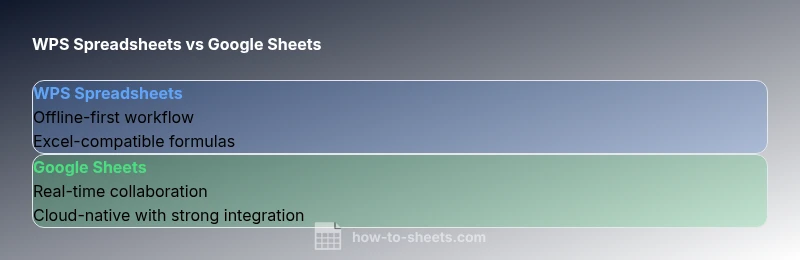
wps vs google sheets is a decision guided by collaboration needs, offline work, and ecosystem fit. Google Sheets excels in cloud-based teamwork and instant sharing, while WPS Spreadsheets offers strong Excel compatibility and robust offline productivity. This quick comparison highlights the critical differences to help teams choose quickly.
What wps vs google sheets Really Means for Everyday Work
When teams evaluate wps vs google sheets, the deciding factors often come down to how much you rely on real-time collaboration versus offline productivity. According to How To Sheets, the choice typically hinges on whether your work is cloud-native or file-based, and how your data flows between local devices and the internet. If your work involves frequent sharing, simultaneous editing, and remote stakeholders, Google Sheets offers a smoother cloud-first experience. If your workflow depends on robust offline access, Excel-style formulas, and desktop stability, WPS Spreadsheets provides a compelling alternative. This section sets the stage for a deeper dive into capabilities, limitations, and practical trade-offs that matter for students, professionals, and small business owners pursuing practical, step-by-step guidance.
Core Economics: Cost Per User, Per Year, and Total Cost of Ownership
pricing is a perennial concern in wps vs google sheets comparisons. Google Sheets adds value through its generous free tier and seamless integration with Google Workspace, while WPS Spreadsheets positions itself as a cost-conscious, feature-rich desktop option with optional premium features. In many small-business contexts, the total cost of ownership isn’t just the sticker price—it includes IT effort, onboarding time, and the ability to operate offline when the internet is unreliable. How To Sheets analysis suggests evaluating both platforms against your organization’s licensing, deployment model, and data governance needs to ensure a defensible total cost profile over three to five years.
Ecosystem and File Interoperability in Daily Workflows
A core part of the wps vs google sheets debate is how well each tool fits into existing workflows. Google Sheets shines when your team relies on cloud storage, real-time collaboration, and native integrations with other Google apps. WPS Spreadsheets often wins for users who need strong Excel compatibility, familiar macro support, and reliable offline access. Both can import and export common formats like XLSX and CSV, but some advanced features or macros may not map perfectly between ecosystems. This block explains practical interoperability steps for teams migrating data, including best practices for preserving formulas, formatting, and data validation rules during import/export.
Collaboration Features and Real-Time Editing
Real-time collaboration is a hallmark of Google Sheets. Multiple users can edit a sheet concurrently, with live cursors, commenting, and action history. WPS Spreadsheets provides collaboration features as well, but the depth and latency of real-time interactions can vary based on network conditions and deployment model. In organizations prioritizing cloud-first teamwork, Sheets generally leads; in environments where collaboration occurs with limited connectivity, WPS can offer more dependable offline editing and local sharing. This section contrasts workflows, permissions, and audit trails essential for team governance.
Formulas, Functions, and Automation Capabilities
Both tools support a wide range of formulas, but the underlying architectures differ. WPS Spreadsheets is designed to be Excel-compatible, which helps users port existing worksheets with familiar syntax. Google Sheets emphasizes cloud-native functions, array formulas, and strong integrations with Apps Script for automation. If your automation stake relies on custom scripts and web services, Google Apps Script provides a scalable path; if you depend on VBA-like logic within a desktop-like experience, WPS scripting can be advantageous. This section helps you map your current formulas and automation workloads to the appropriate platform.
Offline Access, Cloud Dependency, and Data Residency
Offline access is a critical differentiator in wps vs google sheets. Google Sheets can work offline when configured, but its strongest experience is online, with live updates and cloud storage as defaults. WPS Spreadsheets emphasizes offline productivity, including desktop and local-network workflows, which can be a decisive factor for teams with intermittent internet or strict data residency requirements. This block explains how to enable offline modes, what features remain available offline, and how to synchronize changes when connectivity returns.
Pricing, Licensing, and Value Proposition for 2026
Cost considerations influence decisions beyond sticker price. Google Sheets is free for basic use with a Google account and offers paid Workspace plans for teams and enterprises. WPS Spreadsheets often provides a free desktop variant, with premium features available through paid licenses. For small teams, the choice may hinge on whether you need offline reliability and Excel compatibility (WPS) or cloud-based collaboration and broad Google ecosystem integration (Sheets). The aim is to balance upfront costs with ongoing IT and training needs.
Mobile Experience and Cross-Platform Accessibility
Both tools provide mobile apps designed to extend productivity beyond the desktop. Google Sheets' mobile apps are tightly integrated with the Google ecosystem and support real-time updates, comments, and offline editing to a degree. WPS Spreadsheets offers mobile apps that aim to replicate a desktop-like experience with spreadsheet editing, formatting, and offline access. Consider your team’s on-the-go workflows, device fragmentation, and the importance of offline capabilities when evaluating mobile experiences in wps vs google sheets.
Security, Privacy, and Governance Considerations
Security models differ between cloud-first tools and desktop-oriented suites. Google Sheets relies on Google's security infrastructure, identity management, and policy controls suited for shared data and compliance needs across organizations. WPS Spreadsheets, depending on deployment, can emphasize on-premises or private cloud configurations, with encryption at rest and in transit. For regulated industries or data-sensitive teams, compare data residency options, access controls, and audit logging to determine which solution aligns with governance requirements.
Practical Workflows by Scenario: Education, Freelancing, and Small Business
Education teams often value real-time collaboration and sharing links, while freelancers may prefer offline portability and predictable licensing. Small businesses may require a blend: Sheets for cloud collaboration and WPS for desktop handling of large spreadsheets. This block provides scenario-based workflow templates, showing when to use each tool, how to structure worksheets for collaboration, and what to test before rolling out a joint platform across teams. The guidance aims to help you design consistent, auditable workflows regardless of the platform chosen.
Migration Paths: Moving Data Between WPS and Google Sheets
If you’re transitioning between wps vs google sheets, plan a staged migration. Start by exporting representative datasets to XLSX or CSV, then import into the target platform while validating formulas, formatting, and data validations. Create a pilot worksheet with a few collaborators to surface quirks early. Document edge cases, such as pivot tables, macros, or Apps Script dependencies, so you can adjust processes and templates accordingly. A cautious, test-driven approach minimizes disruption and preserves data fidelity.
Decision Checklist: Pick Your Path with Confidence
To decide today, run a quick cross-check: (1) Does your team rely on real-time cloud collaboration? (2) Is offline access essential? (3) Do you need Excel macro compatibility or Apps Script automation? (4) What are your licensing and data governance requirements? (5) Can you tolerate potential feature gaps during migration? Use this checklist to guide your choice and plan a practical pilot project before full-scale deployment.
Comparison
| Feature | WPS Spreadsheets | Google Sheets |
|---|---|---|
| Offline access | Strong offline mode with desktop app | Primarily online; offline available but limited |
| Collaboration | Cloud sharing with local options; collaboration varies by deployment | Real-time collaboration with fine-grained permissions |
| Formula parity | Excel-compatible formulas and functions | Excel-like functions with Google-specific enhancements |
| Macros/Automation | VBA-like macros via WPS scripting | Google Apps Script for automation |
| File compatibility | Native support for Excel formats (XLSX) | Native support for Sheets formats; easy import/export to XLSX |
| Pricing | Free desktop suite with optional paid components | Free with Google account; premium features via Workspace |
| Scripting environment | WPS scripting and VBA compatibility | Apps Script |
| Mobile apps | Mobile apps with offline support | Best-in-class mobile collaboration |
The Good
- Strong offline productivity with WPS
- Excel-compatible formulas in WPS Spreadsheets
- Clear, cost-conscious options for individuals
- Flexible file interoperability with common formats
The Bad
- Real-time collaboration is stronger in Google Sheets
- Some advanced features may not transfer perfectly between formats
- Cloud dependence can affect access without internet
Google Sheets is generally better for collaboration; WPS is stronger for offline workflows and Excel compatibility.
If your team relies on cloud-first collaboration and seamless online access, Sheets is preferable. If you need robust offline work and Excel-like features within a desktop or local-network setup, WPS wins. Consider your data-privacy policies and integration needs when deciding.
FAQ
Is WPS as suitable as Google Sheets for real-time collaboration?
Both offer collaboration features, but Google Sheets generally provides superior real-time editing, instant updates, and richer commenting workflows. WPS offers collaboration, though its realtime experience can be more variable depending on the deployment. Choose Sheets for cloud-native teamwork and WPS for mixed or offline scenarios.
Google Sheets usually leads in real-time collaboration; WPS supports sharing but may not feel as seamless in live multi-user edits.
Can I import Google Sheets data into WPS Spreadsheets and vice versa?
Yes—both tools support common formats like XLSX and CSV. Some Google-only features (like Apps Script-dependent workflows) may not transfer directly. Plan a data migration with a small test set to verify integrity and adjust formulas accordingly.
You can import and export across formats, but some advanced features may not carry over.
Does WPS offer offline access without internet?
Yes, WPS Desktop and many offline-capable modes support work without a constant internet connection. Google Sheets offline is possible but requires enabling offline mode in Chrome and heavier reliance on local caching. Consider your access patterns when deciding.
Yes—WPS supports offline work; Google Sheets offline requires enabling offline mode.
What about pricing and licensing for individuals and small teams?
Google Sheets offers a generous free tier with Google accounts and paid Workspace options for teams. WPS Spreadsheets typically provides a free desktop version with optional paid upgrades for extra features. Assess total cost of ownership including IT overhead and training when comparing.
Sheets is free with a Google account; WPS has a free version and paid upgrades.
Which is better for macros and automation?
WPS supports VBA-like scripting within its ecosystem, which appeals to users with existing VBA workflows. Google Sheets uses Apps Script for automation, offering robust cloud-based scripting and integration with external services. Your migration plan should map existing automation to the chosen platform.
WPS uses VBA-like scripting; Sheets uses Apps Script.
The Essentials
- Evaluate offline vs online needs before choosing
- Prioritize collaboration features for team-driven work
- Verify macro and automation compatibility if migrating
- Test file import/export with your typical datasets
- Leverage free tiers to pilot before committing