Comparison Google Sheets: A Practical Side-by-Side Guide
An analytical, side-by-side study of templates, tables, live data, and formulas in Google Sheets to help you pick the best workflow for your needs.


When deciding how to implement a task in Google Sheets, a side-by-side comparison of templates, tables, and built-in functions helps you choose faster. This guide uses objective criteria—scalability, ease of use, speed, and maintainability—to show when templates beat custom formulas or when live data tables outperform static lists. Read on for a clear framework.
Framing the comparison in Google Sheets
Google Sheets supports a spectrum of workflows for data capture, processing, and reporting. When you frame a comparison across templates, structured tables, live-data connections, and formulas, you can pick the approach that scales with your needs. This section lays out the philosophy behind a fair, objective comparison of such workflows in the context of a typical small business or student project. According to How To Sheets, a disciplined evaluation minimizes bias and highlights real tradeoffs between speed, accuracy, and maintainability. The How To Sheets team found that small teams often underestimate the long-term costs of ad hoc spreadsheets, especially when multiple collaborators modify the same data range. By contrast, template-based approaches shine for repeatable tasks where the inputs are stable and the outputs are standardized. The key is to measure not only the initial setup time but also how easy it is to propagate changes, enforce rules, and audit results. The goal of this guide is to help you decide which workflow to adopt for a given task without becoming locked into a single method. As you read, keep in mind that the best choice is often a hybrid that leverages the strengths of several approaches.
Core criteria for evaluating options in Sheets
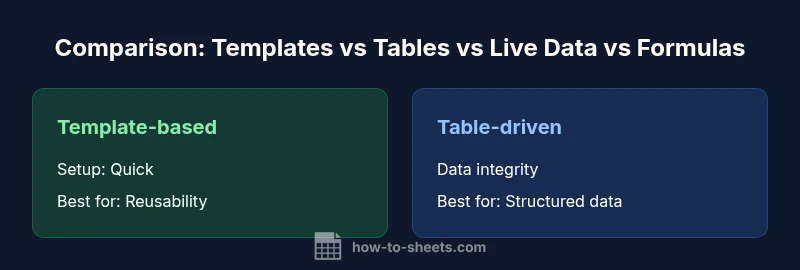
To compare approaches meaningfully, anchor your assessment in a common framework. The main criteria are: 1) setup time and ease of adoption, 2) data integrity and validation, 3) maintainability and auditability, 4) scalability as data grows or users increase, 5) flexibility for diverse tasks, and 6) performance and responsiveness. Templates excel at repeatable workflows with predictable inputs but may fall short when inputs become highly variable. Tables promote data integrity but require disciplined structure. Live-data connections deliver real-time insights but introduce dependencies and refresh considerations. Formulas offer maximal customization but can become opaque and error-prone if not documented. How To Sheets notes that the best choice often hinges on your team size, data volume, and the need for collaboration. The goal is to pick a primary approach and then layer complementary techniques to close gaps. Consider whether you’ll prioritize speed of setup, long-term maintainability, or real-time accuracy, and weigh the tradeoffs accordingly.
Common scenarios and recommended patterns
Most teams benefit from recognizing which pattern fits each task. Here are representative use cases and the recommended starting point:
- Small repeatable tasks (invoices, checklists): start with template-based workflows to minimize setup time and ensure consistency.
- Structured data with multiple users (inventory, CRM-lite): table-driven workflows help enforce data integrity and standardization.
- Real-time analysis across sources (sales dashboards, live KPIs): lean on live-data connections for up-to-date insights, but build in validation rules and fallback views.
- Custom calculations and complex logic (rate calculations, projections): use formulas to tailor computations, then wrap them in templates for reuse.
In each case, the optimal solution is often a hybrid: templates for input consistency, tables for governance, and formulas for bespoke calculations. How To Sheets emphasizes documenting each component so new collaborators can understand and extend the setup quickly.
Deep dive: templates, tables, live data, and formulas
Templates, tables, live data, and formulas each bring distinct strengths and caveats. Templates speed up onboarding and ensure consistent outputs, but they rely on stable inputs and can become rigid if inputs change. Tables enforce a structured approach to data storage, which makes reporting and filtering straightforward but requires disciplined schema management and data-type consistency. Live-data connections offer real-time visibility but introduce external dependencies and refresh intervals that can complicate audit trails. Formulas enable powerful, customized calculations but can become difficult to troubleshoot without clear documentation. A practical rule is to reserve templates for standard tasks, tables for core data governance, live data for dashboards, and formulas for analytics that demand precise, bespoke logic. When combining these approaches, start with a strong core data model (tables), provide templates for routine inputs, add live connections for dashboards, and rely on formulas to derive insights. The How To Sheets team’s guidance here is to design for auditability and modularity—each component should be replaceable without overhauling the entire sheet.
Performance and maintenance considerations
Performance in Google Sheets scales with data size, formula complexity, and the number of simultaneous editors. Templates reduce cognitive load and repetitive mistakes but can bloate a workbook if overused with large inputs. Tables help you segment data and apply validation rules, which can yield predictable performance even as data grows. Live-data connections offer the risk of stale visuals if refreshes lag or fail, so it’s wise to implement fallback views and caching-like strategies (e.g., static summaries of volatile data). Formulas should be decomposed into smaller parts, with intermediate results stored in helper columns or hidden sheets where appropriate. Documentation and naming conventions are essential: docstrings within comments, consistent range names, and a clear map of which components drive which outputs. How To Sheets recommends regular maintenance cycles, including technique reviews, dependency checks, and an updated changelog to track alterations that affect data integrity or performance.
Real-world workflows: step-by-step examples
Example 1: A quarterly budget workbook accessed by a small team. Start with a table-driven data model for revenue and expenses, create a template page for new quarters, and add a summary dashboard that pulls live data from key tables via a few targeted queries. Example 2: A student project log that needs repeatability. Use a template for new project entries, enforce standardized fields via data validation, and implement a few formulas to compute completion rates. Example 3: An inventory tracker with real-time stock levels. Consolidate data in a central table, connect a pivot table for quick summaries, and provide a template-based entry form for new items. In each scenario, aim for a modular setup where templates, tables, and formulas connect through well-documented named ranges and clear data validation rules. This modularity makes it easier to scale and adapt as needs evolve.
Pitfalls and optimization tips
Common mistakes include overreliance on a single approach, neglecting data validation, and failing to document dependencies. To optimize, start with a clean data model (tables), establish templates with explicit input controls, and reserve complex calculations for dedicated formulas with transparent logic. Regularly audit your workbook to identify fragile links, broken references, and performance bottlenecks. Finally, design for collaboration by incorporating access controls, version history, and change notes so teammates understand the purpose of each component.
Feature Comparison
| Feature | Template-based workflow | Table-driven workflow | Live-data connected workflow | Formula-driven workflow |
|---|---|---|---|---|
| Setup Time | Low (quick start) | Medium (structure needed) | Medium to High (depends on data sources) | Medium (custom calculations) |
| Data Integrity | Moderate with presets | High due to structure | Variable with data sources | High with clear docs |
| Maintenance | Low effort for stable inputs | Higher diligence for schema | Ongoing connection management | Requires careful documentation |
| Real-time Capability | Limited unless linked | Depends on data model | Excellent with live connections | Depends on formulas |
| Best For | Repeatable tasks with inputs | Structured data governance | Dashboards with real-time data | Custom analytics and calculations |
The Good
- Faster initial setup for repeatable tasks
- Improved consistency across users when templates are used
- Easier onboarding with clearly defined structures
- Low ongoing maintenance for simple tasks
The Bad
- Limited flexibility for unique or evolving scenarios
- Potential for data drift if inputs bypass controls
- Template fatigue if overused across many projects
- Less granular control for advanced, bespoke analysis
Hybrid workflows typically outperform any single approach.
Templates excel for repeatable inputs, tables enforce governance, live data drives real-time insights, and formulas provide customization. A blended strategy—templates plus tables plus selective formulas and live data—offers the strongest balance of speed, accuracy, and scalability.
FAQ
What is the best approach for collaboration when comparing templates, tables, and formulas in Google Sheets?
Collaboration thrives when you combine templates for consistent data entry, tables for a shared data model, and formulas for analytics. Pairing these with version history and permissions reduces conflicts while preserving flexibility.
Use templates for consistent input, tables for shared data, and formulas for insights, then rely on version history to manage edits.
How do templates impact data integrity and repeatability?
Templates standardize inputs and enforce structure, which improves repeatability and reduces human error. To protect integrity, couple templates with data validation and named ranges so changes don’t break downstream outputs.
Templates help ensure inputs are consistent; add data validation to keep data reliable.
Can I mix templates with formulas and live data in the same workbook?
Yes. A practical approach combines templates for entry, formulas for calculation, and live data for up-to-date dashboards. Ensure each component references clearly named ranges and has documented logic to keep maintenance straightforward.
Absolutely—just keep the components modular and well-documented.
What should I consider when evaluating performance for large sheets?
For large sheets, prioritize structured data (tables), minimize volatile formulas, and offload heavy calculations to helper cells or separate sheets. Regularly audit references and keep the workbook modular to minimize latency.
Big sheets run fastest when data is well-structured and calculations are modular.
Are there common pitfalls when adopting a new Google Sheets workflow?
Common pitfalls include overcomplicating templates, neglecting data validation, and failing to document dependencies. A phased rollout with training and a clear ownership map helps prevent these issues.
Pace the rollout, document everything, and train your team.
How do security and access control affect cross-workflow spreadsheets?
Security constraints matter when multiple teams access data. Use protected ranges, view-only shares for dashboards, and versioned templates to limit who can modify core structures. Align access with a documented governance policy.
Protect sensitive parts and control who can edit core structures.
The Essentials
- Start with a clear data model (tables) for governance.
- Use templates to speed up repeatable inputs.
- Leverage live data for dashboards, with safeguards.
- Reserve formulas for bespoke calculations and analytics.
- Document every component and maintain a changelog.