CRM with Google Sheets: Step-by-Step Guide to Build Your Pipeline
Learn how to build a lightweight CRM inside Google Sheets. Structure data, automate tasks, and create dashboards for students, professionals, and small teams with step-by-step guidance from How To Sheets.


Overview: You can build a lightweight CRM inside Google Sheets by tracking leads, contact details, deal status, next steps, owner, and follow-ups. This approach gives you a flexible, cost-effective system that’s easy to customize without coding. In this guide, you’ll learn how to structure data, basic workflows, and practical automations using built-in features and optional Apps Script.
Why a crm with google sheets works
A crm with google sheets offers a flexible, low-cost foundation for teams that need quick setup and real-time collaboration. By using familiar spreadsheet concepts—rows for records, columns for fields, and simple formulas—you can model a lead lifecycle, from initial contact to closed deal. According to How To Sheets, this approach lowers the barrier to entry for students, professionals, and small business owners while remaining highly customizable. The keyword crm with google sheets is not just a mnemonic; it represents a practical fusion of data management and process discipline. With careful planning, you can avoid common chaos: duplicate leads, inconsistent statuses, and missing follow-ups. This guide shows you how to build a maintainable, scalable system that grows with your needs.
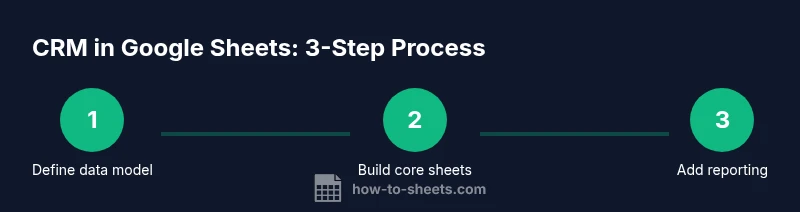
Data model and core fields
Before you touch a single formula, define the data your CRM will store. A clean core model might include Lead Name, Company, Email, Phone, City, Status, Owner, Next Action, and Next Contact Date. Optional but powerful extensions include Deal Value, Probability, Stage, Last Contact, and Follow-Up Notes. Use a single “Leads” sheet as your master, and separate sheets for Contacts, Activities, and Deals to avoid sprawling columns. Consistency is critical: choose clear, non-ambiguous field names, and commit to a standard data type for each column (text, date, number).
Why this matters: clean data underpins reliable reporting, filters, and automation. As you define fields, align them with your business process and pipeline stages to minimize rework later on.
Building the workflow: status, ownership, and follow-ups
Create a simple lifecycle with a small set of statuses (New, Contacted, Qualified, Proposal, Won, Lost). Tie each lead to an Owner and assign a Next Action with a date. Use data validation to enforce the status list and the date format. This ensures everyone speaks the same language and makes reporting straightforward. A well-defined workflow reduces manual back-and-forth and makes tasks visible to the entire team.
Practical tip: keep statuses in a separate named range to simplify formulas and allow easy updates without editing every row.
Automations and lightweight enhancements
Google Sheets itself supports many automation patterns without code. Use conditional formatting to visually cue aging follow-ups and overdue tasks. Create simple formulas like IF, VLOOKUP or INDEX-MMATCH to pull related data across sheets, and FILTER to generate dynamic views (e.g., all open opportunities). For more automation, Apps Script can send reminder emails or push notifications when a follow-up date passes. Start with built-in features, then layer Apps Script or add-ons as needs grow.
Pro tip: start with a formula-driven dashboard that uses FILTER and QUERY to present key metrics (pipeline value, close rate) without scripting. This lowers risk and accelerates value delivery.
Reporting and dashboards in Sheets
Turn your data into actionable insight with dashboards built inside Sheets. Create summary tables that compute counts by status, pipeline stage durations, and owner performance. Use charts to visualize win rates, follow-up cadence, and revenue forecasts. A practical approach is to build a dedicated Dashboard tab that sources from your Leads, Activities, and Deals sheets. This keeps data centralized and makes insights accessible at a glance.
Pro tip: use named ranges for core data sources and reference them in charts so you can refresh visuals by simply updating the data.
Data governance and collaboration
With multiple teammates editing the same sheet, governance becomes essential. Implement sharing settings that grant only necessary access, enable comment-only modes for external collaborators, and use protected ranges for critical fields (e.g., owner, next action). Regularly review version history to audit changes and recover previous states if needed. Establish a data-entry standard and provide onboarding notes so new collaborators understand naming conventions, statuses, and how to update follow-ups.
Warning: never publish a client-facing CRM sheet with sensitive personal data. Use access controls to limit visibility and consider a separate, secured drive for backups.
Templates and practical starting points
Starting templates accelerate adoption. A solid starter template includes a Leads tab with core fields, a Contacts tab for deep-dive contact data, a Activities tab to log calls and emails, and a Dashboard tab for quick KPIs. Customize your template with your logo, a color scheme, and your own field names. Use the starter to pilot with a small team and iterate based on real feedback.
How To Sheets tip: copy a basic template and adapt it to your workflow. It’s easier to learn by example than by conceptual planning alone.
Common pitfalls and how to avoid them
- Pitfall: duplicating leads. Remedy: enforce unique identifiers and run a deduplication pass.
- Pitfall: inconsistent statuses. Remedy: lock the status column with data validation.
- Pitfall: overloading a single sheet. Remedy: separate data into Leads, Contacts, and Activities and create a clean data model with relationships.
- Pitfall: lack of data security. Remedy: set proper sharing settings and avoid storing sensitive data in shared sheets.
Following these guardrails will help you maintain a reliable CRM that scales with your needs.
Tools & Materials
- Google account with access to Google Sheets(Needed to create and edit the CRM workbook.)
- Google Sheets(Use a clean, blank spreadsheet for a fresh template.)
- Sample CRM template(Copy a basic leads table with fields and sample data.)
- Data validation rules(Predefine status lists (e.g., New, Contacted, Qualified, Won, Lost).)
- Conditional formatting rules(For aging follow-ups or high-priority leads.)
- Apps Script editor (optional)(For automations like follow-up emails or reminders.)
- Add-ons for notifications (optional)(Examples include FormMule or email reminder add-ons.)
Steps
Estimated time: 60-120 minutes
- 1
Define CRM goals and data model
Agree on what you want to achieve with the CRM (e.g., faster follow-ups, better visibility into pipeline, central contact data). Draft a data model that includes core fields such as Lead Name, Company, Status, Owner, Next Action, and Next Contact Date. Map each field to a CRM concept to ensure consistency.
Tip: Pro tip: write down at least 3 concrete outcomes you expect from this CRM. - 2
Create a master Leads sheet
Set up a Leads tab with the core fields you've defined. Use clear column headers and apply basic formatting to differentiate required vs. optional data. Add a sample row to validate formulas and views.
Tip: Pro tip: lock header row and use 'Data validation' to enforce choices for status. - 3
Set up statuses and data validation
Define a short, actionable status list and apply data validation for the Status column. Consider including stages like New, Contacted, Qualified, Proposal, Won, and Lost to keep pipelines clean.
Tip: Pro tip: keep the list in a named range to simplify future updates. - 4
Create related sheets for Contacts and Activities
Add separate sheets for Contacts and Activities to avoid an overly wide Leads sheet. Link records via a common identifier (e.g., Lead Email or Lead ID) and establish small relationships to support reporting.
Tip: Pro tip: use VLOOKUP or INDEX/MATCH to pull contact details back into Lead views. - 5
Build core formulas for pipelines
Use formulas like FILTER, COUNTIF, and SUMIF to compute pipeline size, stage distribution, and upcoming follow-ups. Create a lightweight dashboard that surfaces key metrics from Leads and Activities sheets.
Tip: Pro tip: annotate formulas with comments to keep your logic understandable. - 6
Add lightweight visuals and formatting
Apply conditional formatting to highlight overdue follow-ups and high-priority leads. Create simple charts (bar charts for stage distribution, line charts for over time) to visualize progress.
Tip: Pro tip: use named ranges to keep visuals robust when data grows. - 7
Configure sharing and access controls
Decide who can edit, view, or comment. Use protected ranges for critical fields (e.g., Owner, Next Action date) and enable version history for rollback.
Tip: Pro tip: start with a small pilot group to catch permission issues before wider rollout. - 8
Prototype, test with sample data
Load a realistic dataset and run through common scenarios (new lead, follow-up, conversion). Note any gaps in data or automation and adjust the data model accordingly.
Tip: Pro tip: solicit feedback from teammates about the ease of use and reporting clarity. - 9
Optional: add automation with Apps Script
If you need reminders or notifications, implement lightweight automation using Apps Script. Start with a simple trigger that emails the owner when a follow-up date is overdue.
Tip: Pro tip: test automation in a copy of your workbook to avoid disrupting live data.
FAQ
Can a Google Sheets CRM support multiple users in real-time?
Yes, Google Sheets supports real-time collaboration. However, performance and sync can vary with sheet size and concurrent edits. Plan a clean data model and use version history to recover from conflicts.
Yes, multiple people can edit at the same time, but avoid very large sheets or complex formulas in every cell.
What are the limitations of a Sheets-based CRM?
Sheets is great for lightweight CRMs but has limits in data volume, concurrent edits, and advanced automation. For larger teams or complex workflows, you may outgrow a single sheet and consider a database or dedicated CRM integration.
It’s best for small to medium workflows and grows with careful data design.
How do I secure customer data in Sheets?
Set strict sharing settings, restrict editors, and use protected ranges for sensitive fields. Regularly review access and enable 2-step verification for accounts with CRM access.
Limit who can edit and view the data, and keep backups.
Can I email leads directly from Sheets?
Yes, with Apps Script or add-ons, you can trigger emails based on lead status or follow-up dates. Start with a simple script and test before full deployment.
You can automate emails from Sheets using Apps Script.
Is there a template to start quickly?
Yes, start with a basic Leads-Contacts-Activities template and adapt it to your process. Templates save setup time and help maintain consistency.
Start with a ready-made template and tailor it to your workflow.
Do I need Google Workspace to get more features?
A standard Google account can handle basic scripts and collaboration. Google Workspace offers more control for larger teams and admin features, but isn’t strictly required for a functional Sheets CRM.
Workspace helps manage larger teams but isn’t essential for a simple setup.
Watch Video
The Essentials
- Build a data-centric CRM inside Sheets for quick, low-cost deployment
- Use a simple data model to enable reliable reporting and automation
- Leverage validation, formatting, and basic formulas for consistency
- Add automation gradually with Apps Script to minimize risk
- Protect data with permissions and version history to maintain governance