Google Sheets 2026 Calendar: Step-by-Step Guide
Learn how to build a reusable Google Sheets 2026 calendar with auto-updating months, holiday highlighting, and templates. This educational guide is designed for students, professionals, and small business owners who want a practical, no-code calendar solution.


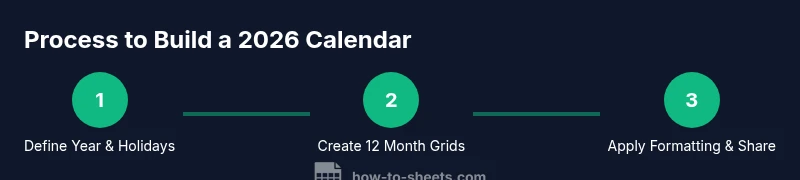
By the end, you'll create a reusable Google Sheets 2026 calendar that auto-advances months, highlights weekends, and marks holidays. You’ll set up a template with a single date reference, then use formulas, conditional formatting, and data validation to generate monthly views from a year-long data table. No heavy scripts required—just clear steps and templates.
Why a 2026 calendar in Google Sheets matters
A dynamic calendar in Google Sheets offers a single source of truth for planning academic terms, project milestones, and personal events. For students, professionals, and small business owners, a 2026 calendar keeps everyone aligned and reduces back-and-forth email threads. With a Sheets-based calendar, you can share access, track changes, and customize views for different teams. According to How To Sheets, a properly designed calendar template acts as a living roadmap, letting you quickly adjust dates as plans evolve while preserving a clean audit trail.
Foundations: data model for a year calendar
Before building visuals, define the data you’ll store: a year reference (2026), a list of holidays, and a blank grid to host 12 monthly views. A simple data model keeps maintenance low and allows you to reuse the same template for future years. Create a tab named YearData with columns for Month, MonthNumber, and Holidays. In another tab, keep a master Holidays list with dates and descriptions. This separation ensures the calendar stays accurate even when holidays shift or new events are added.
Build the monthly calendar template
The core of the project is a reusable monthly calendar block that can be replicated 12 times. Start each month with a header showing the month name and year. Then lay out a 6x7 grid for days, using a combination of the YEAR(), DATE(), and EOMONTH() functions to place days in their correct cells. For example, the first day of a given month is DATE(year, month, 1) and the number of days is DAY(EOMONTH(DATE(year, month, 1), 0)). Use a compact layout and consistent typography for readability. This template becomes the backbone you’ll copy across all 12 months.
Auto-advancing months and date calculations
To keep the calendar future-proof, drive the month grids from a single year cell rather than hard-coding 2026 in every month. Place the year in a dedicated cell (for example, B2) and populate each month grid with formulas that reference that year. Create a dynamic start date for each month and derive the days to display by offsetting from the first day of the month. This approach minimizes edits when you switch to a different year and supports bulk updates. According to How To Sheets Team, this centralized year reference makes maintenance easier and prevents drift when adjusting to a new year.
Visual cues: weekends, holidays, and events
Color-coding improves scanability. Use conditional formatting to highlight Saturdays and Sundays, and add another rule to highlight official holidays from your Holidays list. You can also mark specific events with colored dots or icons by inserting a simple event column per month. A clean color palette improves readability while keeping the sheet accessible for print or sharing in meetings.
How to reuse the calendar for other years
Switching years should be as painless as possible. Ensure your template references a single Year cell (e.g., B2). When you change 2026 to 2027, all month grids recalculate automatically. If you maintain a separate Holidays table, duplicate it or create a yearly subset so you don’t lose historical data. This approach aligns with How To Sheets guidance to keep the template structure stable while adjusting data inputs for new years.
Tips for data validation and error checking
Validation prevents broken calendars. Use data validation to constrain year input (e.g., a 4-digit number within a reasonable range) and enforce unique holiday dates. Periodically audit formulas by testing with leap years and known holidays. A small test sheet with a few sample dates helps verify that months align and that holidays render in the correct cells.
Common pitfalls and how to avoid them
Common issues include incorrect day alignment, leap-year miscalculations, and holidays that don’t apply to the current year. Avoid these by using EOMONTH for month length, validating the year range, and referencing a dedicated Holidays range rather than pasting dates into each month. Also, ensure print ranges are fixed so the calendar prints neatly on letter-size paper.
Templates you can copy and adapt
This section provides templates you can copy into your Google Drive and tailor to your needs. Start with a base 12-month calendar that uses a single Year cell and a Holidays table. Duplicate the monthly blocks, adjust the start week as needed, and then customize font styles and color accents to match your brand or school colors. If you keep a template, you can reuse it year after year with minimal edits.
Final check: sharing and collaboration considerations
When you’re ready to share, set permissions to suitable levels (view or edit) and consider protecting formulas to prevent accidental edits. Use comments to track suggestions from teammates and enable version history to revert changes if something goes wrong. A well-documented calendar template saves time in onboarding and reduces friction across teams.
Tools & Materials
- Google account(Needed to access Google Sheets and share templates)
- Google Sheets access(Use either web or mobile app, prefer desktop for complex formulas)
- Year reference cell (e.g., B2) with 2026(Change to 2027 to reuse for next year)
- Holidays list (CSV or sheet tab)(Dates with descriptions; update yearly)
- Month grid layout (6x7 cells per month)(Consistent across all months)
- Color palette for conditional formatting(Optional but improves readability)
- Print-ready setup (optional)(Fixed print ranges for reports)
Steps
Estimated time: 60-90 minutes
- 1
Create the year reference
In a new sheet, enter 2026 in a dedicated cell (e.g., B2) and label it 'Year'. This cell becomes the single source for all month calculations.
Tip: Keep year in one place to simplify year switching. - 2
Set up the Holidays table
In a separate tab, list holiday dates and descriptions. Use date-formatted cells to ensure correct comparisons with the calendar grid.
Tip: Include leap-year holidays for consistency. - 3
Design the month headers
Create a row for each month with the month name and year, e.g., 'January 2026'. Keep fonts consistent across all 12 blocks.
Tip: Use a consistent font size to maintain readability. - 4
Build the 6x7 day grid
For each month, allocate a 6x7 grid to hold day numbers. Leave cells empty where dates don’t exist in that month.
Tip: Start the first day in the cell corresponding to the weekday of the 1st. - 5
Populate days via formulas
Enter formulas that reference the Year cell to fill the dates within the grid. Use EOMONTH to determine month length and offset to align days to weekdays.
Tip: Test with February in a leap year to verify correct day count. - 6
Apply conditional formatting
Highlight weekends and holidays with distinct colors. Add another rule for special events from your Holidays table.
Tip: Limit colors to 2-3 high-contrast tones for print clarity. - 7
Link monthly blocks to a single source
Make each month’s grid reference the same formulas so changes propagate automatically when the year changes.
Tip: Avoid duplicating hard-coded values across months. - 8
Create a clean print-ready view
Set print areas to encompass the 12 months in a portrait layout. Ensure margins and headers align for crisp output.
Tip: Preview before printing to catch layout issues. - 9
Test and validate with a year-wide pass
Change the Year cell to 2026, then 2027 and verify every month updates correctly and holidays align.
Tip: Run a quick spot-check after any year switch. - 10
Save as template and protect formulas
Save the sheet as a template, then protect formula cells to prevent accidental edits. Document usage steps in a notes tab.
Tip: Include a short readme for new collaborators.
FAQ
Do I need to script anything to create the calendar?
No scripting is required for a functional calendar. You can generate month grids and format them with built-in functions and conditional formatting. For more automation, you can add simple scripts later.
You can build the calendar with built-in formulas and formatting, no scripts needed, though you can add scripts later if you want extra automation.
Can I adapt this calendar for different locales or holidays?
Yes. Maintain a central Holidays table and adjust holiday dates per locale as needed. You can filter or duplicate rows to reflect regional differences.
Yes, keep a central list and customize by locale.
How do I update the calendar for leap years?
Leap years are handled by the month-length calculations (EOMONTH and DAY functions). The grid will automatically show 29 days for February in leap years.
Leap years are automatically handled by the date functions.
Is it possible to export the calendar to Google Calendar?
Direct export from Sheets to Google Calendar isn’t automatic. You can export dates to CSV and import them into Google Calendar, or use a script to sync events.
You can export as CSV or use a script to sync events with Google Calendar.
How can I customize colors without breaking formulas?
Set up conditional formatting rules to reference simple color ranges or flags in a helper column, so formulas stay intact while visuals change.
Use safe conditional formatting rules that reference helper flags.
What if I want more than 12 months in one view?
This template is designed for a 12-month year. To extend, replicate the month blocks or switch to a rolling 12-month layout with dynamic date ranges.
You can replicate blocks or adopt a rolling 12-month view.
Watch Video
The Essentials
- Create a reusable year-based calendar in Sheets
- Drive all month calendars from a single Year cell
- Apply conditional formatting for easy scanning
- Store holidays in a central table for consistency
- Save and share the template for collaborative use