Is Google Docs the Same as Google Sheets? A Practical Comparison
Explore the key differences between Google Docs and Google Sheets, when to use each, and how to integrate both for hybrid workflows. Learn practical guidance for students, professionals, and small business owners.


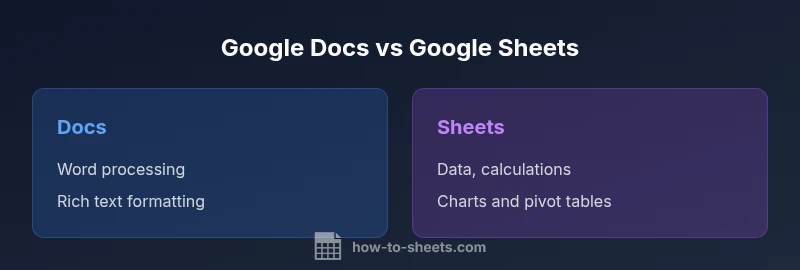
Is Google Docs the same as Google Sheets? Not exactly. Google Docs is a word processor for long-form writing, formatting, and collaboration on text documents, while Google Sheets is a spreadsheet app built for data, calculations, and analytics. They share real-time collaboration, but their core capabilities, file types, and workflows differ, so choose the tool that fits the task at hand. This guide explains where each shines and how to use them together effectively.
Core Distinctions: Word Processor vs Spreadsheet
If you’re asking is google docs the same as google sheets, the short answer is no—these two tools are built for different tasks. Google Docs focuses on long-form writing, formatting, and collaboration around textual content, while Google Sheets centers on structured data, calculations, and analytical workflows. The naming alone hints at their primary strengths: Docs for documents, Sheets for spreadsheets. In practical terms, this means you should expect different toolbars, menus, and collaboration patterns depending on the task at hand. This section lays out the fundamental distinctions you’ll notice as you switch between the two apps.
Although both tools live in the Google Workspace ecosystem and share real-time collaboration, they manage content in distinct ways. Docs stores content as flowing text with sections and styles; Sheets organizes data in a grid of cells, enabling formulas, autocalculated results, and dynamic charts. As a result, workflows built in one environment often need adaptation to the other. For students, professionals, and small business owners, recognizing these core differences helps prevent data structuring mistakes and speeds up task completion. In the sections that follow, we’ll examine data structures, calculations, collaboration, import/export, and practical use-cases to help you decide when to use Docs, Sheets, or both in tandem. According to How To Sheets, understanding the distinction early on saves time and avoids rework in collaborative projects.
Data Modeling and Structures: Tables vs Paragraphs
Google Docs uses a flow-based model designed for narrative text and formatting. Paragraphs, headings, footnotes, and stylistic runs define the document’s structure. Tables exist, but they’re primarily for layout or simple data presentation rather than a grid of fully interactive cells. Google Sheets, in contrast, is built on a grid of rows and columns where each cell is individually addressable. This difference matters when you model data: Sheets supports cell references, ranges, and named ranges that drive calculations and charts. If your task involves organizing data, sorting, filtering, and performing repeated calculations, Sheets is the natural home. Docs remains strong for outlines, long-form content, and collaborative writing. In hybrid workflows, you’ll often embed or link a Sheet chart into a Docs document to combine narrative with data visuals.
Formulas, Calculations, and Functions
A core distinction is how each app handles calculations. Google Sheets provides a robust set of spreadsheet formulas, functions, and data-manipulation tools. You can sum columns, compute averages, apply conditional logic, and create pivot tables to summarize datasets. Docs has no built-in cell-based formula engine; instead, it focuses on text-centric features and basic table calculations or embedded charts from Sheets. If your goal involves numerical modeling, scenario analysis, or budgeting, Sheets is typically the tool you’ll rely on. For narrative reports that incorporate summarized numbers, you’ll either paste values from Sheets or insert dynamic links to Sheets data.
Collaboration, Comments, and Version History
Both apps support real-time collaboration, comments, and version history, but their collaboration models suit different tasks. In Docs, collaborators co-author paragraphs, track edits, and comment on passages—ideal for drafts, policy documents, or meeting notes. Sheets allows simultaneous editing on data tables, with cell-level permissions and filter views to tailor what different teammates can see or modify. Version history is preserved in both, letting teams revert changes while preserving a record of who caused updates. For hybrid teams, the ability to push a data story from Sheets into a Doc through linked charts or embedded tables simplifies coordinated review processes.
File Formats, Import/Export, and Integration
Docs shines with flexible text export formats—DOCX, PDF, and other text-centric formats—making it easy to share word-processed documents with external audiences. Sheets exports to XLSX, CSV, PDF, and other spreadsheet-friendly formats, supporting data interchange with finance systems or databases. Both apps integrate with the broader Google Workspace suite, including Drive, Slides, and Forms, and offer API access for automation via Apps Script. When you need to move data between the two, you can copy/paste, link, or embed charts from Sheets into Docs. This interoperability is a strength of the Google ecosystem, but it also requires careful version control to keep data sources and narrative text aligned.
Use-Case Scenarios: When to Use Each
For daily writing tasks like drafting reports, proposals, or class notes, Docs is your friend. Its formatting controls, styles, and reference features help create polished documents quickly. For data-heavy tasks such as budgeting, dashboards, customer lists, or experiment results, Sheets provides robust tabular manipulation, calculations, and visualization options. When a project involves both writing and data, a hybrid workflow often yields the best results: maintain the data in Sheets and tell the story in Docs using charts and linked data. How To Sheets emphasizes framing your tasks around data structure first and narrative second to maximize efficiency across both tools.
Common Pitfalls and Misconceptions
A frequent mistake is trying to perform spreadsheet-grade data modeling inside Docs. The result is manual work, messy formatting, and frustrated collaborators. Conversely, relying on Sheets for long-form prose leads to cramped cells, poor readability, and awkward document layouts. Another pitfall is neglecting version control when moving data between apps; changing a data source in Sheets without updating the linked visuals in Docs can create inconsistencies. Remember that Docs and Sheets are designed for different content models—using them in the intended contexts reduces errors and speeds up delivery. According to How To Sheets, clarifying the intended output early helps teams select the right app from the start.
Practical Tips for Hybrid Workflows
- Define a clear handoff: use Sheets for data capture and calculations, then link or embed in Docs for storytelling.
- Use charts in Sheets and embed them in Docs to narrate a data story with context.
- Leverage templates: start with a budget template in Sheets and a summary template in Docs to standardize workflows.
- Establish shared guidelines for offline use and syncing to avoid stale data during collaboration.
- Automate repetitive tasks: Apps Script can sync data between Sheets and Docs, reducing manual updates and keeping reports current.
Getting Started: Quick Setup Checklist
- Identify the primary task: is the work data-centric or narrative-focused?
- Create a Sheets workbook for data tasks and a Docs document for writing tasks.
- Build a simple link from Sheets to Docs to display key charts within reports.
- Set permissions and share settings so teammates can contribute where needed.
- Establish a review workflow: who edits, who approves, and how changes are tracked.
- Save a minimal template to reuse across projects, ensuring consistency and speed in future work.
- Schedule periodic audits of data sources to prevent drift between Sheets and Docs.
- Leverage offline modes where connectivity is limited and set syncing expectations for the team.
Comparison
| Feature | Google Docs | Google Sheets |
|---|---|---|
| Primary purpose | Word processing and rich text documents | Spreadsheets with calculations and data analysis |
| Best for | Drafting reports, letters, and long-form content | Data modeling, budgeting, analytics, and dashboards |
| Core features | Text formatting, styles, comments, and review | Cells, formulas, charts, pivot tables, and data validation |
| Collaboration features | Real-time editing with comments and suggestions on text | Real-time editing with cell-level sharing and viewing options |
| Offline availability | Offline access for most features via browser/app | Offline access via Google Drive apps with sync |
| Export formats | DOCX, PDF, ODT, RTF, plain text | XLSX, CSV, PDF, ODS |
The Good
- Shared Google Workspace integration enables smooth cross-app workflows
- Real-time collaboration supports simultaneous work across teams
- Both apps are accessible online and via mobile apps for on-the-go work
- Easy embedding/linking between Docs and Sheets for hybrid documents
The Bad
- Not interchangeable for data-heavy vs text-heavy tasks
- Docs lacks built-in spreadsheet-level calculations; Sheets lacks advanced word processing layout features
- Moving data between apps can create version drift if not carefully managed
Use Sheets for data-heavy tasks and Docs for text-heavy tasks; pair them for hybrid reports.
Sheets handles data modeling and calculations; Docs excels at writing and formatting. Together, they support comprehensive, data-informed narratives.
FAQ
What is the main difference between Google Docs and Google Sheets?
Docs is optimized for writing and rich text formatting, while Sheets is built for data, calculations, and analysis. They serve different purposes, though they integrate within Google Workspace for collaboration.
Docs is for writing, Sheets is for data and calculations, and they work together in Google Workspace for collaboration.
Can you convert a Docs document to a Sheets spreadsheet?
There is no one-click conversion from a document to a data sheet. You can copy data or charts from Sheets into Docs, or export Docs as text and import into Sheets if needed.
There isn’t a direct conversion from Docs to Sheets, but you can move data and charts between them as needed.
Is Google Sheets better for budgets than Google Docs?
Yes. Sheets offers cell-based calculations, formulas, and charts ideal for budgeting and financial modeling. Docs is not designed for heavy numeric tasks, though you can describe budgets textually there.
Sheets is the better choice for budgets due to its calculations and data organization.
Can I work offline with both apps?
Both Docs and Sheets provide offline capabilities when you enable offline access. You can edit files offline and sync changes when you reconnect to the internet.
Yes, offline work is supported in both Docs and Sheets when enabled.
What is the best way to integrate Docs and Sheets in a workflow?
Embed Sheets charts into Docs for narrative reports, or link data ranges to keep documents up to date. Use templates to standardize the process and minimize drift.
Embed charts from Sheets into Docs to tell a data-driven story.
Are there limitations when using Sheets for data entry in a Docs document?
Docs is not a database or spreadsheet engine. For heavy data entry or complex calculations, rely on Sheets and only reference or embed the results in Docs.
Docs isn’t built for heavy data work; use Sheets for that and reference the results in Docs.
Can I automate tasks between Docs and Sheets?
Yes, using Apps Script or connected workflows, you can automate data transfer, updates, and reporting between Sheets and Docs.
Automation between Sheets and Docs is possible with Apps Script and similar tools.
Which tool should I start with if I’m unsure?
Start with defined outputs: if you need data insights, begin in Sheets; if you need a narrative document, start in Docs. Then connect them as needed.
Begin with the task’s core output: data in Sheets or text in Docs, and connect later.
The Essentials
- Define the task first to choose the right app
- Use Sheets for data, formulas, and charts
- Use Docs for writing, outlining, and collaboration on text
- Hybrid workflows boost storytelling with data visuals
- Regularly review data links to avoid drift between docs and sheets