Google Sheets Apartment Comparison Template: A Practical, Analytical Guide
Explore a google sheets apartment comparison template to evaluate rent, location, and amenities. This analytical guide shows setup, scoring, and best practices for objective roommate decisions.


Using a google sheets apartment comparison template helps you compare rent, location, and amenities at a glance. It standardizes data entry, supports quick scoring, and keeps notes organized in one sheet. Use it to create side-by-side comparisons, sort by price or distance, and share results with roommates or landlords.
Why a google sheets apartment comparison template matters
According to How To Sheets, a google sheets apartment comparison template is more than a convenient checklist; it is a structured decision-support tool. When you face multiple rental options, a consistent template reduces cognitive load and helps you compare apples to apples. By normalizing fields such as rent, location score, and move-in dates, you can apply a fair weighting system and track preferences over time. The template also improves collaboration: roommates, roommates' families, or property managers can add notes, attach documents, and update values in real-time. The How To Sheets team has found that these templates translate messy, multi-criteria decisions into clear, actionable insights that can be shared in meetings or chats. In practical terms, you gain a repeatable workflow you can reuse for future housing searches or even for roommate agreements.
Core design choices for your apartment comparison template
A robust google sheets apartment comparison template begins with a clear scope and a well-structured layout. Start with a data entry section that standardizes key criteria: monthly rent, location score, commute time, safety rating, pet policy, and lease terms. Use drop-down lists for categorical fields (e.g., neighborhood, building type) to minimize typos and inconsistencies. Assign weights to each criterion to reflect personal priorities (for example, location might count more than vanity amenities). Include a separate summary area that computes an overall score for each option. This section should be easy to scan, with color-coded cells via conditional formatting to highlight top performers and red flags. Finally, ensure the sheet is ready for sharing by keeping formulas simple and adding a help row with definitions for each field.
Step-by-step: building the template from scratch
- Define the decision criteria that matter most to you and your team. 2) Create a dedicated sheet with clearly labeled columns for each criterion and a second sheet for notes and attachments. 3) Implement a scoring system: assign a numeric range to each criterion and apply weights that reflect your priorities. 4) Use consistent data validation rules and restrict edits to prevent accidental changes. 5) Add summary calculations that rank options by weighted scores, along with a visual dashboard for quick comparisons. 6) Build in a version history and a reset option to reuse the template for future housing searches. 7) Protect sensitive columns to guard data integrity while keeping collaboration open where needed.
Data structure and naming conventions
Adopt a consistent naming convention for all columns, such as Rent_Monthly, Location_Score, Move_In_Date, Lease_Terms, and Pets_Allowed. Place static reference data (neighborhood options, property types) on a separate lookup table to avoid duplication. Use named ranges for critical sections to simplify formulas and improve readability. Avoid multi-language labels that can confuse filters or charts. Document your conventions in a help tab so new collaborators can quickly adapt. Regularly audit the sheet for orphaned rows, broken references, or outdated entries, and archive older comparisons to keep the template lean and fast.
Formulas and scoring system: how to evaluate apartments
Set up a weighted scoring model to reflect your preferences. Example: Overall_Score = Rent_Score * 0.35 + Location_Score * 0.25 + Amenities_Score * 0.20 + Commute_Score * 0.10 + Safety_Score * 0.10. Use data validation for Rent_Score and other scores (0-10) and ensure you compute minimum values for cost-related criteria to discourage underbudget picks. Create a standardized Rent_Score by normalizing rent against a target range. Build a simple look-up for amenities (e.g., Parking, Gym) and convert each feature into a numeric value. Finally, include a quick heatmap that highlights top options in green and red flags in red to aid decision-making at a glance.
Validation and consistency checks
To keep data reliable, implement input constraints: enforce date formats for Move_In_Date, restrict Rent_Monthly to positive numbers, and require a yes/no for Pets_Allowed. Use conditional formatting to flag obvious outliers (e.g., rent far above the neighborhood average). Create a simple audit trail that logs who updated which field and when, and require collaborators to leave notes for any critical edits. Periodically run a data-cleaning routine that removes duplicate entries and reconciles inconsistent neighborhood names. These checks reduce confusion and ensure your final ranking is credible.
Visualization: dashboards and charts
Visuals turn data into intuition. Build a dashboard tab with a bar chart showing overall scores per apartment, a heatmap for rent versus location, and a pie chart illustrating the distribution of weighted criteria. Use sparklines to show score trajectories when new options are added, and consider a calendar view to map Move_In_Date against the lease terms. A simple table with mini progress bars can convey how close each option is to your target values. Keep visuals clean and color-coordinated: green for good, red for red flags, and amber for caution.
Collaboration and version control
The value of a template grows with collaboration. Share the Google Sheet with roommates, landlords, or lenders, and set appropriate access (viewer vs. editor). Use a dedicated “Versions” tab to snapshot the sheet before major edits, and encourage comments in a dedicated Notes column rather than inserting changes directly into scores. Establish a review cadence (e.g., after receiving new offers) to re-run the scoring and re-rank options. Provide a short onboarding guide within the sheet so new collaborators can hit the ground running.
Real-world example: sample layout and formulas
A practical layout begins with a header row that includes columns like Apartment, Neighborhood, Rent_Monthly, Location_Score, Commute_Score, Safety_Score, Amenities_Score, Move_In_Date, Lease_Terms, Pets_Allowed, and Notes. A secondary summary tab computes Overall_Score with a weighted formula such as =SUMPRODUCT(Weights, ScoreArray). The template can also include a hidden helper row to compute average rents by neighborhood, which informs your weighting decisions. Attach PDFs or links to the Notes column to keep contract details and disclosures in one place. This structure remains adaptable for future searches and can be copied to new projects without losing formatting or formulas.
Maintenance and updating the template over time
Allocate time monthly to review and update your template. Remove expired listings, refresh move-in dates, and revise weights if your priorities shift (e.g., prioritizing commute time during winter). Archive older comparisons to maintain performance and readability and ensure any added criteria are reflected in both the data and the scoring logic. A well-maintained template remains a reliable decision tool rather than a dated reference.
Exporting, sharing, and security considerations
Export options include PDF snapshots for landlords, CSV exports for data backups, and sharing links for collaborators. When sharing, apply the principle of least privilege: editors only for those actively contributing, viewers for others. Use password-protected exports for sensitive information if you distribute the file outside your trusted network. Consider archiving sensitive personal data separately and keeping copies of rental agreements in a secure location. These practices protect both the data and the users who rely on it.
Accessibility and mobile usability
Ensure your template remains usable on mobile devices by keeping formulas simple, avoiding overly long formulas in any single cell, and using larger tap-friendly controls for drop-down menus. Add alt text to charts and provide screen-reader friendly labels for all fields. If your team uses accessibility tools, perform a quick audit to identify any color contrasts or navigation hurdles. A mobile-friendly template helps you evaluate options while commuting or touring properties.
Comparison
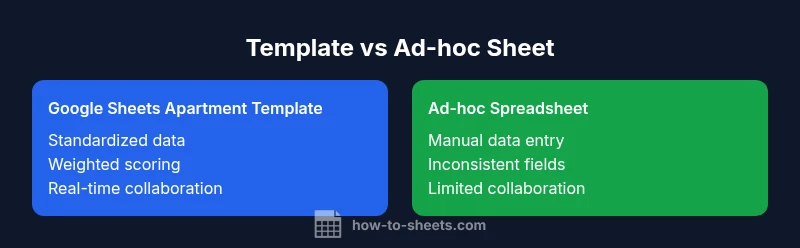
| Feature | google sheets apartment comparison template | Ad-hoc spreadsheet approach |
|---|---|---|
| Setup time | low | moderate |
| Data consistency | high (standardized fields) | low (inconsistent fields) |
| Scoring flexibility | high | moderate |
| Formula complexity | low to moderate | high (custom formulas) |
| Collaboration ease | high (shared sheet) | low (local copies) |
| Maintenance effort | low | moderate to high |
| Reusability | high (template-ready) | low (single-use) |
The Good
- Standardized data entry across all comparisons
- Easy sharing and collaboration with real-time updates
- Reusability for future housing searches and other decision scenarios
- Cost-effective and low barrier to adoption
The Bad
- Limited to features available in Sheets without advanced analytics plugins
- Learning curve for setting up weighting and normalization
- Requires Google account and basic spreadsheet familiarity
Google Sheets apartment comparison template is the balanced choice for most users
The template provides a repeatable, transparent framework for evaluating apartments. It supports consistent scoring and easy collaboration, while remaining accessible to students, professionals, and small business owners. For power users, the approach scales with more advanced analytics as needed.
FAQ
What is a google sheets apartment comparison template?
A google sheets apartment comparison template is a structured spreadsheet that standardizes criteria (rent, location, amenities, etc.) and applies a scoring system to rank apartments. It facilitates consistent, data-driven decisions during housing searches.
A Google Sheets template helps you compare apartments quickly by scoring each option against the same criteria.
How do I set up scoring and weights in the template?
Define criteria and assign a numeric score for each option. Apply weights to reflect importance, then compute a weighted sum to obtain an overall score. Keep formulas simple and document weight choices in a help tab.
Choose what matters most, assign scores, and weight them to get a clear overall rank.
Can I share the template with roommates or colleagues?
Yes. Google Sheets supports real-time collaboration. Share with appropriate access levels (edit/view) and use a version history to track changes. Provide a short onboarding note for new collaborators.
Absolutely—just share the sheet and set permissions so everyone can contribute or view as needed.
Is this template Excel-compatible or exportable?
Google Sheets templates can be exported to Excel or exported as PDFs for sharing. Some advanced Sheets-specific functions may require adaptation in Excel. Test critical formulas after export.
You can export to Excel if needed, but check formulas after the move.
What data should I include for a robust comparison?
Include rent, location factors, commute time, safety, lease terms, move-in date, pet policy, and notable amenities. Add notes or attachments for contracts or disclosures and consider a neighborhood lookup table to reduce duplication.
Include key criteria and any notes or documents to keep everything you need in one place.
The Essentials
- Define your top criteria before building the sheet
- Use weighted scoring to reflect personal priorities
- Keep data validation and naming conventions consistent
- Leverage dashboards for quick, visual comparisons
- Regularly maintain and update the template for reliability