Troubleshooting a Broken Line Graph in Google Sheets
Urgent guide to fix a broken line graph google sheets. Learn quick data checks, axis formatting, and rebuild tips to restore accurate charts in Sheets. Ideal for students, professionals, and small business owners needing fast, reliable results.


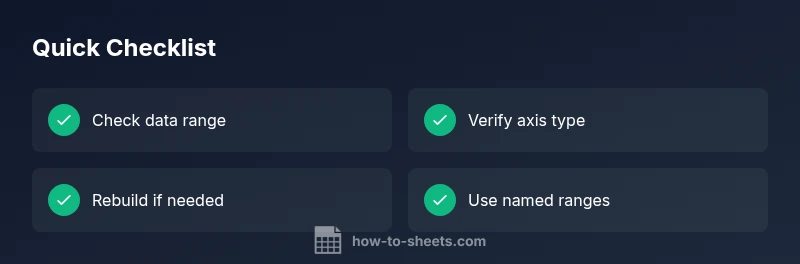
Start with simple data checks: confirm the data range is correct, all values are numeric, and there are no hidden blanks. Then verify the chart type and series alignment, and re-create the chart if needed. If this doesn't fix it, rebuild the chart on a fresh sheet and test with a small sample. See our full guide.
Why a broken line graph happens in Google Sheets
According to How To Sheets, the most common reasons a line graph breaks are data range errors, non-numeric values sneaking into numeric columns, and axis misconfigurations. A single misformatted cell or stray text entry can cause the entire series to derail. Merged cells, hidden rows, or headers included in the plotting range are frequent culprits. Even simple formatting changes—like dates stored as text—can distort the line's continuity. When working with live data, small mistakes compound quickly, especially if you rely on automatic updates or dynamic ranges. The goal is to isolate the exact data slice used by the chart and ensure every value in that slice is suitable for numeric plotting. This section helps you spot the usual suspects before you start rebuilding.
Signs of trouble to look for at a glance
- Gaps in the line where you expect a steady progression
- Sudden jumps or flat lines with no data in the range
- A chart that seems to ignore recent updates
- Axis labels that don’t match the data values
- Error indicators or warning triangles in cells
- Unexpected zeroes or repeated values in a series
By recognizing these symptoms early, you reduce unnecessary edits and keep your chart aligned with your data.
Quick data checks you should run
Begin with the data range the chart uses. Highlight the cells and ensure all values are numeric or dates (not text). Use Data > Data cleanup > Remove blank rows and check for hidden characters. If your data is calculated, verify that formulas return numbers, not text. Create a small test table in a new sheet that mirrors the original structure and plot it—this isolates whether the problem is with the data or the chart. When you find a mismatch, fix it in the source data and refresh the chart. Consistency in formatting (numbers, dates, and text) is the foundation of a reliable line graph.
Inspect axis and data formatting
A broken line graph often stems from axis misinterpretation. Ensure the x-axis uses a valid date or numeric sequence. If the axis treats dates as text, you’ll see irregular spacing or misaligned points. Convert text dates using DATEVALUE or VALUE, and reformat cells to the correct number or date format. Check that the chart’s data range doesn’t include headers in the plotted series. In many cases, switching from a text-based axis to a proper date or number axis resolves the issue and restores the expected line continuity.
Handling missing values and non-numeric data
Missing values will yield gaps or breaks in the line. You can either fill gaps with an appropriate value (e.g., forward-fill) or configure the chart to treat blanks as NA() so the line remains continuous where the data exists. For non-numeric data masquerading as numbers, use VALUE() or NUMBERVALUE() to coerce text to numbers. If necessary, split your data into multiple ranges and plot each range as separate series to avoid cross-contamination. Consistent data types are essential for a clean line graph.
Rebuilding the chart: step-by-step guardrails
If the data checks so far are clean but the chart still misbehaves, rebuild the chart from scratch. Create a new sheet, paste the exact data range, and insert a new Line chart. Avoid copying chart settings from the old chart; instead, configure the axis, series, and gridlines freshly. Double-check that the series Explain values align with the new data range. After re-creating, compare the new chart with the original to confirm the issue is resolved. If problems persist, move the chart into a standalone sheet or a dashboard tab to reduce cross-sheet data coupling.
Advanced fixes: using named ranges and dynamic references
Named ranges help stabilize charts when your data grows. Define named ranges for your data columns (e.g., SalesData, Dates) and use them in the chart’s data series. Dynamic ranges (like A2:A) ensure the chart updates with new rows without manual edits, but only if your dataset remains consistent. If a formula-driven dataset causes inconsistent results, consider converting results to values or using array formulas that return uniform numeric outputs. These practices minimize drift between the data and its visualization.
Prevention: data validation and structure
Prevention is better than cure. Implement data validation to restrict inputs to numeric ranges or date formats. Maintain a single source of truth for data feeding the chart—prefer a dedicated data tab, not a mixture of raw data and calculated outputs. Use named ranges and a clear data-logging process so editors understand what feeds the chart. Regularly review the range references after major edits and updates, especially when collaborators contribute to the sheet.
When to escalate to professional help and documentation tips
If you’ve exhausted common fixes and the chart remains broken, it’s time to escalate. A fresh pair of eyes can spot subtle issues such as conditional formatting affecting the plotted range or hidden rows that reappear after edits. The How To Sheets team recommends documenting the exact steps you took and the data range you tested so a support specialist can reproduce the problem quickly. Also, consult Google’s help center for known issues and ensure you’re using the latest Sheets version.
Steps
Estimated time: 20-40 minutes
- 1
Check the data range
Highlight the data range used by the chart and verify there are no stray headers or non-numeric cells included in the plotted series. If you find an outlier or text, correct it in the source data. This initial sweep often resolves most issues.
Tip: Tip: Use a separate data tab to prevent accidental edits to the chart source. - 2
Verify the axis configuration
Ensure the X-axis uses a continuous numeric or date axis. If dates are treated as text, convert them with DATEVALUE or reformat the cells to Date. Confirm that the Y-axis covers the expected numeric range.
Tip: Tip: Right-click the axis to access scale options and formatting quickly. - 3
Check for missing values
Identify and address blanks in the data. Consider filling blanks with a calculated placeholder or configure the chart to ignore blanks using NA() for gaps. This prevents unexpected breaks in the line.
Tip: Tip: Avoid deleting rows; instead, leave them and fill with a placeholder value when appropriate. - 4
Rebuild the chart from scratch
If the issue persists, create a new sheet, paste the data, and insert a new Line chart. Configure the series and axis anew to avoid inheriting corrupted settings from the old chart.
Tip: Tip: Compare the new chart side-by-side with the old one to verify consistency. - 5
Use named ranges
Define named ranges for your data columns and use them in the chart. This stabilizes references when data grows and minimizes misalignment between data and visualization.
Tip: Tip: Update named ranges as the dataset expands to keep charts current. - 6
Add validation and structure
Apply data validation to restrict inputs and centralize raw data on a single tab. Keep calculated outputs separate and keep a documented workflow to reduce future issues.
Tip: Tip: Create a quick data-validation checklist for collaborators.
Diagnosis: Broken line graph in Google Sheets shows gaps, misaligned series, or empty chart area
Possible Causes
- highNon-numeric data or text in numeric range
- highData range includes blanks or merged cells
- mediumAxis values not properly formatted (dates/numbers)
- lowChart references not aligned with data range
Fixes
- easySelect the correct data range and ensure numeric types for all series
- easyRemove merged cells and fill blanks or use NA() to handle gaps
- easyConvert text dates/numbers to proper formats (DATEVALUE/VALUE)
- easyRe-create the chart after cleaning data or switch to named ranges
FAQ
Why is my line graph showing gaps even though data looks continuous?
Gaps usually mean blanks or non-numeric values in the plotted range, or the X-axis is treated as text. Convert the data to numeric or date formats and verify the axis data type. Replot if necessary.
Gaps often come from blanks or text in numeric data, or the axis being treated as text. Convert formats and replot.
Can missing data cause a broken line graph?
Yes. Missing data breaks continuity. You can fill gaps with a placeholder, or configure blanks to be ignored with NA() so the line remains continuous where data exists.
Yes. Missing data breaks continuity unless you fill gaps or configure them to be ignored.
What should I do if the data range is correct but the chart still looks wrong?
Double-check that the chart references exactly match the plotted data. Consider recreating the chart in a new sheet to rule out hidden corruption.
If the data range is correct but the chart still looks off, recreate the chart in a fresh sheet.
Is it better to use a different chart type to diagnose issues?
Switching to a different chart temporarily can reveal data issues. If the alternative chart behaves correctly, the problem likely lies in the line chart configuration.
Trying another chart can help isolate whether the issue is data or chart-specific.
When should I escalate to professional help?
If multiple fixes fail and the chart still misrepresents data, consult a professional. Document steps and share the dataset structure to speed up resolution.
If fixes fail, seek professional help and share your data structure and steps taken.
What are best practices to prevent future broken graphs?
Use data validation, maintain a single data source tab, and apply named ranges to stabilize references. Regularly review data types and formats before chart updates.
Prevent broken graphs by validating data, using a single data source, and stabilizing references.
Watch Video
The Essentials
- Check data range and numeric consistency first
- Ensure axis formatting matches data types
- Rebuild charts if data or formatting gets corrupted
- Use named ranges to stabilize references
- Apply data validation to prevent future issues