Weekly Schedule Template for Google Sheets: A Step-by-Step Guide
Learn how to create and customize a weekly schedule template in Google Sheets with step-by-step instructions, practical tips, and ready-to-use templates for students, professionals, and small businesses.


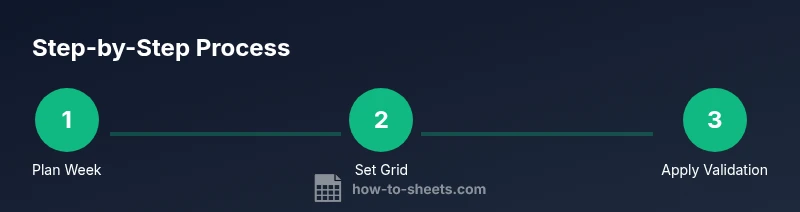
Goal: Build a reusable weekly schedule template in Google Sheets that tracks days, time blocks, tasks, and priorities. Start by opening a new Sheet, naming the file, and setting a grid with Mon–Sun across the top and hourly intervals down the left. Enable basic formatting and data validation to keep entries consistent. You’ll have a ready-to-use planner in about 20–40 minutes.
Why a weekly schedule template matters
A well-structured weekly schedule template in Google Sheets helps you allocate time, track commitments, and reduce decision fatigue. A template provides a consistent layout you can reuse across weeks, projects, or team members. By defining days Mon–Sun, time blocks, and task categories, you gain a quick overview of priorities and capacity. According to How To Sheets, starting with a simple grid and hardened basics minimizes setup friction and ensures a scalable process. This approach also supports habit formation and accountability for students, professionals, and small business owners. In addition, Google Sheets makes it easy to share, update, and reuse templates across devices, enabling collaboration and real-time adjustments.
Key features to include in a Google Sheets weekly schedule
Modern weekly planners in Google Sheets should balance clarity with flexibility. Start with a clean grid: columns for Mon through Sun, a dedicated header row, and a left-hand column for time blocks (e.g., 6:00–7:00, 7:00–8:00). Include a tasks or notes column to capture quick details. Build in time-block granularity that matches your pace, from hourly to half-hour intervals. Add drop-down menus for day type (work, study, personal) and for task status (pending, in progress, done) to standardize entries. Use conditional formatting to highlight urgent or high-priority slots, and keep totals or color-coding consistent across weeks. Optional features include a separate summary panel for hours allocated, a 'week view' toggle to switch weeks, and a printable layout for physical planning. By planning for expansion from the start, your template remains useful as needs grow, whether you’re a student, a professional, or a small business owner.
Setting up your template: grid layout and headers
Start by creating a new Google Sheet and naming it 'Weekly Schedule Template - Week X' (customize as needed). Freeze the top header row and the first column so you always see day names and time blocks. In row 1, add the days Mon–Sun; in column A, list the time intervals you’ll use. Apply bold formatting to headers and use borders to define cells clearly. Create named ranges for each day header and for common time blocks to simplify formulas later. If you plan multiple weeks, reserve extra columns or a separate tab to house future weeks for quick duplication.
Data validation, formulas, and automation to save time
Leverage data validation to ensure entries stay consistent—e.g., restrict Day to the 7 days, Status to a fixed list, and Time Block to your chosen intervals. Use simple formulas to summarize weekly hours or count tasks per day (e.g., SUMIFs across the week). Conditional formatting can highlight blocked times (e.g., red for conflicts) and green for completed tasks. For teams, link the sheet to a shared drive and set permissions so edits are controlled. If you routinely copy weeks, consider a template-driven approach with a dedicated 'Template' tab that your copy operation can reference.
Customization and styling tips for readability
Visual clarity improves adoption. Use a crisp font, consistent cell padding, and borders to separate hours and days. Color-code categories (e.g., blue for work, green for study, yellow for personal) and keep a minimal color palette to avoid cognitive overload. Add a small header area for weekly goals or notes, and include a printable grid that fits standard paper sizes. When sharing, enable protected ranges for key formulas and formatting to prevent accidental changes.
Example weekly scenarios and templates you can replicate
Think through typical weeks: a student balancing classes, assignments, and a part-time job; a professional juggling meetings, deadlines, and personal tasks; a small business owner coordinating staff shifts and client work. Create a baseline template with Mon–Sun across the top and hourly blocks down the side, then clone it weekly. You can extend the template with separate tabs for each week or merge data into a single rolling view. Start with a simple 7-day template and gradually add features like shift blocks, task categories, or KPI dashboards as needed.
How to reuse and share your template securely
Save your sheet as a reusable template by duplicating it for new weeks and naming the copy clearly (e.g., 'Weekly Schedule Template - Week 12'). Use Google Drive permissions to control sharing—restrict editing to teammates who need it, while allowing view access to others. Maintain a version history to track changes and revert if needed. Periodically review and prune outdated tasks to keep the template efficient and relevant for ongoing planning.
Tools & Materials
- Google account with Google Sheets access(Sign in to Google Drive to create or edit Sheets)
- Device with internet access(Chromebook, laptop, or mobile device)
- Pre-built weekly schedule templates (optional)(Use a template to save time; you can start from scratch too)
- Color palette or color-coding plan(Helpful for quick visual scanning)
- Data validation lists (e.g., status, category)(Set up once and reuse via named ranges)
- Access to sample data or example tasks(Useful for demonstration or testing)
Steps
Estimated time: 30-45 minutes
- 1
Create and name your sheet
Open a new Google Sheet and rename it to reflect the week or department. This establishes a clear starting point and makes it easy to locate the template later. Set up a basic grid with days across the top and time blocks down the side.
Tip: Use a descriptive title and include a week number for quick reference. - 2
Set up the grid and headers
Freeze the top header row and the first column so day names and time blocks stay visible while scrolling. In row 1, place Mon–Sun; in column A, list your time blocks (e.g., 6:00–7:00). Bold headers and apply borders for readability.
Tip: Consider a compact 30-minute interval layout for a fuller day. - 3
Add data validation and drop-downs
Create drop-down lists for day type (work, study, personal) and status (pending, in progress, done) to ensure consistent entries. Use data validation to prevent typos that complicate filtering or reporting.
Tip: Define named ranges for drop-down options to simplify future edits. - 4
Apply formulas and basic automation
Use SUMIF or COUNTIF formulas to summarize hours or tasks by day or category. Set up a simple automation to copy a week’s data into a archive tab for historical analysis.
Tip: Test formulas on a small sample first to avoid breaking the template. - 5
Style for readability and printing
Use a restrained color palette, consistent fonts, and clear borders. Add a small header with weekly goals and a printable layout option for offline planning.
Tip: Lock essential headers to prevent accidental edits during collaboration. - 6
Save as a reusable template and share
Duplicate the sheet for new weeks and rename clearly. Adjust sharing permissions to control who can edit and who can view. Keep a version history for changes.
Tip: Document any changes in a brief changelog on the template sheet.
FAQ
What is a weekly schedule template in Google Sheets?
A weekly schedule template is a reusable layout in Google Sheets that maps days of the week to time blocks, allowing you to plan tasks, meetings, and study sessions in one view. It supports consistency, collaboration, and quick week-to-week updates.
A weekly schedule template is a reusable layout in Google Sheets that maps days to time blocks for planning tasks and meetings. It helps you stay organized and update weeks quickly.
How do I customize the template for a different week?
Duplicate the template for the new week, rename the copy, and clear any week-specific entries. Use a dedicated tab or column range to keep historical data separate from the current week.
Duplicate the template for the new week, rename, and clear week-specific entries. Keep history separate for clarity.
Can I share the template with others?
Yes. Use Google Drive permissions to control who can edit or view. Consider creating a view-only version for stakeholders and an editable copy for teammates.
Yes, share with controlled permissions. Use view-only versions for others and editable copies for teammates.
What formulas are useful in a weekly schedule?
SUMIF, COUNTIF, and AVERAGEIF can summarize hours and tasks by day or category. These formulas help you quantify workload and identify patterns.
Use SUMIF, COUNTIF, and AVERAGEIF to summarize hours and tasks by day. They reveal workloads and trends.
Is Google Sheets sufficient for team scheduling?
Google Sheets works well for simple, lightweight team schedules with real-time collaboration. For complex needs (shift swapping, approvals), consider integrating with add-ons or migrating to a dedicated scheduling tool.
Google Sheets is great for lightweight team schedules. For complex needs, explore add-ons or specialized software.
How can I print my weekly schedule?
Set up a printable layout by configuring the print area to fit a standard page, adjust margins, and use page breaks. Export as PDF if needed for easy sharing.
Configure a printable layout, adjust margins, and export as PDF for easy sharing.
Watch Video
The Essentials
- Plan a clear weekly structure with Mon–Sun headers.
- Use data validation and conditional formatting for consistency.
- Save as a template to accelerate future weeks.
- Share with controlled permissions to support teamwork.
- Keep the template simple to preserve scalability.